
Tech Overlap sets the technical portfolios of two entities against each other and reports where they do not match. A white spot is a technology where one side carries substantial case volume and the other carries little or none.
Its siblings in Insights answer different questions. Similar Entities finds entities that resemble a given one, Network Overlap finds the partners and clients two entities share, and Compare Entities puts two full profiles side by side.
Before you start #
Tech Overlap is part of Insights, which carries a pro badge in the left sidebar. Versions explains where to check which version you have.
Patents only. Tech Overlap is calculated on patent data, so the IP / TM / PAT toggle at the top of the sidebar has to be on IP or PAT. On TM the screen answers “This feature is currently only available for patents.” Network Overlap does work in the trademark module, so a firm whose question spans both IP types will need the two features together.
1. Understand what is being compared #
Tech Overlap uses the same technical classification as the rest of IP Pilot, which follows WIPO’s 2008 concept for technology classification. The concept aggregates related IPCs through a concordance table between IPCs and technical fields: a filing is associated with one or more of 35 technological fields, and each field belongs to one of five technical areas.
Three levels of granularity follow from that, coarse to fine: technical area, technical field, and the underlying IPCs at four-digit and eight-digit level. A broad area can look well covered while a specific IPC inside it is empty, which is the kind of gap the feature exists to surface.
Cases, not filings. Tech Overlap counts cases. A case bundles every patent filing in one patent family handled by the same agent, so it reflects the amount of work that could realistically change hands. Totals will not match filing counts elsewhere in the product.
2. Run a Tech Overlap #
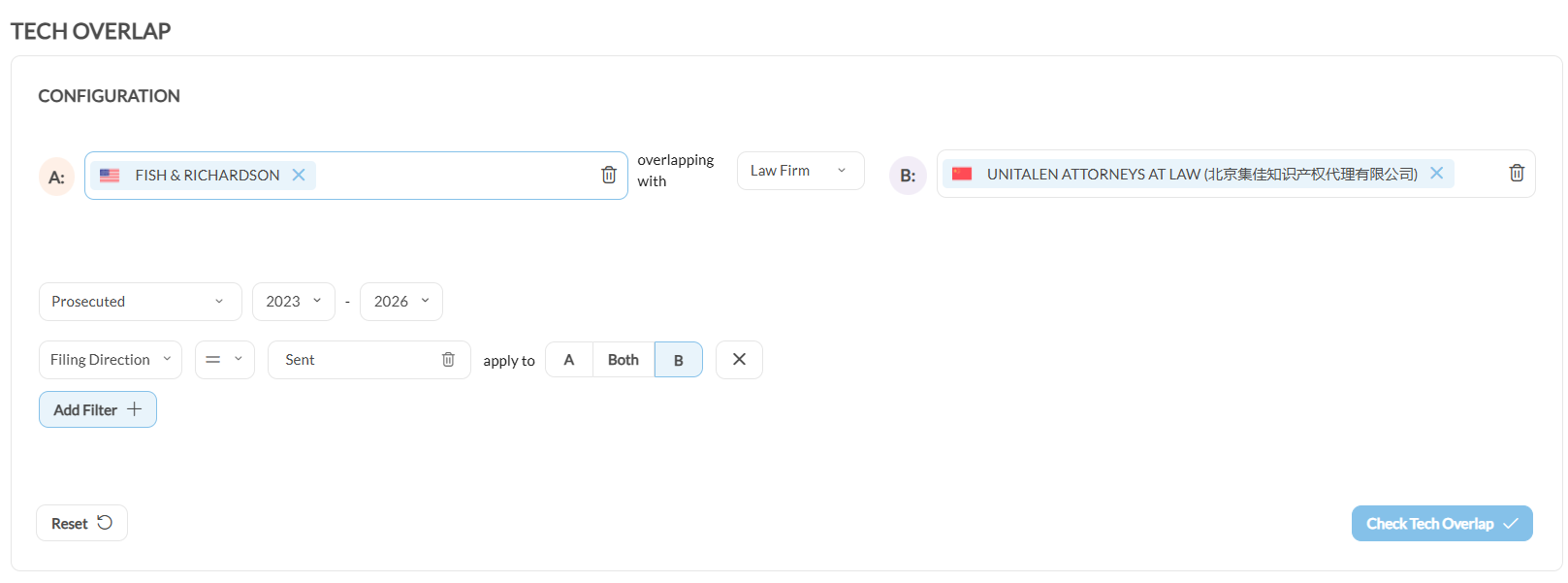
- 1Open Tech OverlapIn the left sidebar, expand Insights and click Tech Overlap. Check the IP / TM / PAT toggle is on IP or PAT.
- 2Fill A:Normally your own firm. The field takes several entities, and they are then analyzed as one combined portfolio.Note: This is how a merged firm, or a group of offices filing under different names, is modeled as a single side.
- 3Fill B:, and decide what you are askingAgainst a law firm, the question is where your technical coverage differs from theirs: a sending associate, a competitor, a merger candidate. Against an applicant, it becomes a different and often sharper question: if this company instructed us tomorrow, which of our existing clients already sit in their technology? Several entities combine here too.Note: B: is not optional. Check Tech Overlap stays disabled until both sides hold an entity, so there is no empty results page to land on.
- 4Add filters per sideEach filter carries an apply-to choice of A, Both or B. The filters are Publication Authority, Applicant Country, Filing Direction and Decision Maker.
- 5Click Check Tech OverlapThe results arrive as three panels, coarse to fine.
- 6Drill into a field or areaFilter to the Technical Field or Technical Area you care about, then read the overlap at IPC level inside it.
3. Read the results #
The page divides into three parts, from the coarsest comparison down to the clients behind it. Every column sorts, so the largest gaps can be brought to the top.
- Technical areas and fields: the coarse view, with a case count for each side and the difference between them.
- IPCS: the same comparison at IPC level, with an IPC 4 / IPC 8 toggle. IPC 4 groups at subclass level and IPC 8 breaks it down further, so a gap that looks small at IPC 4 can be a whole main group at IPC 8.
- Case Volume per Client: at the foot of the page, one Clients of block per side, listing the applicants that have filed with that entity.
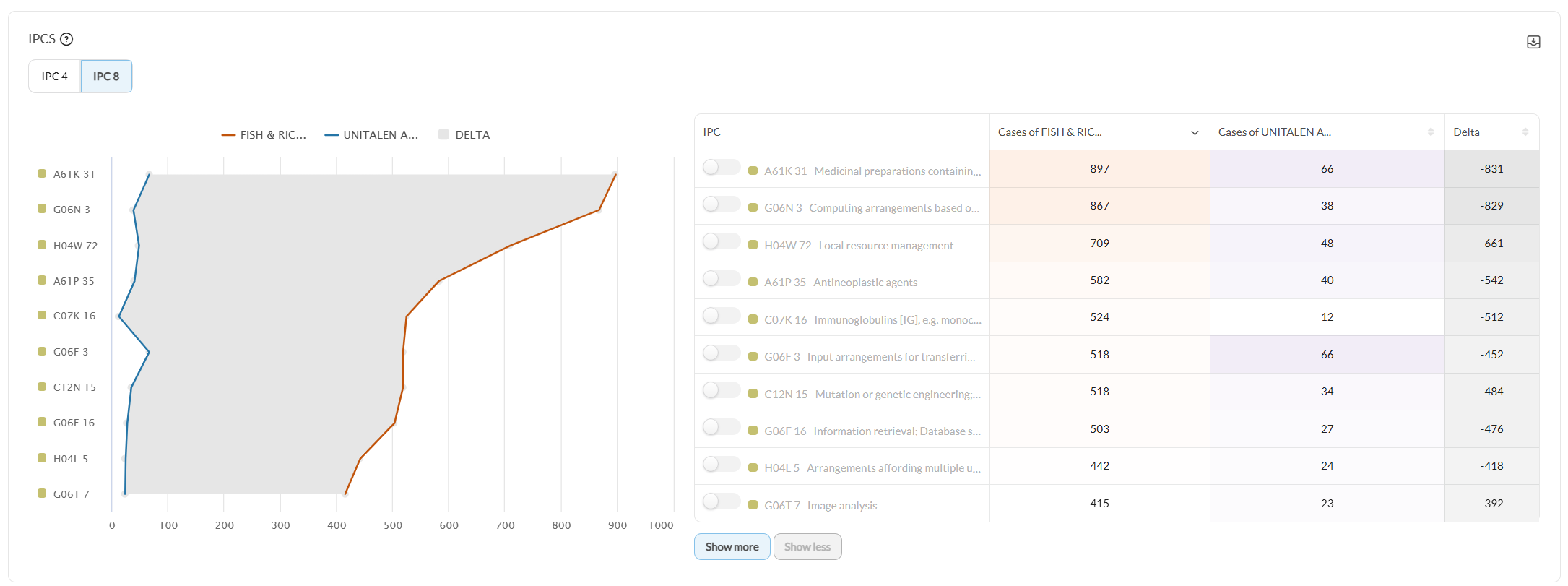
In the IPCS panel each row is one classification, with its description, a case count for each side and a Delta. Delta is the B: count minus the A: count, so a large negative number marks a technology where A: is far ahead and a large positive one marks a white spot for A:. The chart beside the table plots the same two series with the gap between them shaded. Sorting the A: case count ascending brings up the technologies where A: holds almost nothing and B: holds volume.
Case Volume per Client is where an overlap becomes a list of names. Each side’s clients are listed with a total and a column for each of the leading IPCs, so you can see not just that both firms work in a technology but which clients account for it on each side.
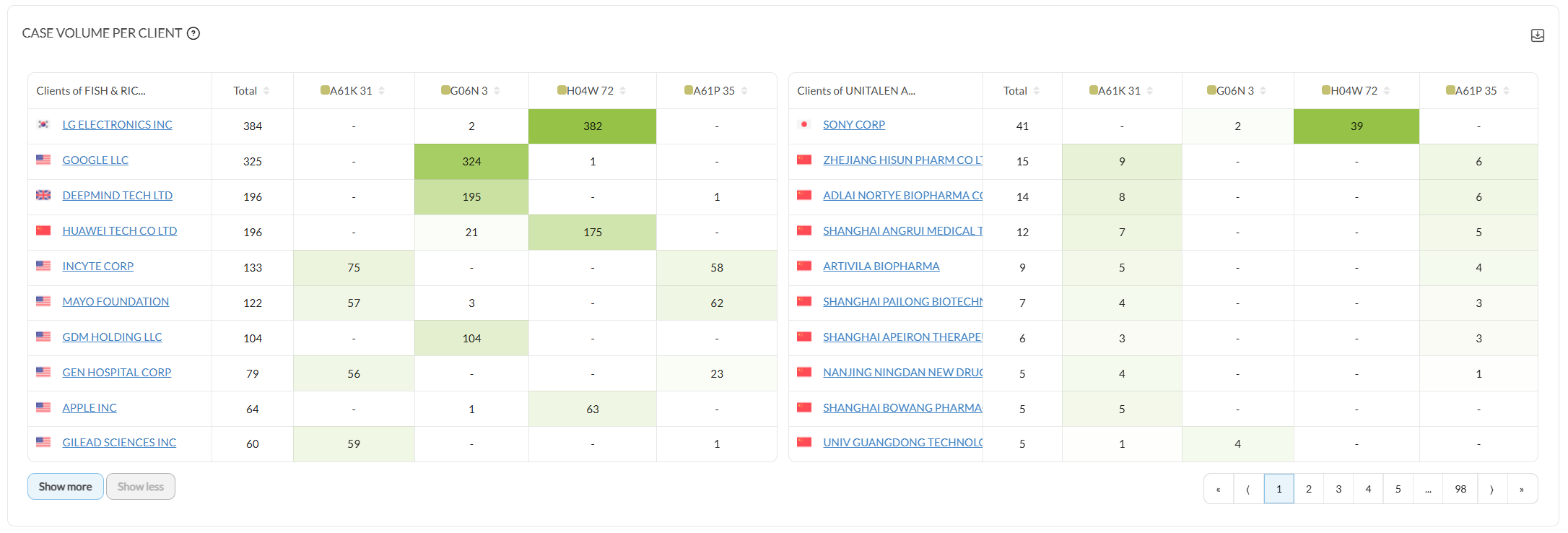
A screen, not a conflicts check. Putting two client lists in the same technology is where competitor conflicts actually sit, and it is the reason to look. But the same IPC is not a conflict, and nothing here marks a client that appears on both sides. Read it as a shortlist to review. Where you need the clients the two entities genuinely share, Network Overlap returns that intersection directly.
4. Constrain one side without the other #
On a profile, one control bar governs the whole page. Tech Overlap works differently: every filter is applied to A, Both or B, so one side can be narrowed while the other is left as it is. Navigating the App covers the filter mechanics, the year range and the sidebar.
- Publication Authority restricts a side to the authorities it published in, which is how both sides are brought onto the jurisdictions they share.
- Applicant Country restricts a side to the applicants of one country.
- Filing Direction limits a side to cases sent or cases received.
- Decision Maker narrows a side to the cases it placed itself rather than the cases its clients directed.
A filter on one side alone produces an impressive-looking gap that means nothing. Check that both sides carry the constraints the question needs before reading a Delta as meaningful.
5. Choose the year type #
Five year types are offered on this screen: Prosecuted, Published, Filed, Granted and Exchanged. The default is Prosecuted.
The choice changes what is being compared. Exchanged answers the question of referral work between the two sides. Prosecuted answers a different one: who was active in a technology, whether or not the work was exchanged.
6. Run Tech Overlap from a profile #
Law firm and applicant profiles carry an Insights tab holding a shortened Tech Overlap alongside Similar Entities and Network Overlap. The profile’s entity fills A: on its own, and the comparison field is pre-filled with that same entity, so the panel opens comparing the entity against itself and every Delta reads zero. Replace the pre-filled entity with the one you want to compare against.
The tab does not accept the per-side filters, so an analysis intended to be acted on belongs in the Insights section proper. See Law Firms or Applicants for the rest of the profile.
Good to know #
- The most recent work is not visible yet. Patent applications publish at 18 months from priority, so clients won in roughly the last year to 18 months do not appear. This applies equally to both sides, which makes it a blind spot in the data rather than a bias in either direction.
- A client here means the applicant on the published register. Advisory work, opinions and litigation-only instructions leave no filing, so a firm’s real client list is longer than the one shown.
- Nothing marks a client that appears on both sides. Compare the two blocks yourself, or run Network Overlap, which returns the shared clients directly.
- Both panels export. Each carries a download icon at top right, and longer client lists page rather than scroll.
Frequently Asked Questions #
Frequently Asked Questions #
Tech Overlap #
Why can I not see anything on Tech Overlap, even after adding an entity to compare against?
The usual cause is the module toggle: you are on TM and Tech Overlap only analyzes patents. Switch the side-menu toggle to PAT and run the analysis again.
If you are already on patents, check that you clicked Check Tech Overlap after setting both entities, and that your year range and per-entity filters are not so narrow that neither side has any cases left in them.
Does Tech Overlap work for trademarks?
No. Tech Overlap is built on the IPC-based technology classification, which exists only for patents. There is no trademark equivalent of the analysis.
Why do you count cases and not filings?
A case bundles all patent filings within the same patent family handled by the same agent. That makes case volume a much better proxy for the amount of work that could actually move between two entities than a raw filing count, which inflates a single family into several numbers.
What exactly is a white spot?
A technology where the two entities’ case volumes diverge most, which is the largest Delta between Entity A and Entity B. Tech Overlap reports at technical area, technical field and IPC level. The table opens sorted by Entity A’s case volume rather than by Delta, so sort on the Delta column to bring the largest gaps to the top.
A white spot is an opportunity, not a verdict. It tells you the volume exists somewhere you do not currently serve; whether it is winnable is a judgment you still have to make.
Can I limit the analysis to cases where Entity B chose the receiving agent?
Yes. Add the Decision Maker filter on Entity B’s side. The analysis then covers only the cases where that entity, rather than its client, decided where the work went. That is the volume it can actually redirect.
Decision maker values are predictions derived from pattern analysis across the dataset, so treat them as a strong indication rather than a documented fact, particularly for entities with small portfolios.
Can I compare more than one firm at a time?
Yes. Both Entity A and Entity B accept multiple entities, and each side is then treated as one combined portfolio. That is useful for comparing your own multi-office practice against a group of associates, or for modeling a merged firm as a single side.
If you want the entities kept apart and shown column by column instead of combined, use Compare Entities.
Where do the technical fields and areas come from?
From WIPO’s 2008 concept for technology classification. It aggregates related IPCs through a concordance table: every filing is associated with one or more of 35 technological fields, and each field belongs to one of 5 technical areas. Tech Overlap reports at all three levels: area, field, and the underlying IPC4 and IPC8 codes.
Should I use the Insights tab on a profile or the Insights section?
The Insights tab is an abbreviated version of the same analysis, convenient when you are already reading a profile. It takes the profile’s entity as Entity A and asks you only for the entity to compare against.
Use the Insights section when the result matters: it is the only place you can apply per-entity filters such as publication authority, filing direction or decision maker, which is usually what makes a Delta interpretable.
Does Tech Overlap tell me whether I have a conflict of interest?
No, and it should not be read that way. It shows where a conflict could plausibly arise: the applicants listed under your own column are clients you already act for in that technology, which is the population a conflict check needs to start from. The check itself remains yours to run.
Do I need Pro for Tech Overlap?
Yes. Tech Overlap is part of the Insights section, which is a Pro feature, and the shortened version on a profile’s Insights tab is Pro as well. Without Pro, neither is visible.