
Network Overlap finds the law firms and applicants that two entities both work with. Two entities go in, as A: and B:, and each row that comes back is a mutual entity with the volume it handles for each side.
It sits in the Insights section of the sidebar. Similar Entities ranks firms and applicants by a similarity score rather than by whom they share, and Tech Overlap compares technical fields rather than relationships. Navigating the App explains the sidebar, the year range, the year type and the filters.
Before you start #
Network Overlap is part of Insights, which carries a pro badge in the left sidebar. The shortened view on a profile’s Insights tab is gated the same way. Versions explains where to check which version you have.
1. Run a Network Overlap check #
- 1Open Network OverlapIn the left sidebar, expand Insights and click Network Overlap.
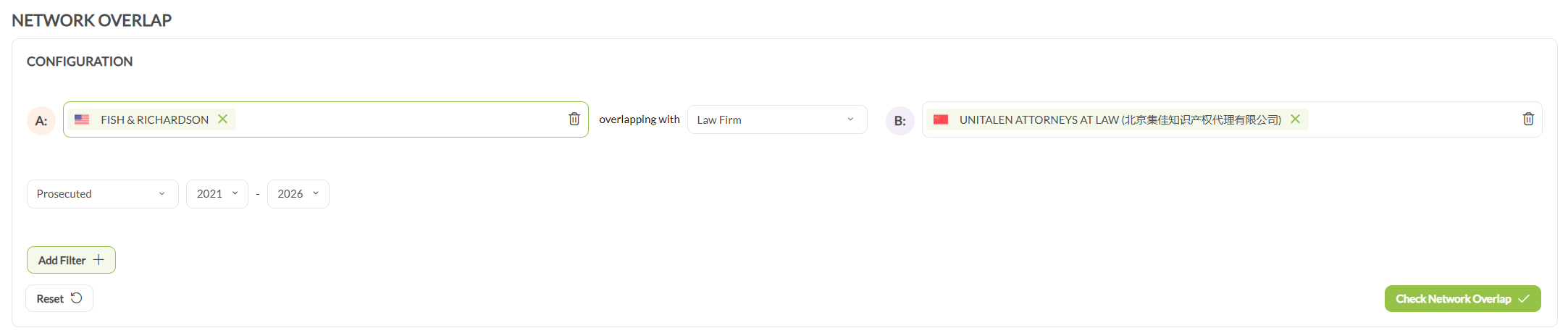
- 2Set the two sidesEnter one entity in A: and the other in B:. Either side takes a law firm or an applicant, and the two can be different types. Both fields hold more than one entity, each as a chip with an ×, which covers a firm operating under several names, or a group of offices you want to check against a single counterpart at once.
- 3Set the overlapping with dropdownBetween the two fields sits overlapping with, which takes Law Firm or Applicant.
- 4Set the period and add filtersThe year type and the from and to years sit below the entity fields. Use Add Filter to narrow the comparison, to a publication authority for example. Each filter applies to A, Both or B. Reset clears the configuration and starts again.Note: Run it unfiltered first. Filters shrink the pool the comparison draws on, and an overlap you have filtered out is easy to mistake for an overlap that does not exist.
- 5Run the checkClick Check Network Overlap. The button stays disabled until both A: and B: hold at least one entity.
2. Read the result #
The check returns two tables. NETWORK OVERLAP – PARTNERS lists the law firms both sides work with, and NETWORK OVERLAP – CLIENTS lists the applicants they share. Each row is one mutual entity, with the volume it handles for A: and the volume it handles for B:.
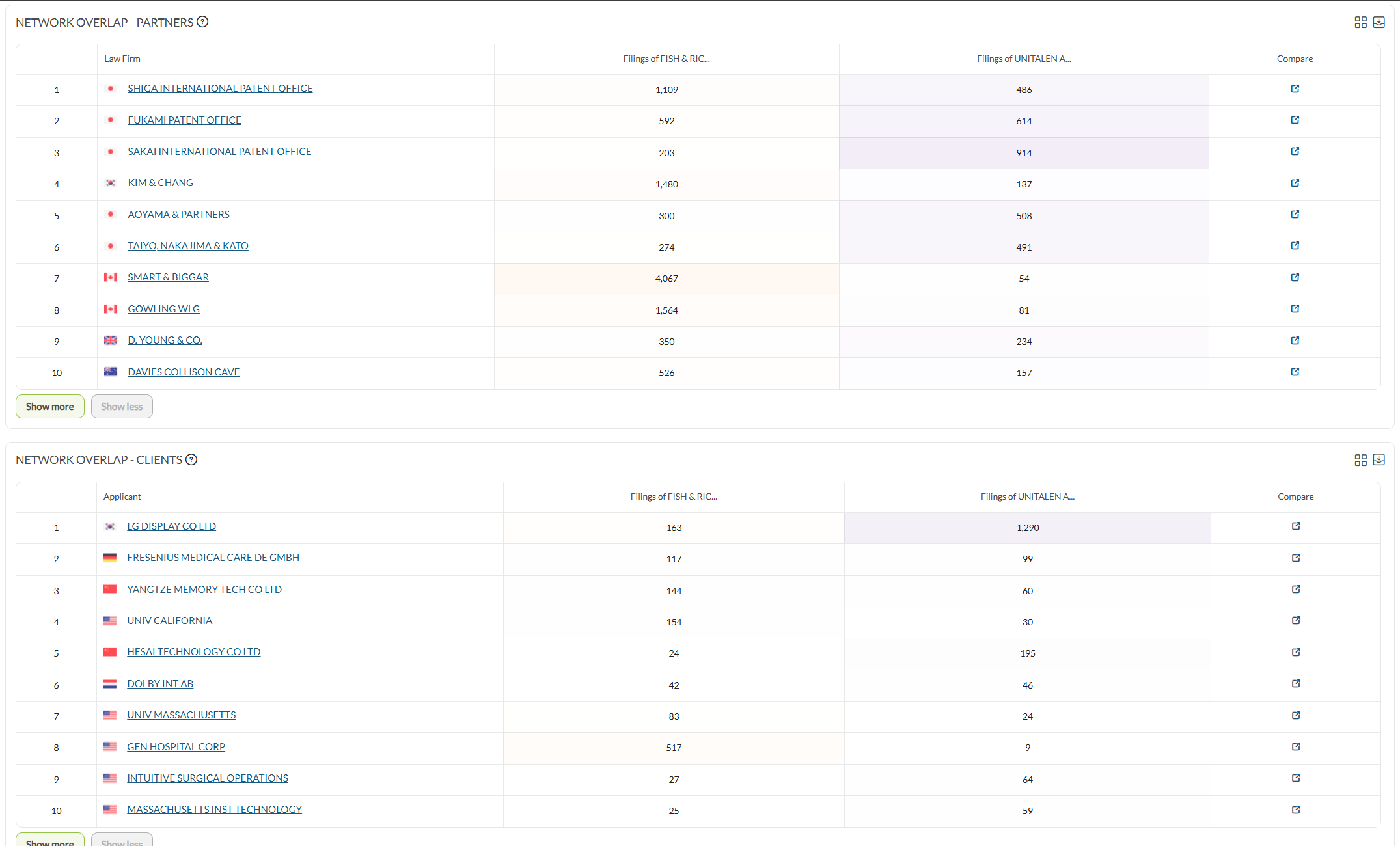
The default order is IP Pilot’s own ranking of the strongest shared ground rather than a total of the two columns, so the top row is not necessarily the largest by combined volume. Clicking a column header sorts by that side on its own. The two columns can diverge sharply: a mutual entity can handle a great deal for one side and very little for the other.
A mutual entity qualifies by working with both sides, which means appearing on filings for A and on filings for B. It is a representation relationship rather than a measure of cases exchanged between A and B.
Every row offers a Compare action for taking that entity into a fuller comparison. Compare Entities sets two entities side by side on their key similarities and differences.
An empty result is still a result. No mutual entities means there are none within the scope of the check. Before treating that as final, remove any filters, widen the year range, and check that the IP / TM / PAT toggle at the top of the sidebar is on the module you mean. Network Overlap works in the trademark module as well as patents.
Volume shows that a relationship exists, not what it is worth. The mutual entity’s own profile carries that: see Law Firms or Applicants.
3. Check an overlap from a profile #
A law firm or applicant profile runs the same analysis from its Insights tab, without a return to the Insights section of the sidebar.
- 1Open a profileLoad a law firm or an applicant from Analyze in the sidebar.
- 2Switch to the Insights tabChoose Network Overlap from the dropdown, which also offers Similar Entities and Tech Overlap.
- 3Name the other sideThe open profile is one side of the comparison. Use the … overlapping with search box to name the other, typing and picking from the suggestions.
The tab is the short version: the same two tables with fewer controls and fewer rows.
Filters do not reach this tab. The profile’s own filters are not applied to Insights previews, and the tab says so. To narrow a Network Overlap, open the feature from the Insights section of the sidebar and filter it there.
Good to know #
- Each table loads ten rows at a time in the full feature, and six on a profile’s Insights tab. Show more extends the list and Show less collapses it again.
- Each table carries two icons at top right, one to add it to a dashboard and one to download it, plus a ? beside its title.
- The two volume columns are headed with the entity names, shortened to fit. A long name is truncated, so check which side is which before reading across.
Frequently Asked Questions #
Frequently Asked Questions #
Network Overlap #
What does Network Overlap actually show me?
The entities that both sides of your comparison already work with: the partners and clients that Entity A and Entity B have in common. It is a relationship map, not a performance ranking: the list tells you who could speak for you, not who is the better firm.
Can I put more than one entity on each side?
Yes. Both the Entity A and Entity B fields accept several entities. This is useful when your firm operates under more than one name, or when you want to check a prospect against a group of offices at once.
A firm will not take a meeting with me. Can Network Overlap change that?
It gives you an alternative to cold outreach. Check the firm against your own and you will see which mutual partners or clients could open the door for you, whether that is an introduction before a business trip or simply a name to reference in your first email.
What is the difference between the Insights section and the Insights tab?
The Insights tab on a profile is an abbreviated version of the same analysis, there to save you steps when you already have a firm or applicant open. The Insights section gives you the full result, including constraints and filters. Start on the tab, move to the section when you need to narrow the comparison.
The result is empty. What went wrong?
Most often nothing. An empty result means the two entities have no partners or clients in common within the scope you set, which is itself a finding. It tells you there is no warm route in. Before concluding that, remove any constraints you added and widen the year range, since both narrow the pool the comparison draws on. Check too that you are in the right module: the IP / PAT / TM toggle in the side menu decides whether you are looking at patents, trademarks or both.
Do I need Pro to use Network Overlap?
Yes. Network Overlap sits in the Insights section and is a Pro feature, as is the Insights tab on law firm and applicant profiles where the preview version appears. If you cannot see Insights in the sidebar, your subscription does not include it.
How is the list of mutual entities ordered?
By IP Pilot’s own ranking of the strongest shared ground. That is not the two volume columns added together, so the top row is not necessarily the largest by combined volume. Clicking a column header re-orders by that side on its own, which is worth doing when what matters is how much work the mutual entity does for your prospect rather than for you.
How do I use Network Overlap when preparing a pitch?
Run the prospect against your own firm and you get the law firms you both already work with. Those contacts are worth approaching first: they can tell you what the prospect values, or refer you directly. That is usually a stronger opening than a description of your own credentials.