
Almost every screen in IP Pilot is built the same way: a sidebar on the left to choose what you are looking at, a control bar to set the time period and how filings are dated, and tabs to move between views of the same entity. The controls behave identically on every profile.
Before you start #
You need an IP Pilot account. What you can open depends on two separate things: your version, and which products your firm subscribes to. Versions explains where to check which one you have access to.
Where a feature needs Pro, the control carries a small green pro badge. The badge appears on sidebar items, on profile tabs and on individual panels inside a tab.
1. Find your way around the sidebar #
Everything in IP Pilot can be reached from the left. The sidebar stays in place on every screen.

| Item | What it holds |
|---|---|
| IP / TM / PAT | Switches between combined data, trademarks only and patents only. Sits at the top and stays there on every screen |
| Group applicants | A toggle. Combines a corporate group’s members into one applicant. See Entity Grouping |
| AutoPilot beta | The built-in assistant |
| Dashboards | Your saved bookmarks, notes, searches and charts. See Dashboards |
| Analyze | Law Firms, Applicants, People pro and Filings |
| Search | Opens directly. It has no submenu. See Search |
| Insights pro | Similar Entities, Network Overlap, Tech Overlap and Compare Entities |
| Tools pro | Excel Autofill |
| Support | Collapsible. See Contact & Training |
At the foot of the sidebar sit the language selector, a gear icon for Settings and Log Out. Settings is where you check your version, and where an administrator manages users. See Admin Settings.
2. Load an entity #
- 1Pick what you are analyzingExpand the relevant sidebar section and click the entity type, for example Analyze › Law Firms or Analyze › Applicants.
- 2Search by nameType the name. Each suggestion shows a checkbox, a country flag, the entity name and a Total: line giving its patent and trademark counts. Unconfirmed law firms is a section of its own below the suggestions.
- 3Tick your selectionSelect the checkbox next to each entity you want.
- 4Load the profileClick the green arrow. Several entities load as one combined profile covering all of them, labeled with the first name and a count of the rest.
3. Set the year type and range #
These options sit below the KPI bar, on the right. Reading left to right it holds the CRM button, the Export Profile icon, the year type dropdown, the year range, and the filter control with a count of how many filters are active.
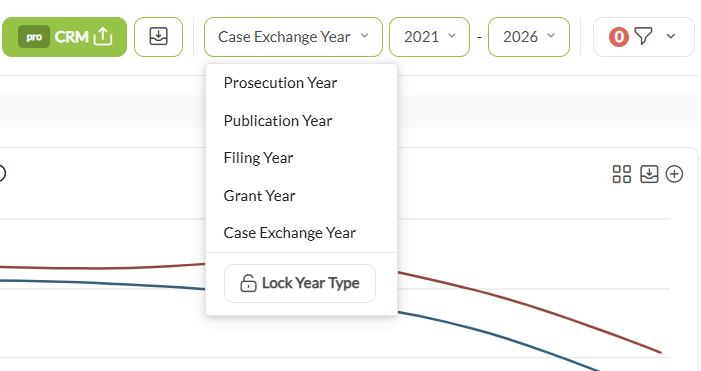
The year range is set with two dropdowns, a start year and an end year. Where data exists for only part of the range you choose, charts show only the years that actually have data rather than padding the rest with zeroes. If you wish to see the data for only one year, for example 2025, you should set the range to 2025 – 2025.
The year type decides how a filing is dated, and the choice changes the numbers. Three of the five come straight from the raw patent data. Two are ours, built to correct known distortions in it.
| Year type | Called this in Search and Insights | Dates a filing by | Use it for |
|---|---|---|---|
| Prosecution Year | Prosecuted | Ours. The filing date, or in case of regional and national entries of a PCT, the earliest publication date | Most work. It sits closest to when an attorney was genuinely working on the case |
| Publication Year | Published | The earliest publication date | Reconciling against a register or your own database |
| Filing Year | Filed | The date the application was originally submitted | Reconciling against a register or your own database |
| Grant Year | Granted | The earliest grant date. Granted applications only | Grant-stage work, and European validations |
| Case Exchange Year | Exchanged | Ours. The receiving firm’s prosecution date | Referral and case exchange analysis |
Why Prosecution Year is the default. The raw data backdates the regional and national entries of a PCT to the original PCT filing date, even though they are filed considerably later. That makes a firm’s work look like it happened years before it did. Prosecution Year uses the earliest publication date for those entries instead, which sits much closer to when the work was actually done.
IP Pilot picks the appropriate year type for each tab, so in normal use it does not need manual changes. Overview opens on Prosecution Year, Case Exchange on Case Exchange Year, and EP Validations on Grant Year. Switching tabs switches the year type with it.
Holding one year type across the tabs. Open the year-type dropdown and click Lock Year Type at the foot of it. Use it when a whole analysis has to be read on one basis, for instance when you are reconciling IP Pilot against your internal database.
4. Filter a profile #
Filters narrow a profile to part of its data: jurisdiction, technical field, type of filing and so on. Clicking on most charts applies a filter, and clicking an entry in the chart legend does the same thing.
Active filters appear as chips in the filter bar, below the tabs. Each chip names the field it filters, for example Publication Authority: WO or Country of Applicant: US, and carries an × to remove it.

- Include or exclude. Standard keeps only what you picked. Inverse keeps everything except it. The two buttons sit on the right of the filter bar, marked with an equals and a not-equals sign.
- One direction at a time. A standard and an inverse filter cannot both be applied to the same chart or table.
- Carrying filters between entities. Click Lock Filters, the padlock on the right of the filter bar. Close the profile, load the next entity, and the filters are still applied, which is what makes two firms genuinely comparable. The padlock appears only once at least one filter is active.
5. Move between the tabs #
A loaded profile is split across tabs. Which tabs appear depends on the entity and on your version.
| Tab | What it holds |
|---|---|
| Overview | Characteristics and filing behavior. Figures here count filings |
| Case Exchange | International relationships and referral flows. Figures here count cases |
| Filings | Bibliographic detail for individual filings |
| Insights pro | A preview of Similar Entities, Network Overlap and Tech Overlap for the loaded entity |
| EP Validations | European validation business. A separately priced data pack, and the tab appears only where it is active |
| About | Contact details, offices and the people at the entity. Parts of it need Pro |
| Custom View pro | An arrangement of charts you build yourself |
Why totals differ between tabs. Overview counts filings, Case Exchange counts cases. A case is every application within one patent or trademark family represented by the same agent, so a single case can span several filings. Case Exchange also counts only cases that were actually exchanged, excluding families that never left their priority jurisdiction. The two totals are not meant to match.
Individual attorneys can be reached two ways. The About tab of any profile carries a People panel listing the practitioners at that entity, and toggling a name filters the whole profile to their activity. Separately, Analyze › People opens a standalone profile for an individual, in the same way you open one for a firm. People covers both.
6. Keep or share what you have found #
- 1Bookmark an entity or a chartClick the bookmark icon next to the entity name to bookmark it, or the grid icon next to any chart or table to add it to a Dashboard.
- 2Add a noteClick the Add Note button in the top right corner of an entity name. Choose Personal to keep the note to yourself, or Organization to share it with everyone at your firm.
- 3Find them againOpen Dashboards and add a widget. The eight widgets are Profile Bookmarks, Search Bookmarks, Recent Searches, Agent Search, Applicant Search, Personal Notes, Organization Notes and Charts.
Dashboards covers building and arranging them.
Every entity profile link carries the current view with it, including the year range, the year type and any active filters. Send it to a colleague with an IP Pilot account and they open exactly what you were looking at, rather than a blank profile they have to reconfigure.
To export the data itself rather than just link to it, Exports covers every route: a single chart, a table of filings, a whole profile as a PDF, and bulk data for a list of entities.
Good to know #
- Patent figures for the current year look low. Patent data comes from published sources, and publication lags filing by a year or more. A low figure for the most recent year reflects that delay rather than a drop in activity. Trademark data has no such lag.
- The KPI bar does not always carry the same number of figures. It changes with the IP, TM and PAT mode, and with whether the entity has the EP Validations data pack.