
Similar Entities starts from one law firm or applicant and returns a ranked list of others that resemble it, each with a similarity percentage. What counts as resemblance is a set of named factors, and the weight given to each factor can be changed.
It answers two different questions with the same ranking. Looking outward, it suggests firms or applicants you could work with. Looking inward, it surfaces competitors you had not been watching, because a firm that files the way you do is competing for the same work.
The other Insights features answer neighboring questions: Network Overlap finds the partners and clients two entities share, Tech Overlap finds their technical overlap and white spots, and Compare Entities puts two entities side by side. Navigating the App explains the sidebar, the year range, the year type and the filters, which work the same way on every screen.
Before you start #
Similar Entities is part of Insights, which carries a pro badge in the left sidebar. The shortened view on a profile’s Insights tab is gated the same way. Versions explains where to check which version you have.
1. Run a search #
- 1Open Similar EntitiesIn the left sidebar, expand Insights and click Similar Entities.
- 2Choose the entity typeUse the Law Firms / Applicants toggle at the top of the screen. Set it before typing anything: it decides which set of factors the search uses.Note: One entity type per search. Law firms and applicants are scored on different factors and carry separate weights, so the toggle is what decides which apply.
- 3Enter your starting pointType the name of the entity you want to find matches for. The suggestions carry checkboxes and a Select all option, so several entities can be combined into one anchor. Each one you pick appears as a chip in the field, with an × to drop it again.
- 4Set the period and add filtersThe year type and the from and to years sit directly under the entity field. Use Add Filter to narrow the field before the search runs. Around 30 are available, including Publication Authority, Technical Field, Applicant Country, IPC Class, Nice Class, Filing Route and Grant Status.Note: Filters are optional. Left empty, the search returns similar entities from anywhere. Reset clears the configuration and starts again.
- 5Run the searchClick Find Similar Entities. The button stays disabled until an anchor entity is entered.
- 6Read the rankingResults are ordered by similarity, highest percentage first. Use the chevron on the Similarity Score header to expand the individual factor columns behind each total, which is where an entity’s position becomes explicable.
A thin anchor is a dead end, not a short list. At least four entities of one type are needed for a meaningful comparison. Below that, IP Pilot stops and says so instead of returning a ranking. Widen the year range or choose a larger anchor.
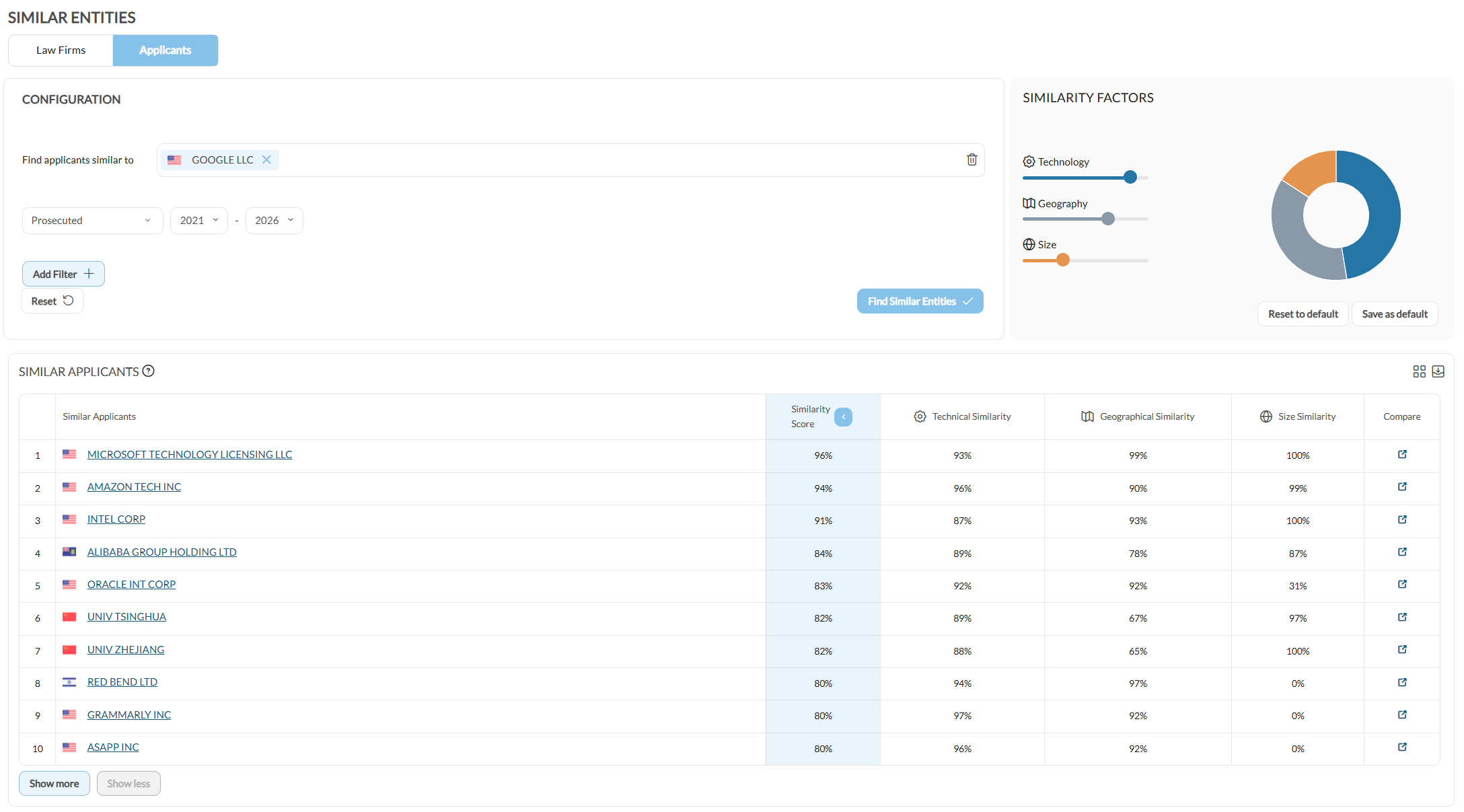
Similar Entities always works from an anchor entity. To set the criteria yourself and build a list from scratch, use Search instead.
2. Read the similarity score #
Which factors apply depends on the entity type. Each factor carries a weight, and the weights decide the order of the ranking.
The product names the factors in two places, and the wording shifts between them. The weight panel calls them Technology, Geography, Size and Type of Filing, while the expanded result columns add “Similarity” to each. They are the same four factors.
Law firms #
- Technical similarity: based on case volume per IPC.
- Geographical similarity: based on the countries of the firm’s clients.
- Size similarity: based on the volume of filings.
- Type of filing similarity: based on the share of domestic and foreign subsequent filings.
Applicants #
- Technical similarity: based on case volume per IPC.
- Geographical similarity: based on the publication authorities.
- Size similarity: based on the volume of filings.
An applicant therefore has three factors where a law firm has four, and Geographical similarity is derived differently for each: from the countries of a firm’s clients, and from an applicant’s publication authorities.
What a high percentage does and does not tell you. It says the two entities file in comparable ways: comparable fields at a comparable scale. It says nothing about quality, availability or conflicts. Treat the ranking as a shortlist to check, not a recommendation.
3. Adjust the weights #
The defaults are a workable general setting rather than the only sensible one. Raise technical similarity and lower size similarity, and the ranking rewards technical fit over scale.
The sliders sit in the Similarity Factors panel beside the results, with a ring chart showing how the weight is divided, so the ranking can be tested for how sensitive it is to them.
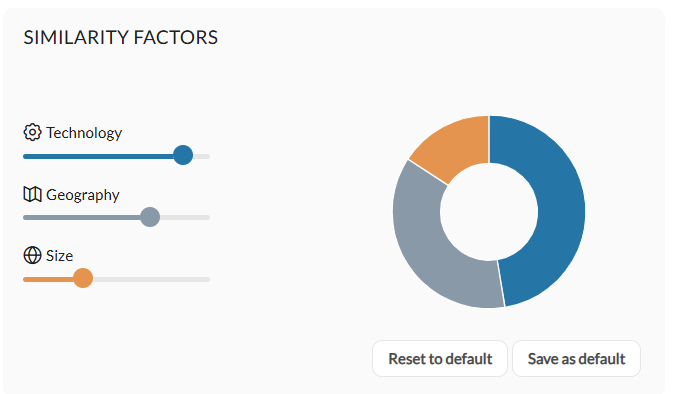
Two buttons sit at the foot of the panel. Save as default keeps your weights for future searches. Reset to default puts IP Pilot’s standard values back. Law firm similarity and applicant similarity keep their own separate sets, so changing one leaves the other alone.
The same weights can also be managed away from the feature. Open Settings at the bottom of the sidebar and go to Features. The Similar Entities block there holds Law Firm Similarity Factors and Applicant Similarity Factors, each with its own Reset to default, and one Save Changes for both.
4. Check similar entities from a profile #
A law firm or applicant profile carries a shortened Similar Entities view on its Insights tab, already loaded with the profile’s own entity, so the name does not have to be entered again. It shows two panels, Similar Entities – Same Country and Similar Entities – Any Country: the first restricts the matches to the entity’s own country, the second does not.
- 1Load a profileFrom the sidebar, open Analyze › Law Firms or Analyze › Applicants and load the entity. See Law Firms or Applicants.
- 2Open the Insights tabSwitch to Insights and choose Similar Entities from the dropdown, which also offers Network Overlap and Tech Overlap.
- 3Move to the full feature when you need moreFilters, weights and the factor breakdown live in the Insights section, and the tab links across to it.Note: The profile’s own filters do not reach the Insights previews, and the tab says so. Open the feature from the Insights section of the sidebar when you need to narrow the comparison.
Good to know #
- Results load ten at a time. Show more extends the list and Show less collapses it again.
- The result panel carries two icons at top right, one to add it to a dashboard and one to download it.
- The configuration panel has its own year type and year range, set independently of whatever profile you were looking at before.
Frequently Asked Questions #
Frequently Asked Questions #
Similar Entities #
Why do applicants have one factor fewer than law firms?
Type of filing similarity applies to law firms only. Geographical similarity is also derived differently for the two entity types: for a law firm it comes from the countries of its clients, for an applicant from the publication authorities it files in.
This is also why weights are kept separately for law firm similarity and applicant similarity. The two sets are not interchangeable.
Can I keep my preferred weights for every search?
Yes. Adjust the weights, then use Save as default at the foot of the Similarity Factors panel. They apply to your future searches instead of the standard values.
To go back, the same panel carries Reset to default. You can also do it away from the feature: open Settings at the bottom of the sidebar, go to Features, and use Reset to default for either law firm similarity or applicant similarity.
Which factors make up the similarity score?
It depends on the entity type. For law firms there are four factors: technical similarity, based on case volume per IPC; geographical similarity, based on the countries of the firm’s clients; size similarity, based on the volume of filings; and type of filing similarity, based on the share of domestic and foreign subsequent filings.
For applicants there are three: technical similarity, based on case volume per IPC; geographical similarity, based on the publication authorities; and size similarity, based on the volume of filings.
Each factor is scored on its own, and the weights you set decide how much each one contributes to the overall percentage.
I already have an associate firm I am happy with. How do I find comparable firms in the same country?
Use the firm you already work with as the starting point and constrain the search to the publication authority of that country. The result is a ranked list of firms whose filing profile resembles your current associate’s.
A conventional Search query can also produce candidate firms. The difference is that Similar Entities narrows the field for you by anchoring on a firm you already know works for you, rather than asking you to define the criteria yourself.
My team is strong in one technical field. How do I find applicants to pitch?
Anchor the search on an applicant that already reflects the work you want more of, constrain it to the relevant technical fields and publication authorities, and weight technical similarity higher than the other factors.
Before approaching anyone on the resulting list, run Tech Overlap between your firm and the candidate to check where potential conflicts of interest sit.
When should I use the Insights tab on a profile instead of the Similar Entities feature?
The Insights tab is a shortcut. If you are already looking at a firm or applicant profile, it gives you a quick preview of similar entities for that one entity without leaving the profile.
Use the full Similar Entities feature when you want to add constraints, adjust the weights or read the per-factor breakdown. The tab does not offer those.
I cannot see Similar Entities in my account. Why?
Similar Entities is part of the Insights section and is available on Pro only. The Insights tab preview on a profile is Pro only as well.
If your subscription does not include Pro, neither the feature nor the tab appears. Contact us if you would like access.
Can several firms be used as the anchor for one search?
Yes. Several law firms, or several applicants, can be entered together, and the ranked list is calculated against that combined anchor rather than against a single entity.
Keep the anchor within one entity type: a search is either about law firms or about applicants.