
Compare Entities shows up to four law firms or applicants side by side in one set of charts. You do not have to load one profile, note the numbers and then load the next. Each entity or group has its own column. By default, all columns use the same year range and the same filters. For example, you can compare your firm with a competitor on the same technical fields and the same jurisdictions.
For a single entity on its own, see Law Firms or Applicants. Similar Entities suggests entities to compare, starting from one firm.
Compare Entities vs. a combined profile. If you select several firms in the Law Firms or Applicants name search, you get one combined profile. It treats them as a single entity and adds their filings, partners and clients together. Compare Entities does the opposite. Each slot keeps its own column, and the charts show the slots side by side. Use the name search for the total of a group. Use Compare Entities for the differences.
1. Set up a comparison #
- 1Open Compare EntitiesIn the left sidebar, expand Insights and click Compare Entities.Note: Compare Entities is available on Pro.
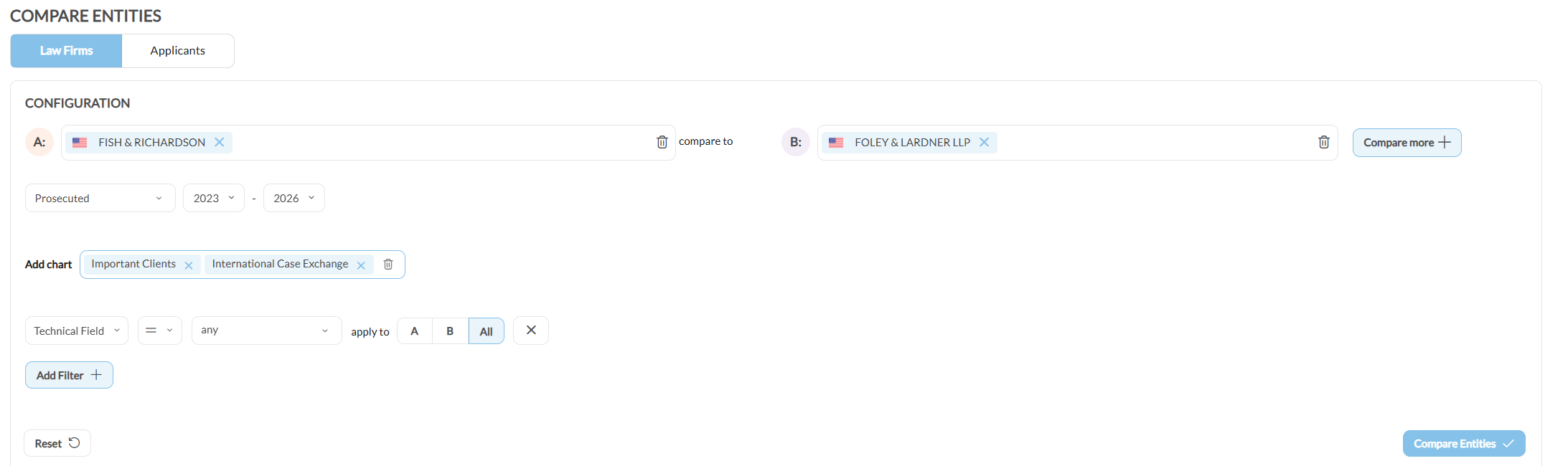
- 2Choose the entity typeSelect Law Firms or Applicants. A comparison covers one entity type, because the available charts are different for each type.
- 3Fill the comparison slotsEnter a name in slot A and a name in slot B. Only these two slots show at first. Click Compare more to add slot C, and click it again to add slot D. The button then disappears, because four slots is the maximum.Note: A slot can hold more than one entity. IP Pilot combines the entities in a slot into one column. This is how a firm’s own offices show as one column next to a competitor. An Aggregation note shows under each slot that holds more than one entity. See Entity Grouping.
- 4Select the chartsSelect the charts for the comparison. Each selected chart shows all the slots together.Note: You must select at least one chart. The run button stays disabled until you do, even when all slots are filled. Each chart also has its own year type dropdown. It overrides the global year type for that chart.
- 5Add any filtersAdd the filters that the analysis needs, for example a publication authority, a technical field or a filing type. Each filter has a scope, which section 3 explains.
- 6Run the comparisonClick Compare Entities. The setup stays above the results. To run the comparison again, change a slot, a chart or a filter and click the button again.
2. Choose the charts to compare #
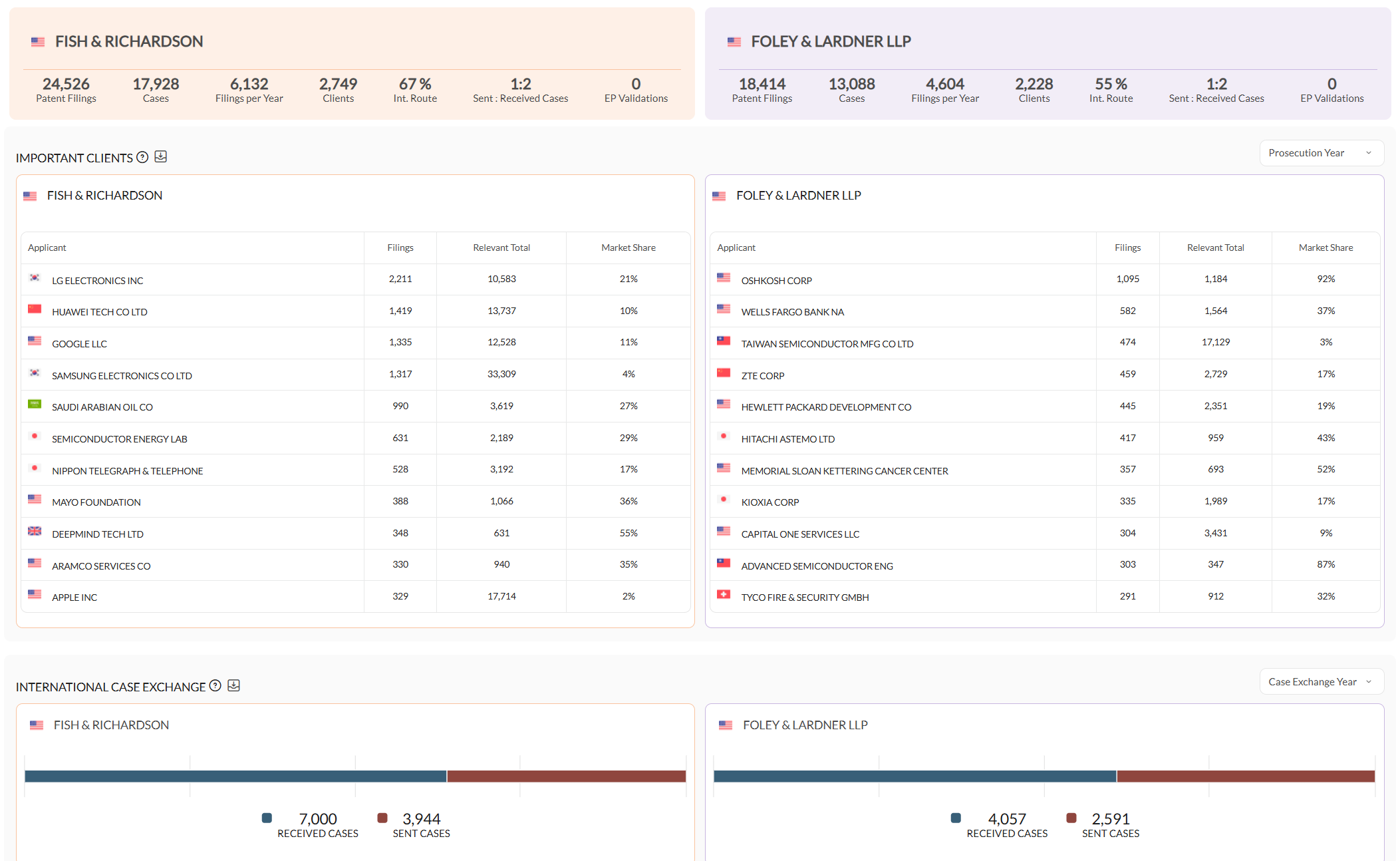
The charts you select decide what the comparison measures. Each chart shows every slot as a separate series.
| Charts | What they compare |
|---|---|
| Grant Status, Client’s Country, Technical Areas & Fields | What each entity works on, and where its clients are |
| International Case Exchange, Important Partners | The cases each entity exchanges across borders, and with whom |
| About Charts: Contact Details, Offices, People | Reference information about each entity, not a measure of its filing activity |
3. Keep the comparison fair #
The year range, the year type and the filters work as they do everywhere else in IP Pilot. Navigating the App explains them. Two things are specific to this screen.
Each filter has its own scope. It can apply to All slots, which is the default, or to one slot: A, B, C or D. Keep the scope on All for a fair comparison. A filter scoped to one slot changes what that column counts and leaves the other columns as they were. The columns are then no longer measured on the same basis.
Check the scopes before you trust a gap. A filter scoped to one slot can change that column by an order of magnitude while the other columns stay the same. If two columns are very far apart, check the filter scopes before you treat the gap as a real difference.
Lock Filters does not apply here. It keeps filters in place when you load one profile after another. A comparison already shows all its entities in one view.
4. Compare more than four entities #
Compare Entities is for a small number of entities on screen. For the same data points on 30 firms or 300, use Excel Autofill. It takes a list of up to 1,000 entities and returns one spreadsheet.
5. Export and share a comparison #
You export a comparison one chart at a time. Each chart has an icon (Export Comparison) that opens a short menu: Download as JPG, Download as SVG, Download as PDF and Download as XLSX. The menu has no Header, Footer, Entity context or Legend options, so the download starts immediately. Exports explains the other export controls. For the numbers on many entities in one file, use Excel Autofill.
IP Pilot does not save a comparison. The page link holds the whole setup: the entities, the selected charts, the year range and year type, and the filters. Keep the link to open the comparison again as it was. A colleague with an IP Pilot account can open it too. Without the link, you must build the setup again.
Frequently Asked Questions #
Frequently Asked Questions #
Compare Entities #
How many entities can I compare at once?
Four. The comparison has slots A, B, C and D; A and B are the minimum, C and D are optional.
Each slot also accepts more than one entity. IP Pilot combines the entities in a slot into one column. This is how you compare a group of offices against a single competitor.
Can I compare a law firm against an applicant?
No. A comparison covers one entity type at a time: law firms with law firms, or applicants with applicants. The charts available differ between the two, so a mixed comparison would not line up column for column.
To look at the relationship between a firm and an applicant rather than compare them, use Network Overlap or Tech Overlap.
How does Compare Entities differ from selecting several entities in the name search?
Ticking several firms or applicants in the name search returns one profile that treats them as a single entity, with their filings, partners and clients added together.
Compare Entities keeps them separate. Each entity gets its own column in the charts, so you see how they differ rather than what they add up to.
Use the name search when you want the combined picture of a group of offices or subsidiaries. Use Compare Entities when the differences are the point.
Can I compare groups of entities rather than single firms?
Yes. A slot accepts several entities at once and combines them into that one column. That is how you compare a law firm’s offices in different countries against a competitor: tick each office in the name search, all into the same slot.
For applicants there is a second way. Entity Grouping resolves a corporate group into its member applicants, and a slot accepts a group in the same way as a single entity. Entity Grouping applies to applicants only. For law firms, put each office in the same slot.
Which charts should I use to compare our firm against a competitor?
Start with Grant Status, Client’s Country, Technical Areas & Fields, International Case Exchange and Important Partners. Together they show where two portfolios differ: what the firms work on, where their clients are, and who they exchange work with.
This is usually enough to see how the firms’ business development strategies differ, and where to position your own offering.
I have two prospects and want to know which one files more into my jurisdiction. How do I check that?
Put one prospect in each slot, filter the comparison to your own publication authority, and compare filing volume. Because the filter applies to both entities at once, the two columns are directly comparable.
Once you have chosen which to prioritize, the About tab of that entity’s profile gives you the reference information to plan an approach.
I need the same data points for thirty firms, not four. What should I use?
Use Excel Autofill. It takes a list of up to 1,000 law firms, applicants or people and returns the same chosen data points for every one of them in a single spreadsheet.
Compare Entities is built for reading a handful of entities against each other on screen. For a long list, Excel Autofill is the right tool.
Why can I not see Compare Entities in the sidebar?
Compare Entities sits in the Insights section, which is available on Pro only. Without Pro, the section is not shown at all.
Your firm’s admin can confirm whether Pro is active on your subscription.