
Two ways to see where a relationship or a market position is being eroded, before it shows up in the numbers.
In this document
- Identify which firms a foreign law firm partners with, and their top clients, to see who else is receiving work you might expect.
- Understand how the local IP industry and your competitors are performing, to benchmark the firm against its market.
Related, but covered elsewhere
- Increasing the volume from a partner you already have is in Grow further.
- Running the same checks on a firm you do not work with yet is in Build partnerships.
- The mirror image, spotting applicants whose work is split and therefore winnable, is in Win clients. The same pattern that marks an opportunity there marks a risk here.
- Taking any of this into a conversation is in Prepare for meetings.
1. Identify which firms a foreign law firm partners with, and their top clients #
This shows which local firms a foreign law firm sends cases to in your jurisdiction, and which clients sit behind those referrals.
Open the firm’s profile #
- Click Analyze in the sidebar, then Law Firms.
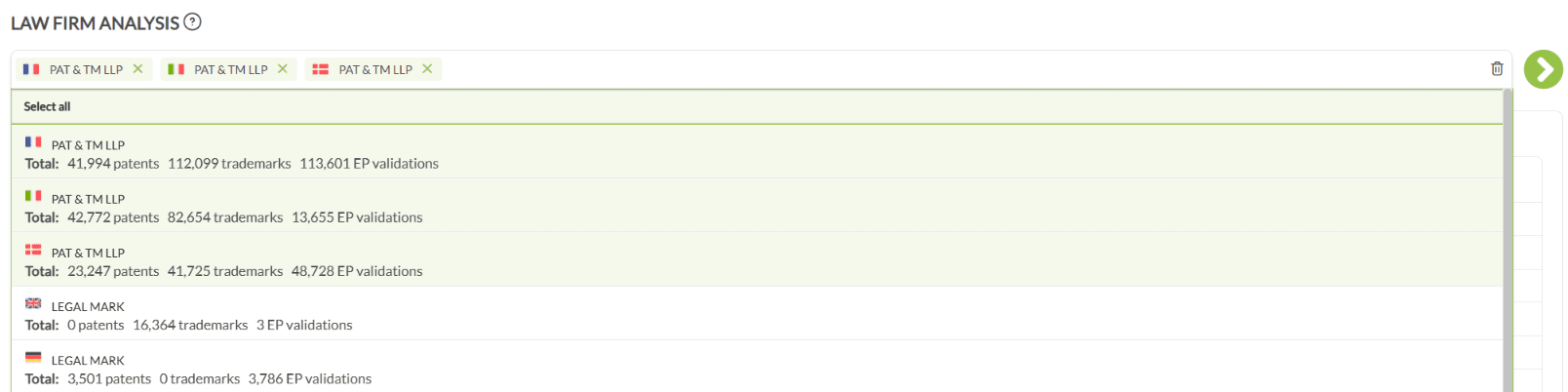
- Type the foreign firm’s name. Where it has several entities, one or more can be selected and viewed together.
- If it is not near the top, scroll to the bottom and check Unconfirmed law firms.
- Open the profile with the icon on the right.

Set the scope on Case Exchange #
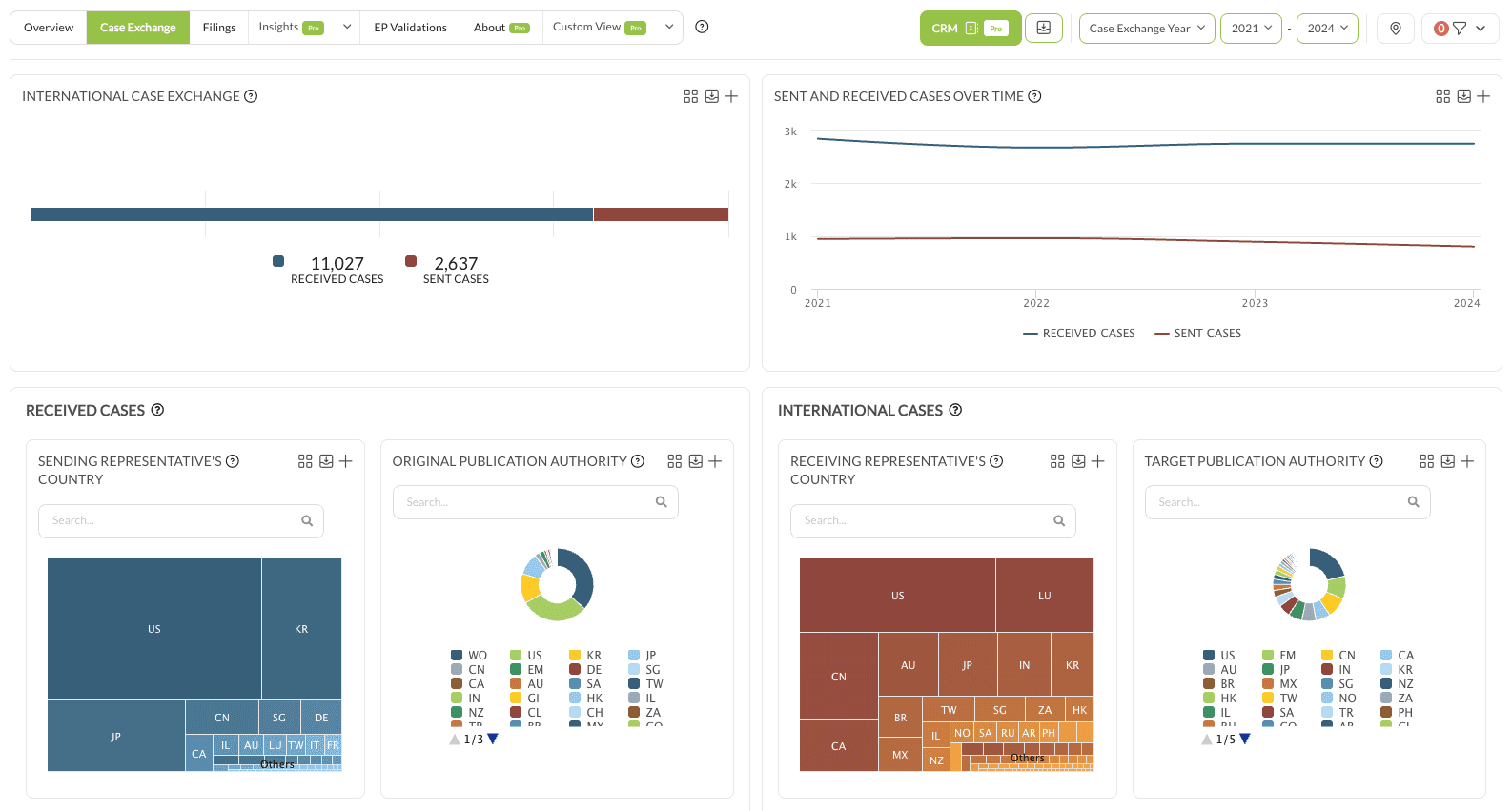
The profile opens on Overview. Switch to the Case Exchange tab, set the year type to Case Exchange Year, and choose a period. For patents, avoid the latest year.
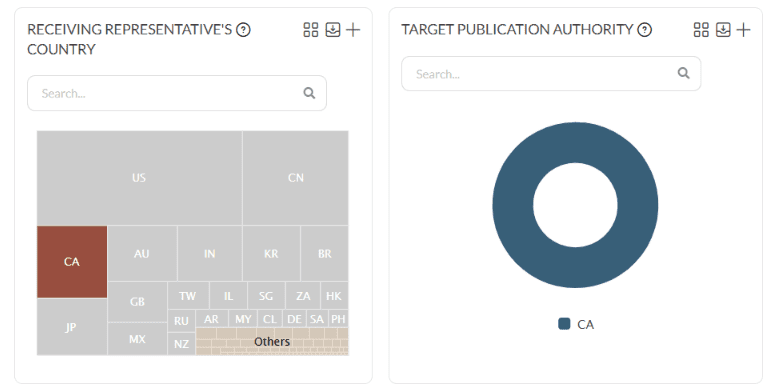
Then decide how to select the receiving firms, because the two options answer different questions:
- Target Publication Authority selects by where the cases are filed, for instance EP, WO or US.
- Receiving Representative’s Country selects by where the receiving firm is located.
Both charts have a search box above them for finding an authority or country directly.

Read Important Partners #
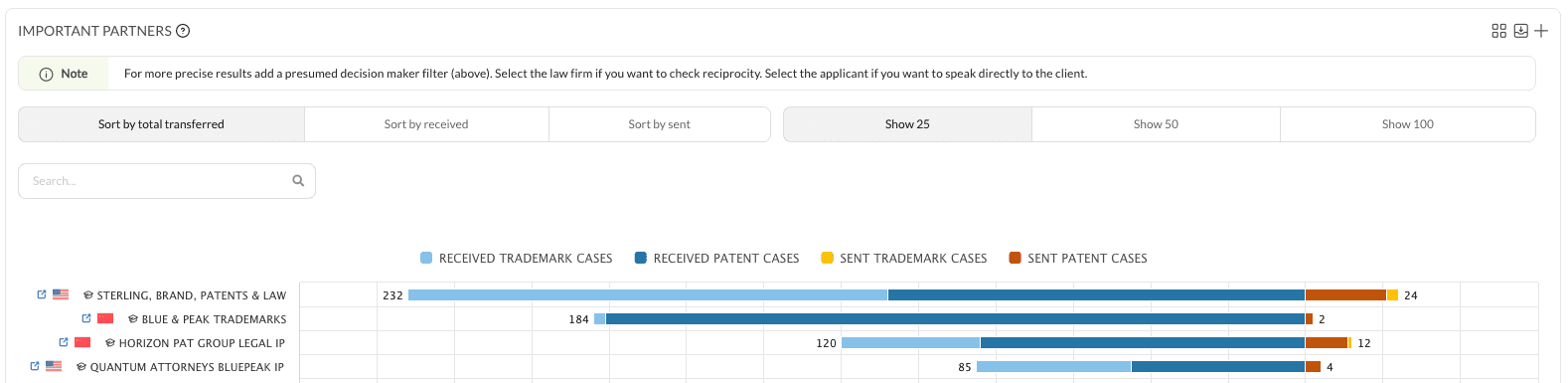
Important Partners lists the firms that have received cases from this firm, with the number exchanged. By default it counts both sent and received cases, and it does not say who chose the partner.
Separate the firm’s own choices #
Who decided which firm handled the case is the difference between a partner the foreign firm chose and one the client imposed. In the Presumed Decision Maker charts further up the Case Exchange tab, select Law Firm. The data then covers only cases where the firm itself was the presumed decision maker, which is the set worth acting on.

See the clients behind the referrals #
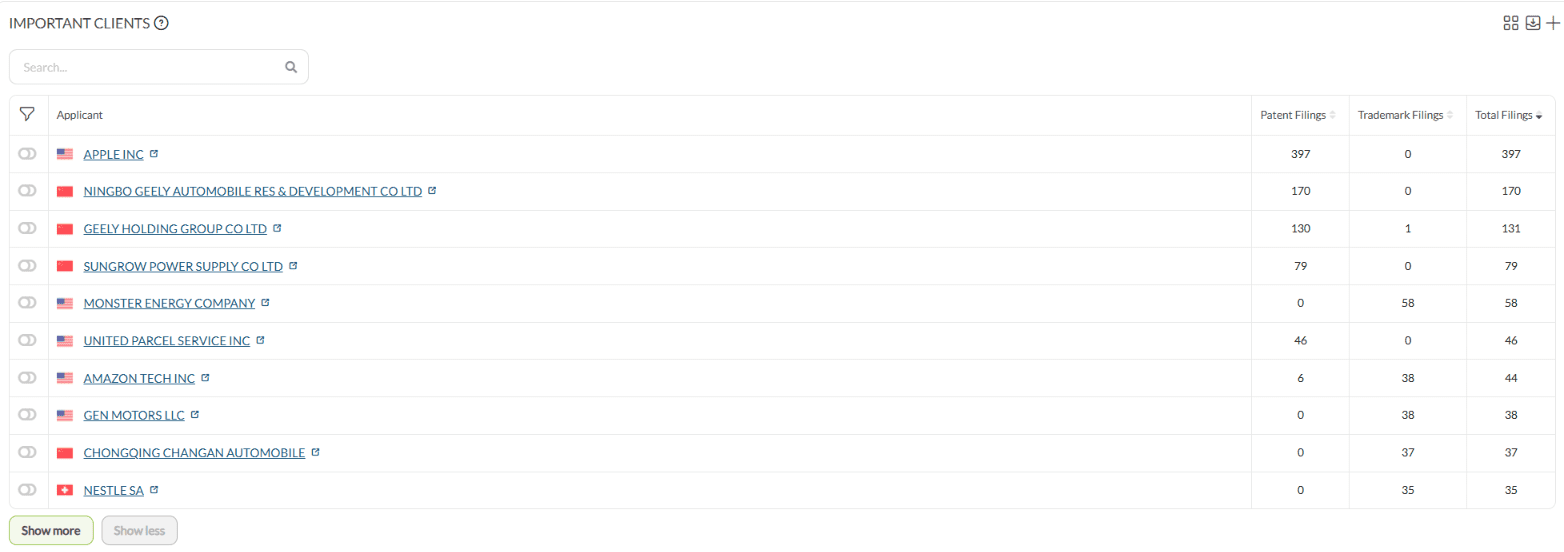
Back on the Overview tab, the Important Clients chart shows the applicants for whom the foreign firm has sent cases into your jurisdiction.
Practical notes #
- Where a firm has several entities, look at them individually and together. The combined view can hide that one office holds the whole relationship.
2. Understand how the local IP industry and your competitors are performing #
Two levels: the market in your jurisdiction as a whole, then named competitors within it.
Analyze the local market #
- Click Search in the sidebar.
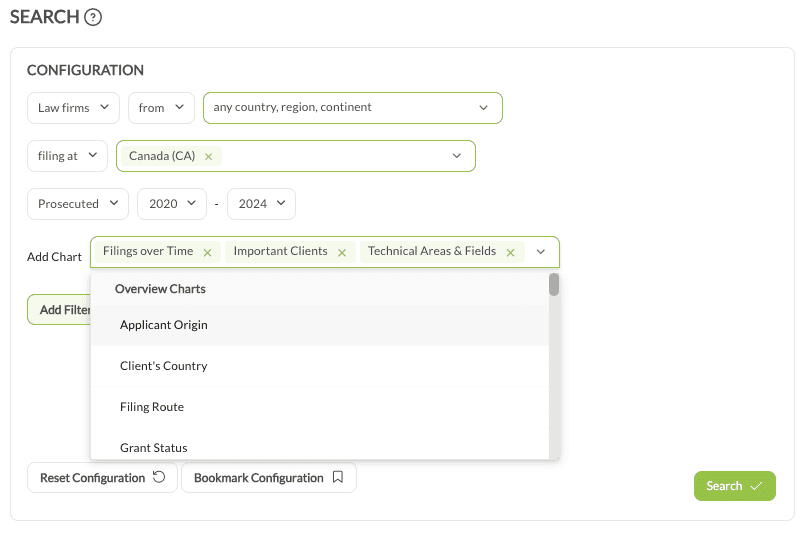
- Set the first input to Law firms, from any country or region, which keeps every player in scope.
- Set filing at to your own publication authority.
- Set the year type to Prosecuted and choose a multi-year range, for example 2020 to 2024. For patents, avoid the current year.
Charts worth adding:
- Filings Over Time: the filing trend in your jurisdiction.
- Important Clients: the clients these firms represent, and the volumes.
- Technical Areas & Fields: where those firms are filing.
Results return up to 1,000 firms across up to 10 pages. The export produces an Excel file with the firm list and totals on sheet 1, and one further sheet per added chart.
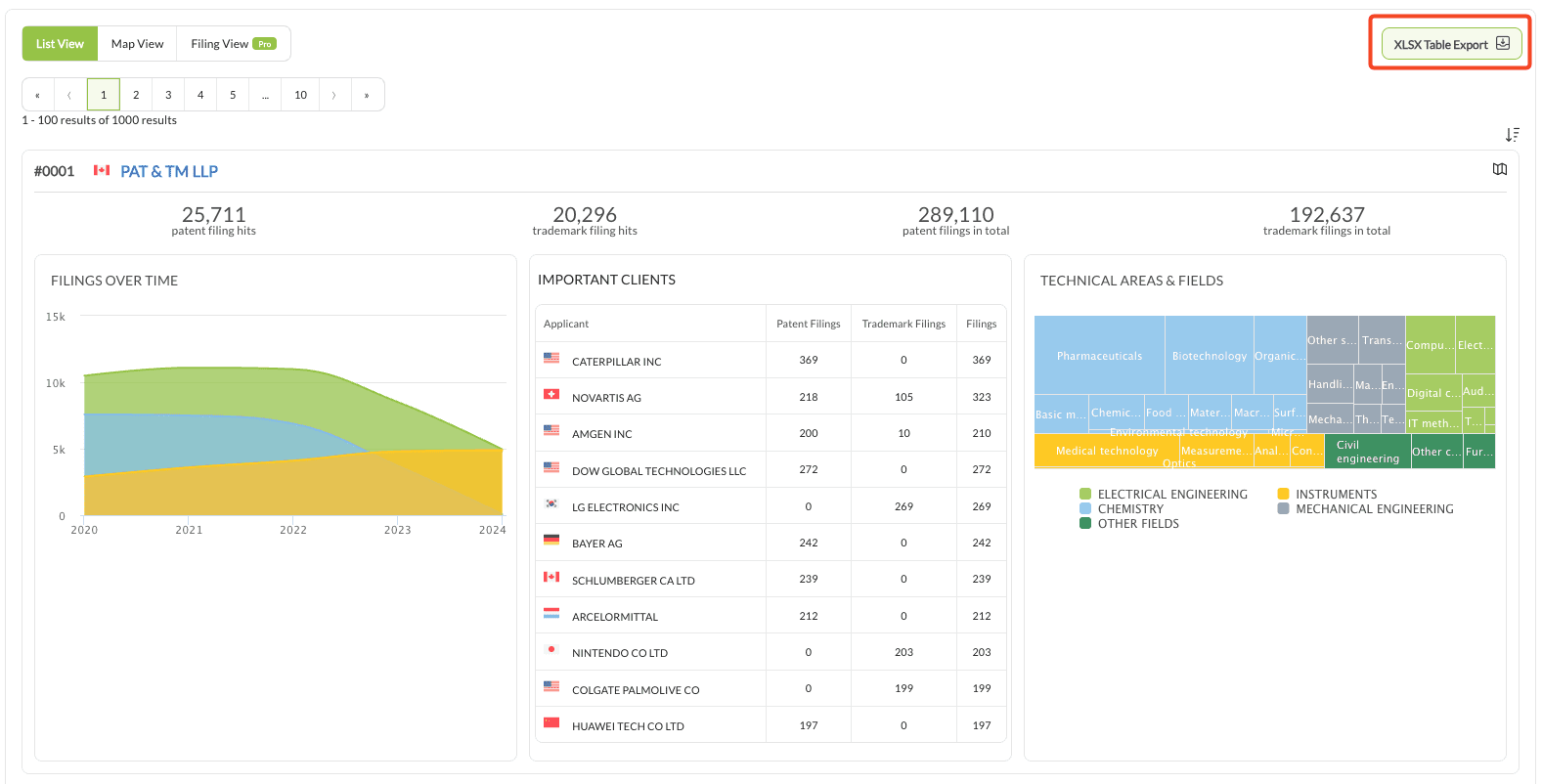
In the export, pivot tables show year-on-year filing trends, which firms and clients drive the volume, and which technical areas are growing.
Analyze named competitors #
Open each competitor under Analyze › Law Firms, selecting the relevant entities where there are several.
- Overview shows their local filing strategy.
- Case Exchange shows their balance of sent against received cases, their partner mix, and whether they lean heavily on particular foreign associates.
A heavy received volume with little sent is worth noting: it can mark a firm whose partners are under-served and open to a change.
Doing it at scale #
Both options below need Pro.
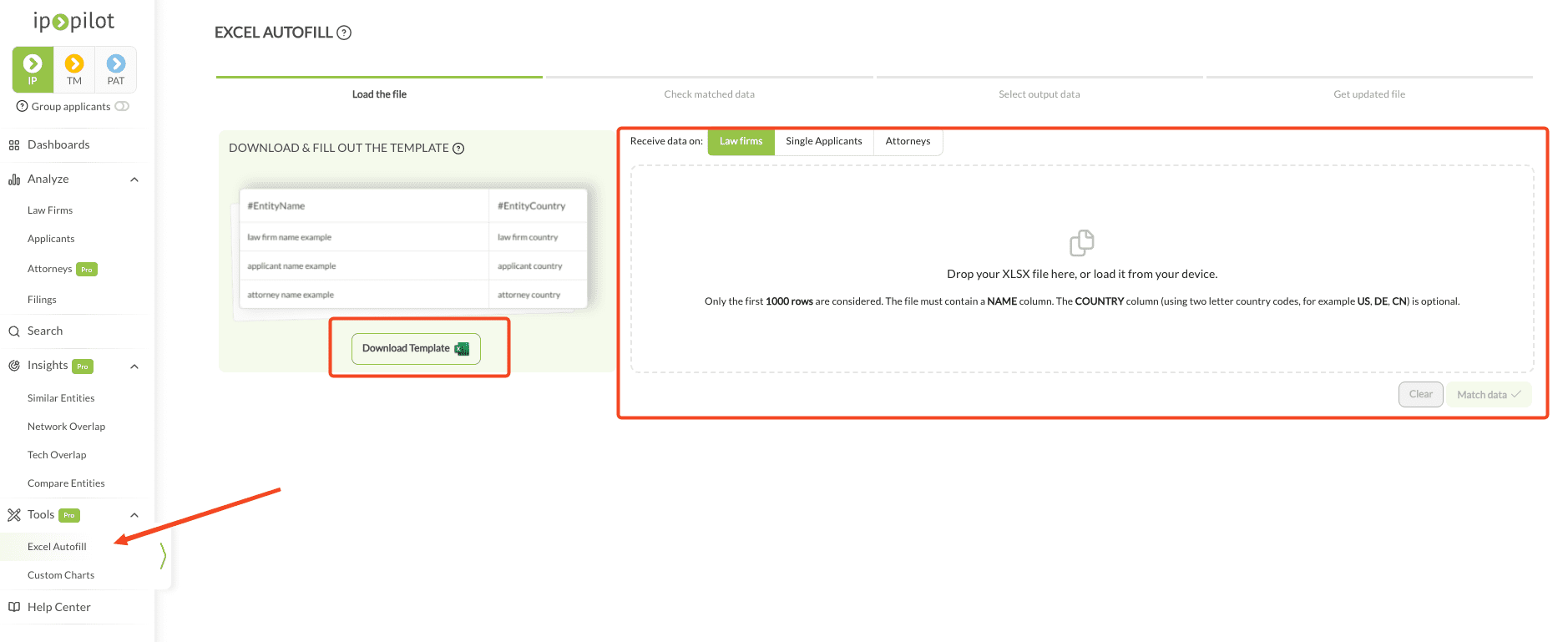
Excel Autofill takes a list of competitor names, for instance from the search export above, and returns the selected charts and time ranges for all of them in one file rather than profile by profile.
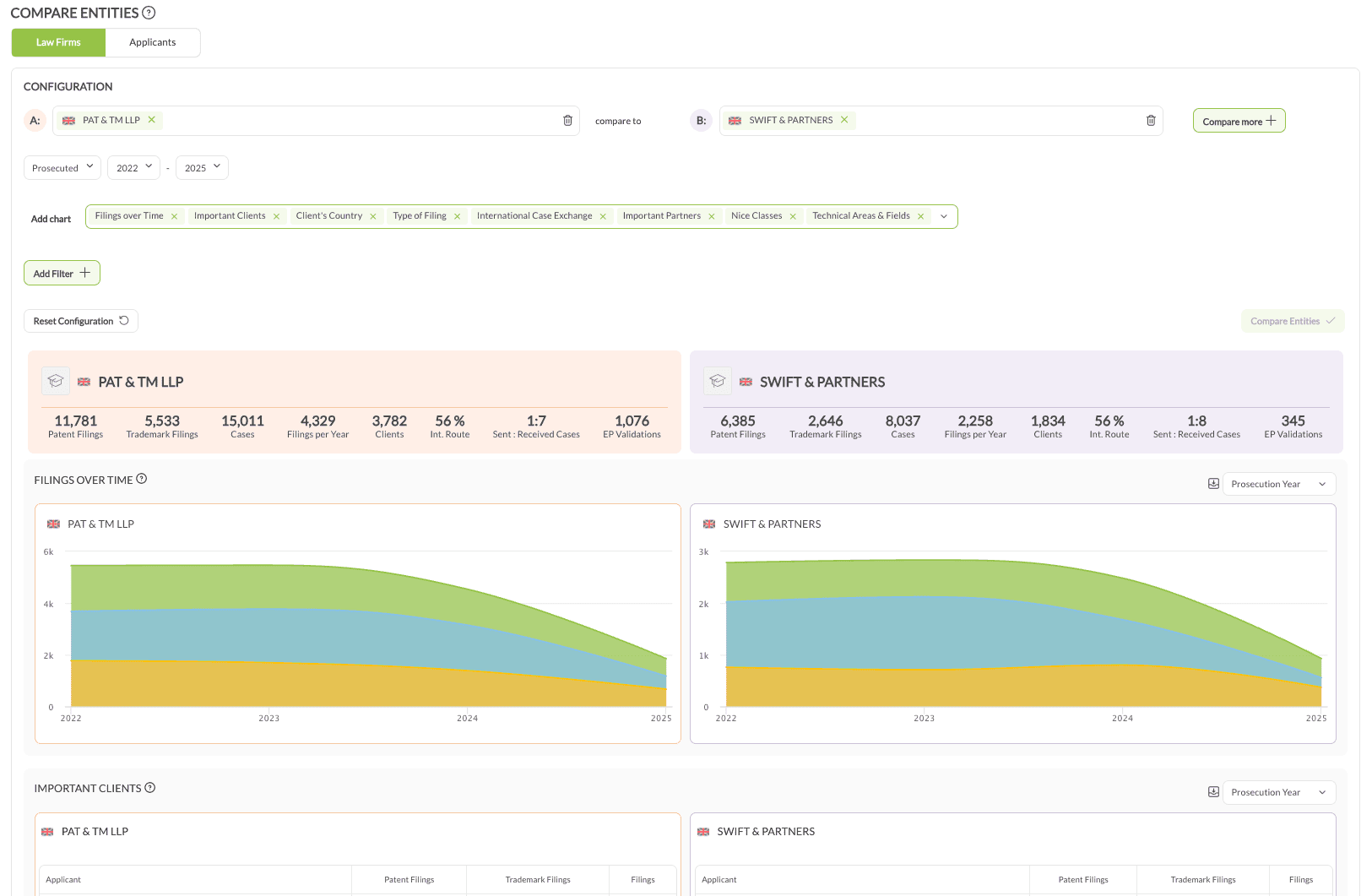
Compare Entities, under Insights, puts your own firm and up to three competitors side by side on filings over time, client bases and technical areas in a single view.
Without Pro, the same comparison can be done by opening each profile in a separate tab and reading the same charts.
Practical notes #
- Three to five complete years shows a trend. Shorter windows show noise, and for patents the current year is incomplete.
- Re-running the same query quarterly is what turns it from a snapshot into a watch on shifting clients, partners and technology focus.