
Three ways to decide where the next effort should go: which technology, which country, and which existing partner has more to give.
In this document
- Discover emerging technical areas to pursue in your jurisdiction.
- Discover which jurisdictions to focus on to increase inbound work.
- Discover ways to get more work from a foreign law firm, by finding what they send to other firms instead of yours.
Related, but covered elsewhere
- Once a jurisdiction is chosen, finding firms there is in Build partnerships.
- Once a technical area is chosen, building an applicant list in it is in Win clients.
- Benchmarking the firm against its local market is in Defend relationships.
- Turning any of this into an agenda for a trip is in Prepare for meetings.
1. Discover emerging technical areas to pursue in your jurisdiction #
This identifies the technical areas, or Nice classes for trademarks, that are gaining momentum in your jurisdiction. Most of the analysis happens in the export rather than on screen.
Pick the right module first #
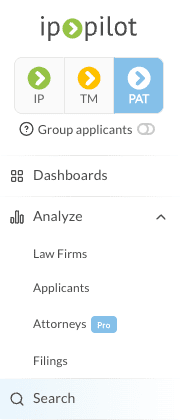
At the top of the sidebar, choose PAT for technical areas or TM for Nice classes, then click Search. The module decides which of the two you can analyze, so it has to be set before the query.
Set up the search #
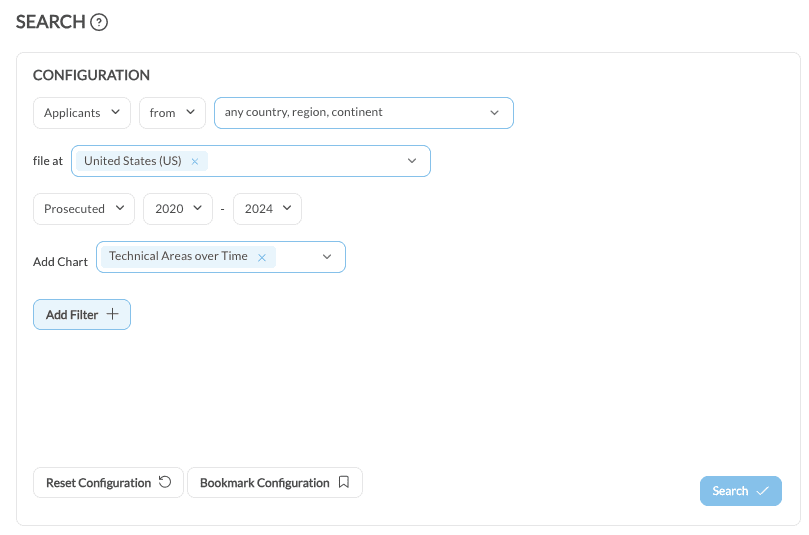
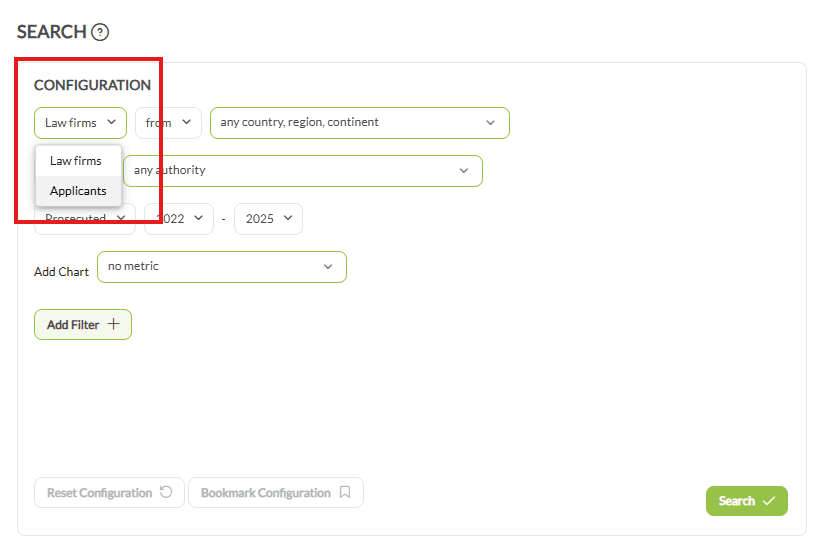
- In the first input, change Law firms to Applicants.
- Leave the location fields as they are for a broad view, or pick specific countries to narrow it.
- In file at, select the publication authority you are analyzing, usually your own.
- Set the year type to Prosecuted and choose the from and to years.
- In Add Chart, select Technical Areas over Time, which breaks filings down by field for each year.
Add Filter narrows the result further, by filing volume or specific technical fields.
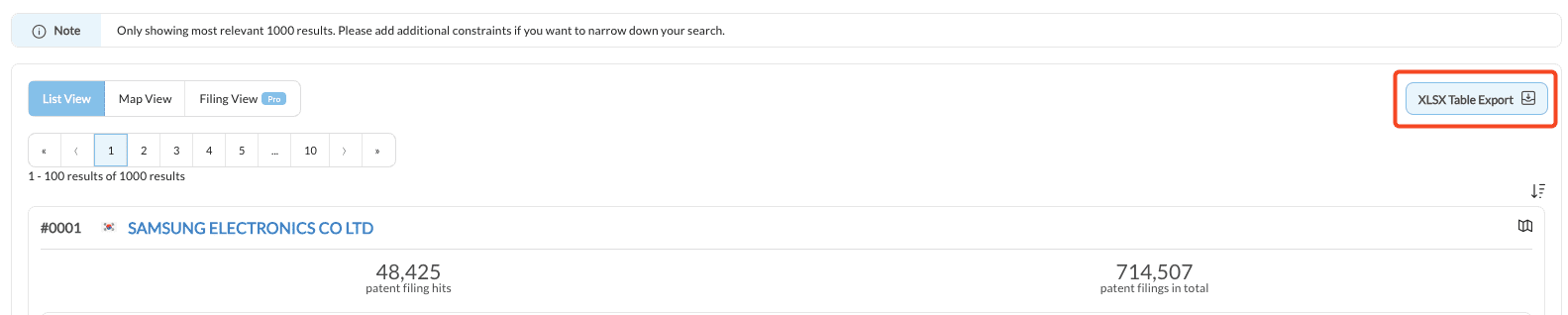
Each search returns a maximum of 1,000 results. Applicants beyond that limit are not shown.
Export and analyze #
The export control on the right of the results downloads an Excel file with two sheets. Sheet 1 holds applicant names with their matching filings and their overall filings. Sheet 2 holds annual filing counts broken down by technical area.
Sheet 2 is where the answer is. Aggregating by technical area and by year shows which fields are rising steadily and which spiked once. Three to five years distinguishes a trend from a single good year.
2. Discover which jurisdictions to focus on to increase inbound work #
This shows which countries send the most filings into your jurisdiction, and which are growing, so international effort can be pointed at the right places.
Set up the search #
- Click Search in the sidebar.
- In the first input, change Law firms to Applicants, then set the location filter to from.
- Leave the country field blank, which includes applicants from every country, region and continent.
- In file at, select your jurisdiction’s publication authority.
- Set the year type to Prosecuted and choose a range, for instance the last five complete years. Avoid the current year for patents.
- In Add Chart, select Filings Over Time.
Then add the filter that makes the result meaningful: Add Filter, choose International Publication Authority and set it to your own authority. Without it the results mix international applicants with domestic ones, and the question is about inbound work.
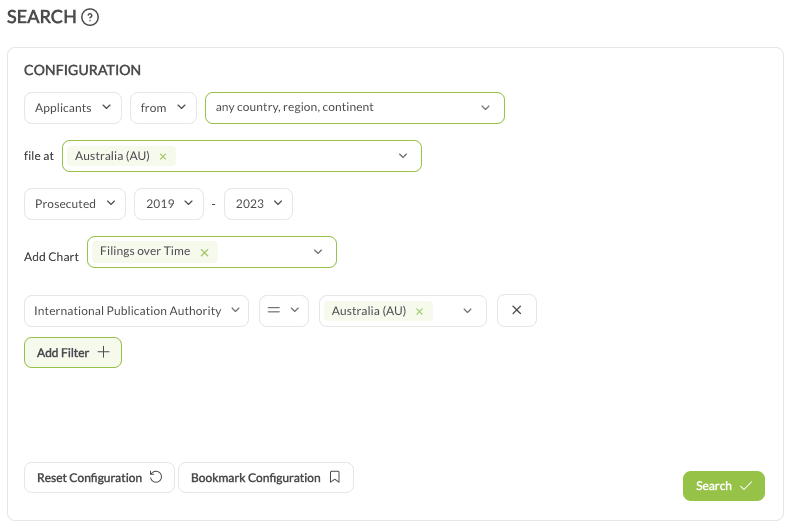
Results show up to 1,000 applicants across 10 pages, each with their country, filing counts and a yearly breakdown.
Export and group by country #
The export contains two sheets. Sheet 1 lists applicants with their matching filings, total filings and country of origin. Sheet 2 breaks their filings down by year.

The results arrive per applicant, and the question is per country, so grouping sheet 1 by country of origin is the step that produces the answer. Sheet 2 then gives the year-on-year movement per country.
Compare against your own inbound work #
A high-volume country only matters if you are not already served there. Open your own firm under Analyze and check where its inbound cases come from, then set that against the high-potential countries from the export. The gap between the two lists is the target list.
3. Discover ways to get more work from a foreign law firm #
Where a foreign associate already sends work to your jurisdiction, this isolates what they send to other firms instead of yours, and which clients and technical fields it involves.
Focus the exchange on your market #
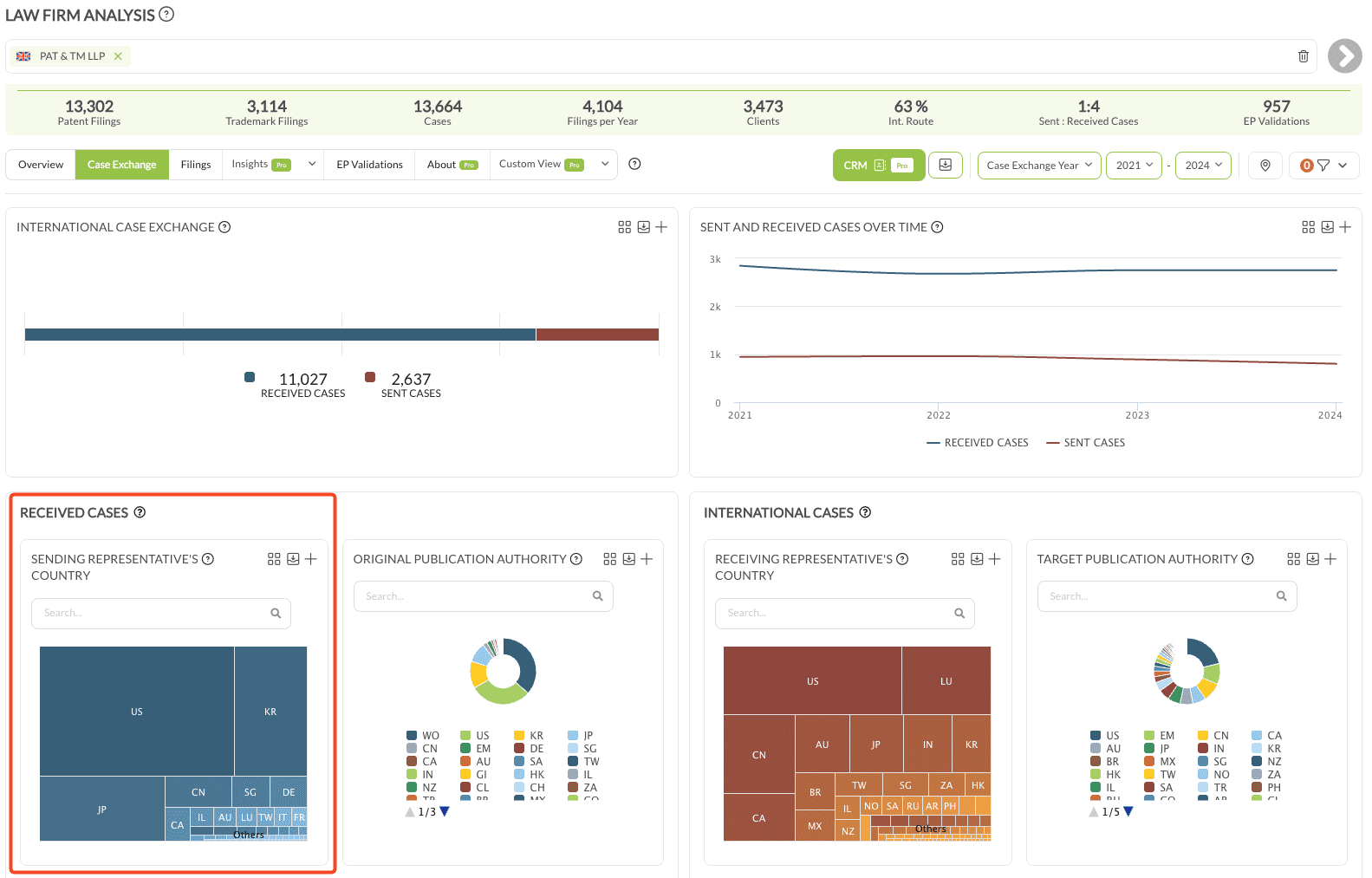
- Go to Analyze › Law Firms and open the target firm, selecting all relevant entities.
- Open Case Exchange, set the year type to Case Exchange Year and choose a period.
- Under Receiving Representative’s Country, choose your own country. The tab now shows everything the target firm sends into your jurisdiction.

Important Partners then lists every firm in your jurisdiction receiving cases from them. Setting the decision maker to Law Firm narrows this to matters the target firm actually chose, which are the only ones outreach can influence.

Remove your own cases to expose the rest #
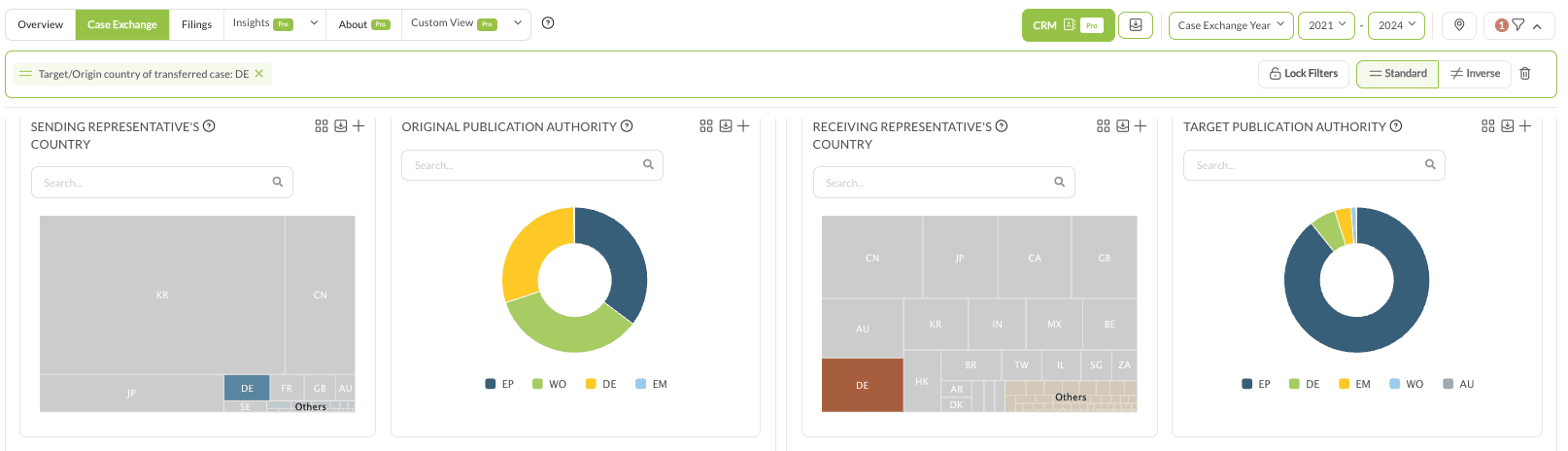
- In the filter controls at the top, switch from Standard Filter to Inverse Filter.
- In Important Partners, click your own firm’s case-exchange bar, not its name. Clicking the bar filters; clicking the name opens that partner’s profile in a new tab.

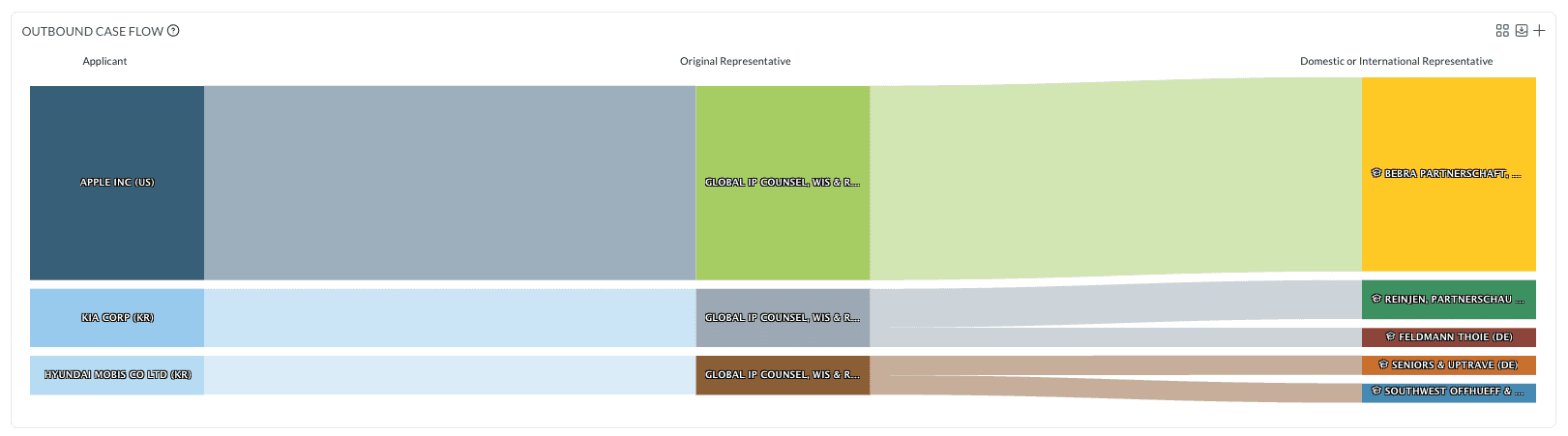
Your own cases drop out, leaving what the target firm sends to everyone else in your jurisdiction. The Outbound Case Flow chart shows quickly whether the same applicants’ filings are being split across several local firms.
Find the clients and fields behind it #
Switch back to Standard Filter before continuing, or the next step reads the wrong set.
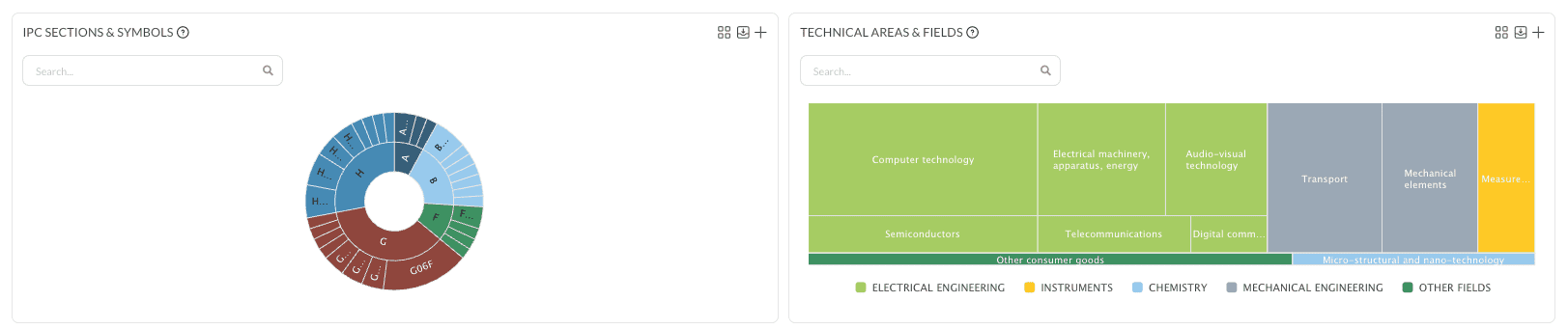
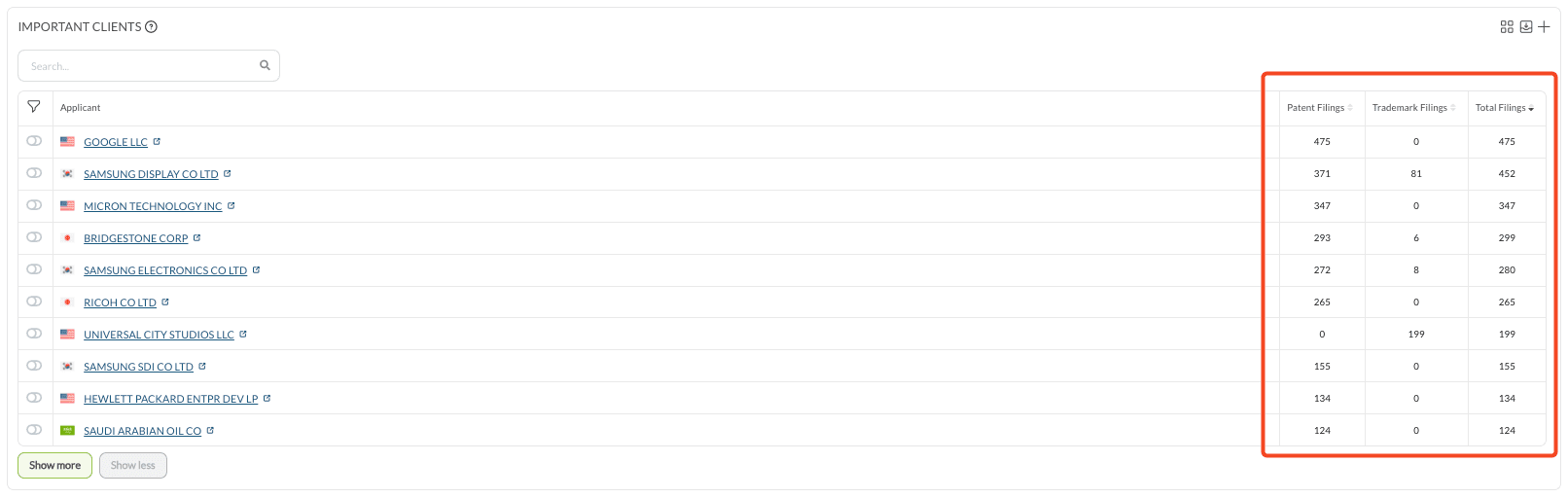
On Overview › Important Clients, a client you already act for can be isolated with the toggle next to its name. Technical Areas & Fields then shows which fields those filings sit in, and returning to Case Exchange shows which competitor is receiving them.
Check the other IP type #
Use the IP / TM / PAT switch at the top of the sidebar to look at patents and trademarks separately or together.
A client you already support in one IP type, who files the other type in your jurisdiction through a different firm, is a cross-IP opportunity that neither view shows on its own.
Find white spots with Tech Overlap #
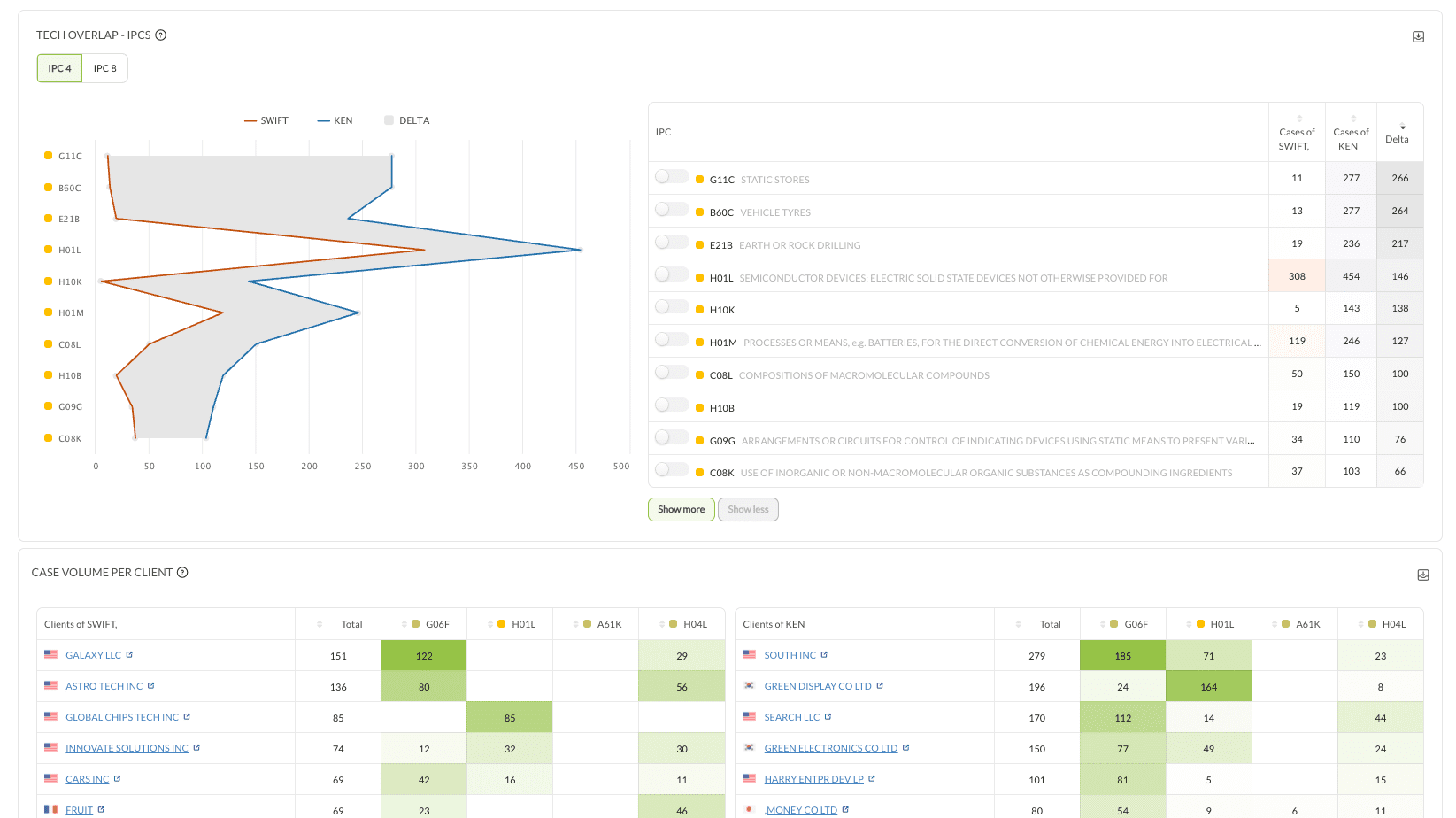
Available with Pro. Under Insights, open Tech Overlap:
- A: your firm, B: the target foreign law firm.
- Year type Exchanged.
- Add International Publication Authority set to your jurisdiction, applied to B only.
- Add the decision maker set to Law Firm, again on B only.
The result is an ordered list of white spots: technical fields and IPCs where the target firm is active in your market and your firm is not receiving the work.
Worked example #
A Canadian firm seeking more cases from a US firm:
- Analyze › Law Firms: open the US target firm
- Case Exchange: Case Exchange Year, 2021 to 2024, Receiving Representative’s Country Canada, decision maker Law Firm
- Inverse Filter to remove your own cases from Important Partners, leaving the firm’s other Canadian associates
- Overview › Important Clients: isolate a key client, then check Case Exchange for which Canadian firm receives those matters
- Tech Overlap to confirm the white spots worth asking for a trial matter in