
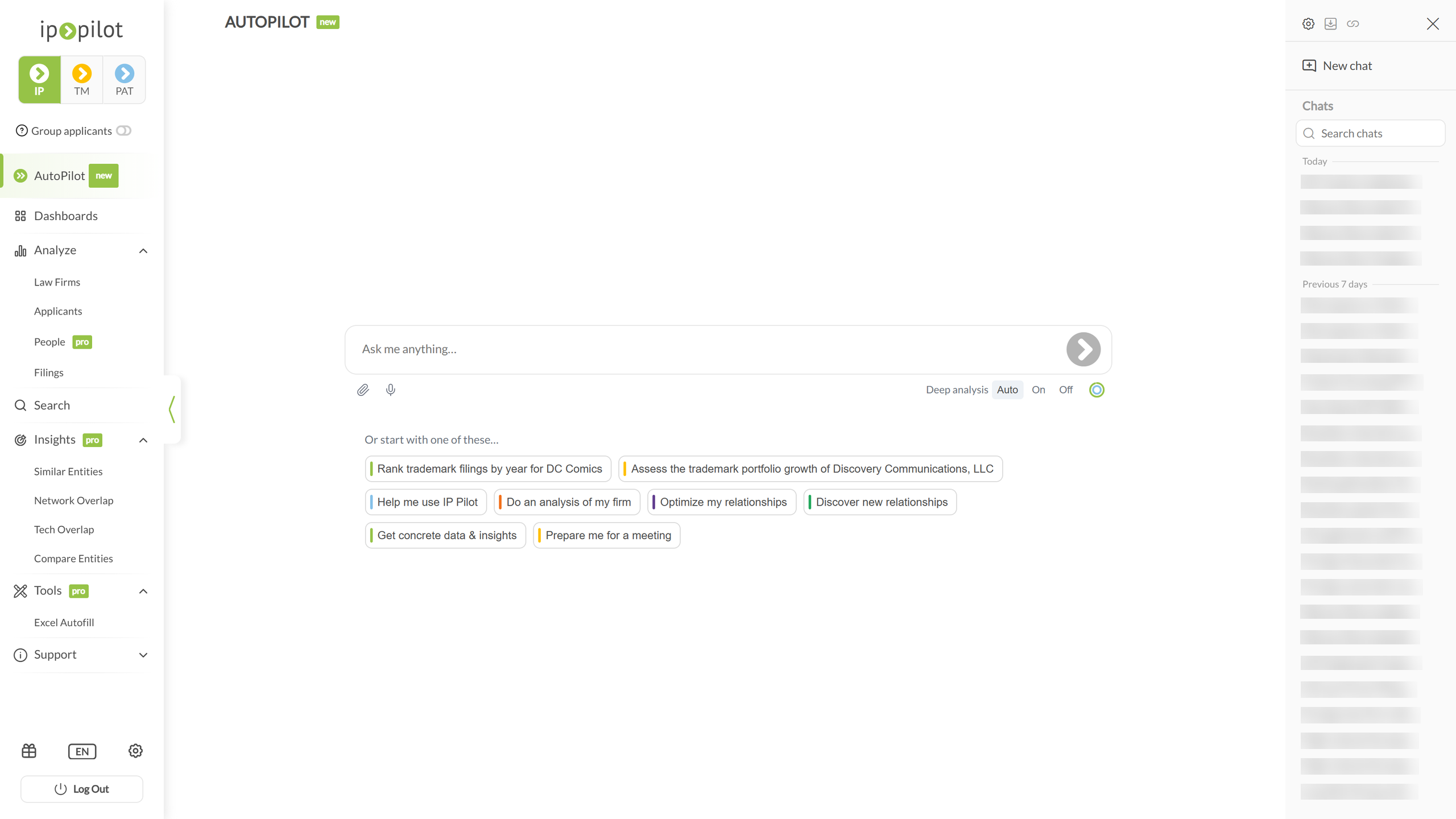
AutoPilot is an AI assistant built into IP Pilot. You ask a question in plain language, the way you would ask a colleague, and AutoPilot works out which data the question needs, runs the analysis against IP Pilot’s patent and trademark data, and returns a short written report.
Before you start #
AutoPilot is part of IP Pilot, and there is nothing to install or switch on. Open it from the left sidebar. Navigating the App covers the sidebar itself.
1. Tell AutoPilot which firm is yours #
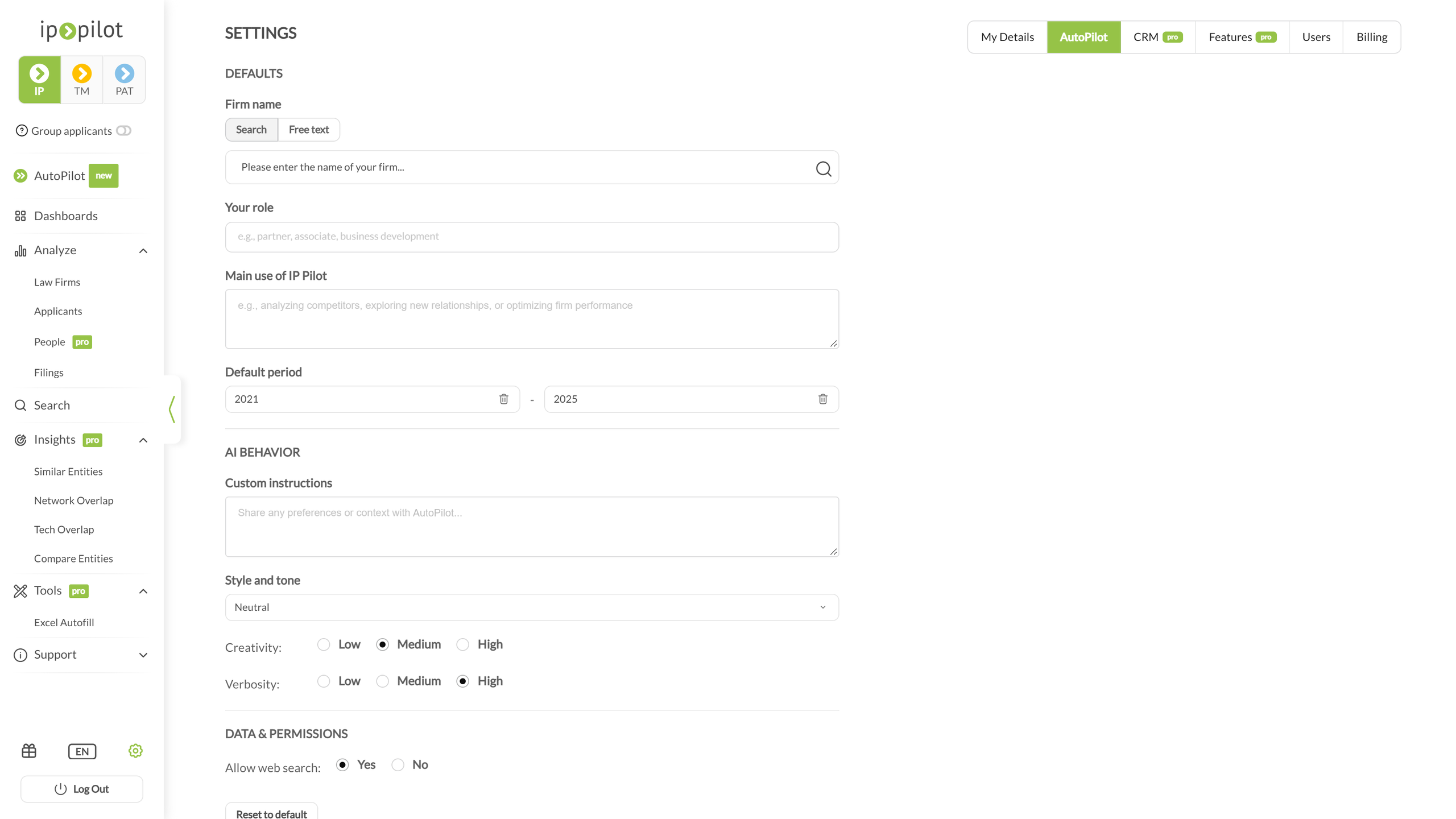
Many useful questions are about your own firm. Enter its name in the settings once, and it applies to every chat.
- 1Open the settingsEither click Settings at the bottom left of the sidebar and open the AutoPilot tab, or, while you are in AutoPilot, click the settings icon at the top right.
- 2Set your firmUnder Defaults, fill in Firm name. Leave the toggle on Search to pick your firm from IP Pilot’s own database, which ties answers to real data.
- 3Add contextYour role and Main use of IP Pilot tell AutoPilot the background to your questions. Default period sets the years it looks at unless you say otherwise. All three are optional.
- 4Save your changesNote: Reset to default clears the settings back to IP Pilot’s own.
2. Ask a question #
Type your question into Ask me anything… and send it. A question with specifics, such as a jurisdiction, a period or a named firm, gets a narrower answer than a broad one.
- Start from a suggestion. AutoPilot offers questions based on how you have used IP Pilot before. Clicking one sends it straight away and starts a new chat. To change the wording first, type the question yourself.
- Attach files. Click the paperclip to add files, such as a client list in Excel, and ask about them. PDF, Excel, Word, CSV, text, JPG and PNG files are accepted.
- Choose how deep to go. For harder questions, switch Deep analysis to On: AutoPilot probes further and analyzes more, and the answer takes longer to arrive.
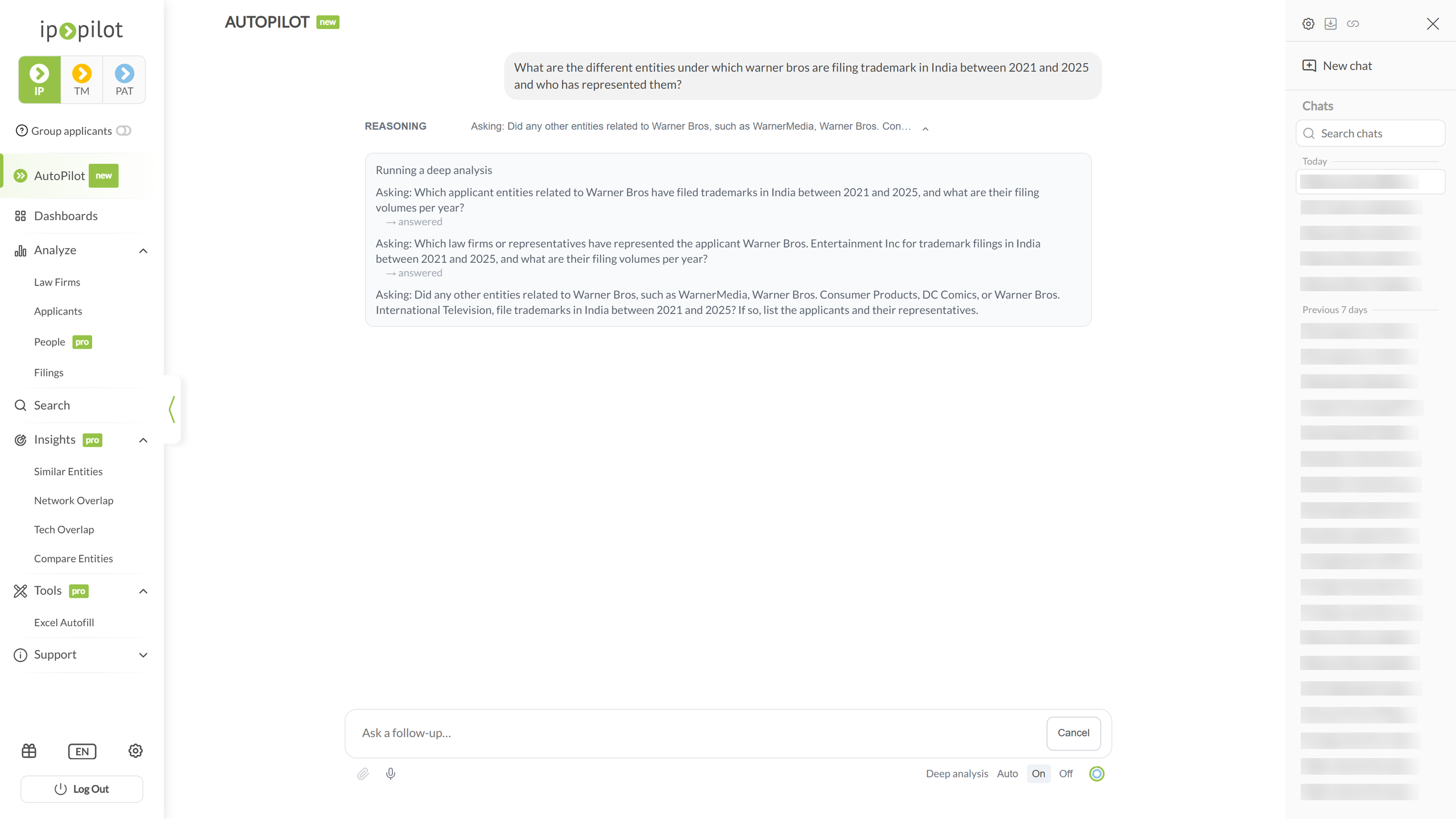
While AutoPilot works, click Reasoning to follow along. It shows the smaller questions AutoPilot asks the data, one by one, each marked when it has been answered. If you change your mind, click Cancel, which replaces the send button while AutoPilot is working.
3. Read an answer #
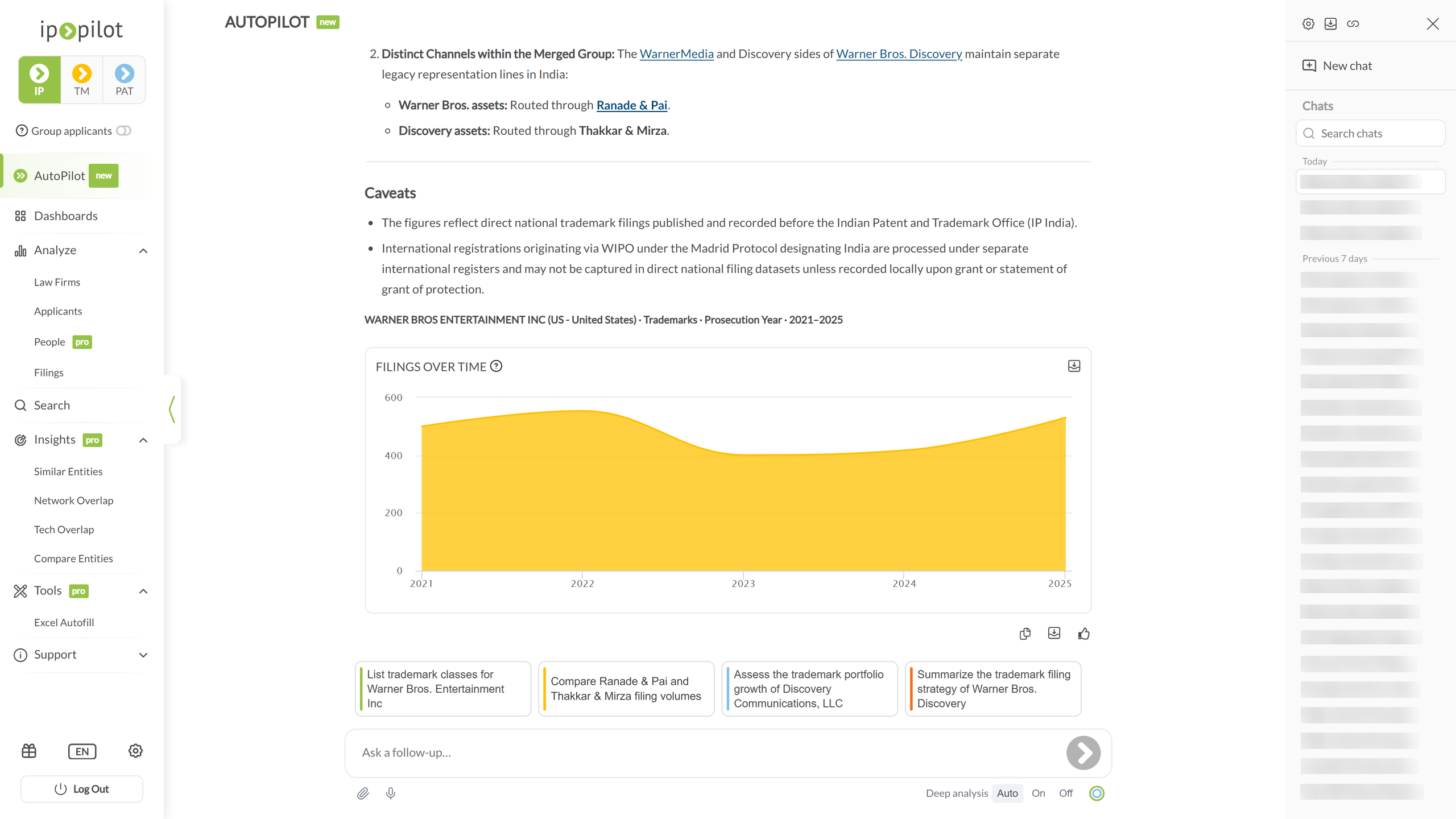
The answer arrives as a short report. Its sections depend on your question, for example a bottom line, the evidence behind it and key takeaways, with tables and charts where they help.
4. Copy, export and share #
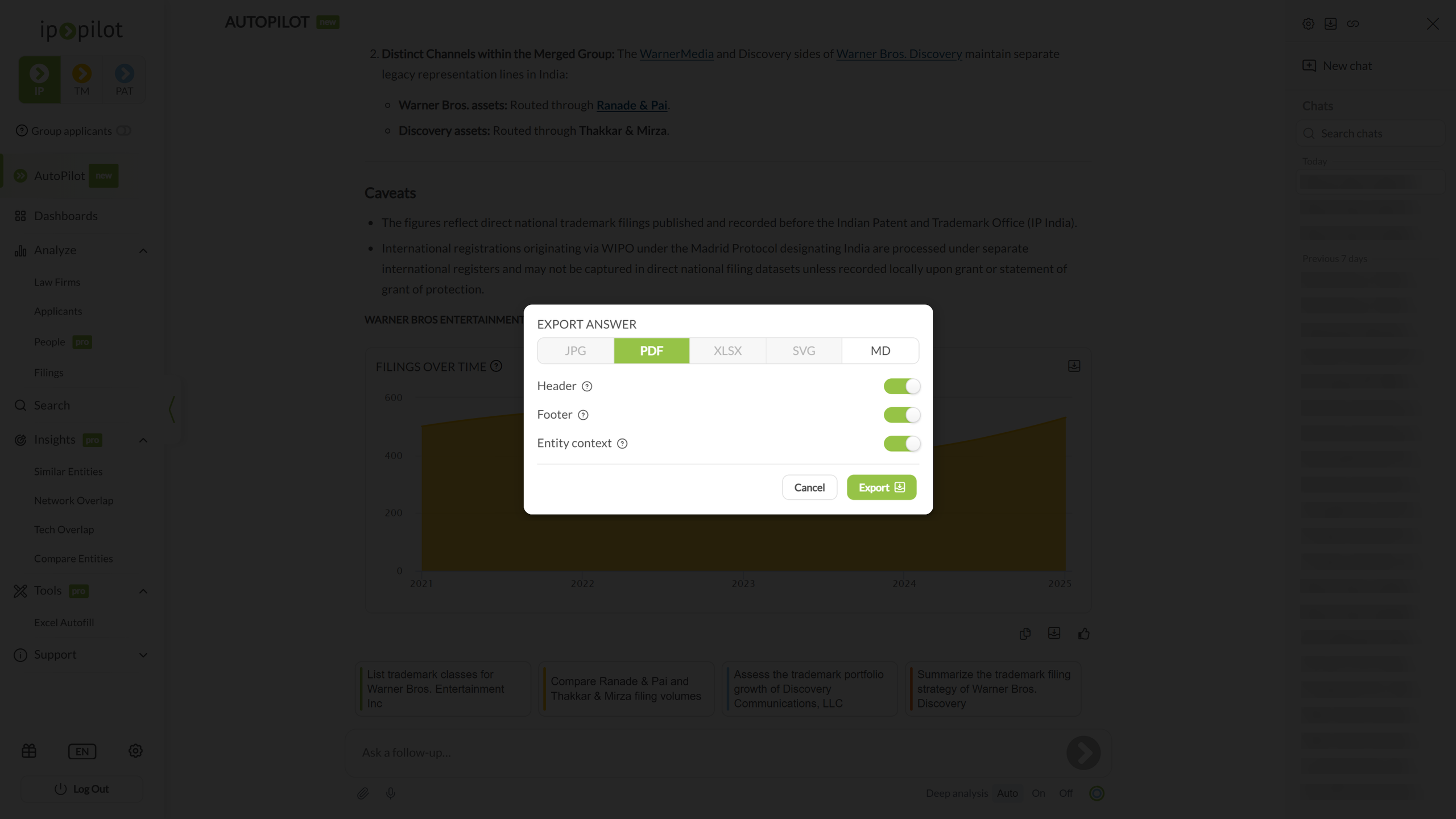
At the end of each answer you can copy it, export it, or give it a thumbs up.
- Export an answer as a PDF or MD (Markdown) file.
- Share the whole chat with the link icon at the top right. Anyone signed in to IP Pilot who has the link can read the chat as it was when you shared it. To include later questions, click Update Link. Stop Sharing ends access through the link.
5. Keep the conversation going #
To dig deeper, ask a follow-up. AutoPilot keeps the context of the chat, so you don’t have to repeat yourself. Or pick one of the suggested next questions under the answer.
Because earlier questions shape later answers, an unrelated question in the same chat is answered in the light of the previous subject. Start a New chat to leave that context behind.
Your chats are saved automatically and listed on the right, grouped by date. Use Search chats to find an earlier one, and click it to carry on.
6. AutoPilot inside profiles: the Contextual Panel #
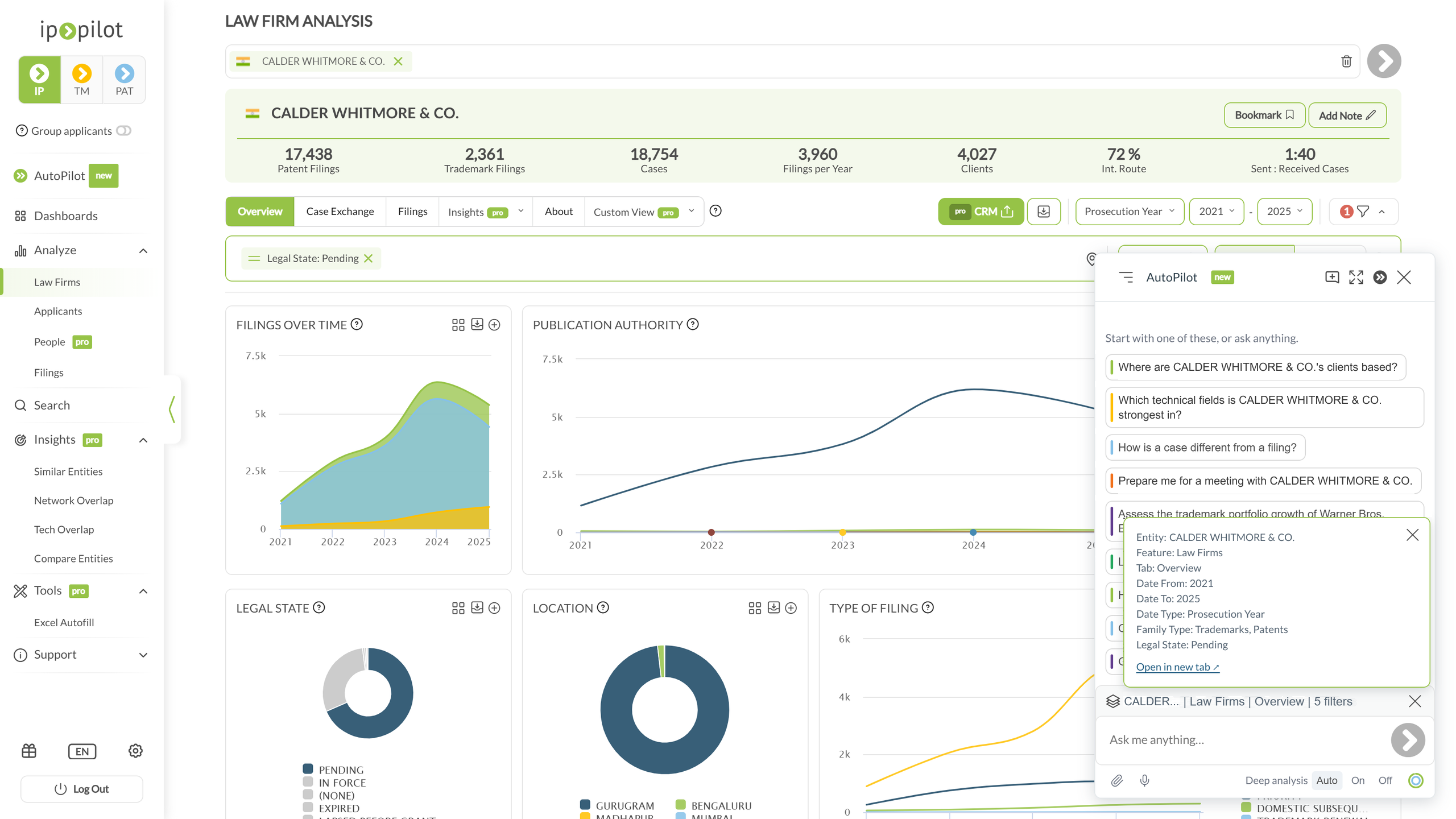
AutoPilot also works inside the rest of IP Pilot. Open the panel on a law firm’s or an applicant’s profile and it already knows which firm, which tab and which filters you are looking at. Click the context line above the message box to see the full list, for example the entity, feature, tab, period, year type and filters, and Open in new tab if you need it.
Its suggested questions are written for that entity, for example to prepare a meeting. Answers stay in the panel, and you can expand it to full screen.
7. Change how answers are written #
In Settings, on the AutoPilot tab, under AI Behavior:
- Custom instructions: standing context you would otherwise repeat every time, such as your jurisdiction, your practice area, or how figures should be presented.
- Style and tone: Neutral, Polite, Candid, Analytical or Cynical.
- Creativity and Verbosity: Low, Medium or High. Low verbosity returns the conclusion without the report around it.
Under Data & Permissions, Allow web search decides whether AutoPilot may draw on the open web alongside IP Pilot’s own data. No keeps answers grounded in IP Pilot data alone.
8. Use AutoPilot in Claude #
If your firm works in Claude, you can ask AutoPilot your questions there too. The AutoPilot connector gives Claude access to IP Pilot’s data, always under your own IP Pilot login. Connectors for other AI assistants are coming soon.
What you need #
- A Claude account: Team or Enterprise to set it up for the whole firm, Pro or Max for yourself.
- On Team or Enterprise, a Claude Owner. Only an Owner can add a custom connector.
- An IP Pilot Professional licence for every person who will use it.
The values to enter #
| Field in Claude | Value |
|---|---|
| Name | AutoPilot |
| Remote MCP server URL | https://ai.ip-pilot.com/mcp |
| OAuth Client ID | Fvyw6tCIOrTWL2LleL1u2KZlHggE2AL3 |
| OAuth Client Secret | Leave empty |
The Client ID is the same for every customer and grants no access on its own. Access always depends on each person’s own IP Pilot login.
Set it up #
- 1Open connectorsIn Claude, go to Settings, then Connectors, then Add custom connector. On Team or Enterprise, an Owner does this once for the whole organisation. On Pro or Max, you do it yourself.
- 2Enter the name and server URLUse the values from the table above.
- 3Paste the Client IDOpen Advanced settings, paste the Client ID and leave the Client Secret empty.Note: if Claude offers to register a client automatically, do not accept. Expand Advanced settings and paste the Client ID instead.
- 4SaveThe connector now appears in your list of connectors.
- 5ConnectEach person opens the connector, clicks Connect and signs in with their own IP Pilot account. Everyone does this once, for themselves.
Signing in #
Clicking Connect opens the IP Pilot login page. It is the same page and the same account you use for the IP Pilot web app. After you sign in, you return to Claude and the connector shows as connected.
Claude keeps you signed in during normal use, so you are not asked again with every question. You sign in again at most once every 12 months, or sooner after a long period of inactivity, if access was revoked, or on a new device.
If something goes wrong #
| What you see | What to do |
|---|---|
| “This IP-Pilot account is not entitled to AutoPilot” | Your licence does not include AutoPilot, which comes with IP Pilot Professional. If you have IP Pilot Professional and the message persists, contact us. |
| Answers are thin or say there is no data, although you know there is | Contact us. This is a configuration issue on our side, not something you did. |
| The connector will not save, or the URL is rejected | Check the URL against the table above, character by character, including /mcp at the end. |
| The connector worked and has stopped | Click Connect again. If that does not help, remove the connector and add it again. If it still fails, contact us. |
| Claude offers to register a client automatically instead of asking for a Client ID | Remove the connector and add it again, pasting the Client ID under Advanced settings. |
When you contact us, include your IP Pilot email address, whether you use a Team or Enterprise or a personal Claude account, and the exact wording of any error message. Your email address is what lets us find the problem quickly.
Security #
- The connector holds no IP Pilot password or API key. You sign in on IP Pilot’s own login page, never in Claude.
- Each person has their own identity and their own access. One person’s connection cannot be used to see another person’s data, even within the same Claude organisation.
- Access follows your IP Pilot licence. Removing AutoPilot from a licence also removes access through Claude, with no separate step.
- Questions and answers pass through Claude, so your own Claude data-handling terms apply to those conversations.
9. Getting the most out of AutoPilot #
AutoPilot answers your questions about the IP market in plain language. Its answers are based on IP Pilot data, and every figure links to the chart it comes from.
Quick start #
- 1Open AutoPilotClick AutoPilot in the left sidebar, or click the AutoPilot button in the bottom-right corner of any page.
- 2Ask your questionType it, or click one of the suggestions, for example “Prepare me for a meeting” or “Do an analysis of my firm”.
Tip: Go to Settings > AutoPilot and enter your firm name and default period. Then you can simply write “my firm”, and AutoPilot uses your period when you do not name one.
Ask about the page you are on #
On any firm or applicant page, open the AutoPilot panel and ask about what you see. AutoPilot reads the page and its filters:
- Who are this firm’s top 5 clients?
The context line above the question box shows which page AutoPilot reads. Click the x on the context line to ask a general question instead. The panel also suggests questions for the page, for example “Prepare me for a meeting with …”.
Five tips for even better answers #
1. Use the full name
Write the full name of the firm or applicant. Then you get exactly the firm you mean.
- Good: Who are Baker’s top clients?
- Even better: Who are Baker Smooth L.L.P.’s top clients by patent filings from 2021 to 2025?
2. Say the period, the publication authority and the IP right
The more you specify, the more focused the answer.
- Good: Who represents Siemens?
- Even better: Which law firms represented Siemens AG in patent cases at the EPO (publication authority EP) from 2021 to 2025? List the top 5.
Use exact years, for example “2023 to 2025”.
3. Ask about one firm or applicant at a time
A focused question gives you a precise figure with a per-year breakdown.
- Good: Has [firm] worked for any of these applicants at the EPO: Siemens AG, BASF SE, Robert Bosch GmbH …?
- Even better: How many patent cases did [firm] file for BASF SE at the EPO (publication authority EP) from 2021 to 2025?
4. Say the direction of the case flow
Name “sent”, “received” or both, and AutoPilot shows each side.
- Good: How many cases did [firm] and [partner firm] exchange?
- Even better: Compare the patent cases [firm] sent to and received from [partner firm] from 2021 to 2025. Is the relationship balanced?
To find clients who choose their foreign firm themselves, add: … where the applicant is the presumed decision maker.
5. Build on the answer
In the same chat, AutoPilot remembers the firm, IP right and filters. Just ask the next question:
- And in 2018?
- Show this as a table with the filings per year.
Start a new chat for a new topic. Your earlier chats stay in the chat history.
Starter questions #
Replace the text in brackets with your own firm, partner or applicant.
| Goal | Question to try |
|---|---|
| Know your clients | Who are my firm’s top clients by patent filings from 2021 to 2025? |
| Find referral partners | Which foreign law firms sent the most patent cases to my firm from 2021 to 2025? |
| Check reciprocity | Compare the patent cases my firm sent to and received from [partner firm] from 2021 to 2025. Is the relationship balanced? |
| Spot cooling partners | Which US law firms sent fewer patent cases to my firm in 2023-2025 than in 2020-2022? (use Deep analysis On) |
| Find who works for an applicant | Which law firms represented [applicant] in patent cases at the EPO from 2021 to 2025? List the top 5. |
| Trademarks | Which law firms filed the most trademark applications for [applicant] at the EUIPO from 2021 to 2025? Top 5. |
| See your market | Which law firms based in [country] filed the most patent cases at the EPO in 2024? Top 5. |
| Prepare a meeting | I have a meeting with [firm] next week. Give me a short briefing: their top clients, the countries they exchange most patent cases with, and how their filing volume developed from 2021 to 2025. |
Work with the answer #
- See the source: The line at the end of the answer shows the scope, for example “patents · at EP · 2021-2025”.
- Copy or download: Use the icons under the answer to copy it or download it as PDF or Markdown.
- Give feedback: The thumbs-up icon tells us what works well.
- Want more? Ask Show the top 25 or ask about one firm directly.
Deep analysis for strategic questions #
Below the question box you find Deep analysis: Auto / On / Off.
| Setting | Best for |
|---|---|
| Auto (default) | Everyday questions. AutoPilot decides. |
| Off | Quick facts with a short, direct answer. |
| On | Strategic questions that compare many firms. AutoPilot works step by step and gives you a bottom line, the evidence, suggested actions and caveats. This takes a few minutes. |
For questions such as “which partners send me fewer cases”, switch On for the most complete answer.
Web search #
In Settings > AutoPilot, Allow web search lets AutoPilot add public information, for example a firm’s website or office cities. AutoPilot names the web source in its answer. IP Pilot figures stay the same with web search on or off.
Good to know #
- How-to questions: Ask how IP Pilot works, for example What does “presumed decision maker” mean? or Help me use IP Pilot.
- Market data plus your expertise: AutoPilot gives you the market data. You bring the IP expertise.
Go further than an answer #
The suggested next questions and the report itself point at the features that hold the detail. Search builds a target list, Law Firms and Applicants read one entity in full, and Navigating the App covers the year range, year type and filters those screens share.
Good to know #
- AutoPilot is new. The interface, the wording of its answers and the way it reaches them may change.
- Deep analysis On is slower. Use it for the questions that need it.
- A shared link is a snapshot. Colleagues see the chat as it was when you shared it, until you click Update Link.
Frequently Asked Questions #
Frequently Asked Questions #
AutoPilot #
Why does AutoPilot ask which firm is mine?
Anything framed around “my firm”, such as your relationships, your position or your partners, depends on knowing which firm you are. AutoPilot will not guess.
You can name the firm in the message itself, but it is worth setting it once under Firm name, in Settings on the AutoPilot tab, or through the settings icon at the top right of AutoPilot. It then applies to every chat.
Can I rely on the figures AutoPilot gives me?
Check them before you use them externally. AutoPilot is new and still developing, and its figures can be inconsistent.
For anything going into a client conversation or a pitch, reproduce the figure in Search or on the entity’s profile.
Where do the suggested questions come from?
They are based on how you have used IP Pilot before, and inside a profile they are written for that entity. A single click sends the question and starts a new chat.
To adjust the wording first, type your question into the message box instead.
What is the Reasoning section above each answer?
AutoPilot’s working notes. Click Reasoning to see the smaller questions it asks the data, one by one, each marked when it has been answered.
It is useful when you want to know how an answer was reached, and safe to leave closed the rest of the time.
Can I change how AutoPilot writes?
Yes. In Settings, on the AutoPilot tab, under AI Behavior.
Style and tone offers Neutral, Polite, Candid, Analytical and Cynical. Creativity and Verbosity are each Low, Medium or High.
Custom instructions is a free-text field for standing context you would otherwise repeat in every chat, such as your jurisdiction, your practice area, or how you want figures presented.
Does AutoPilot look at anything outside IP Pilot?
It can. Allow web search, in Settings on the AutoPilot tab, decides whether it may draw on the open web alongside IP Pilot’s own data.
Set it to No if you want answers grounded only in IP Pilot’s patent and trademark data.
Where do my previous conversations go?
They are saved automatically and listed on the right, grouped by date, under titles AutoPilot generates from the chat itself. Use Search chats to find one, and click it to carry on.
New chat starts a fresh thread. It is worth using when you change subject, since AutoPilot takes the earlier questions into account.
Can I share an AutoPilot answer with a colleague?
Yes. Copy or export a single answer (PDF or MD), or share the whole chat with the link icon at the top right.
Anyone signed in to IP Pilot who has the link sees the chat as it was when you shared it. Update Link adds later questions, and Stop Sharing ends access.
Can I use IP Pilot’s data in Claude?
With IP Pilot Pro, yes, through IP Pilot’s MCP connector. Connectors for other AI assistants are coming soon.