
Two ways to find applicants who are not clients yet, using what they already file in your jurisdiction.
In this document
- Find foreign applicants with significant filing activity in your jurisdiction, to build a target list.
- Find foreign applicants with fragmented representation, to find the ones whose work is already split and therefore winnable.
Related, but covered elsewhere
- Finding law firms rather than applicants is in Build partnerships.
- Seeing which firms your competitors act for, and how the local market is moving, is in Defend relationships.
- Choosing which technology or jurisdiction to target before building a list is in Grow further.
1. Find foreign applicants with significant filing activity in your jurisdiction #
This produces a list of applicants filing into your jurisdiction, with the option to exclude the ones already represented by your firm.
Set up the search #
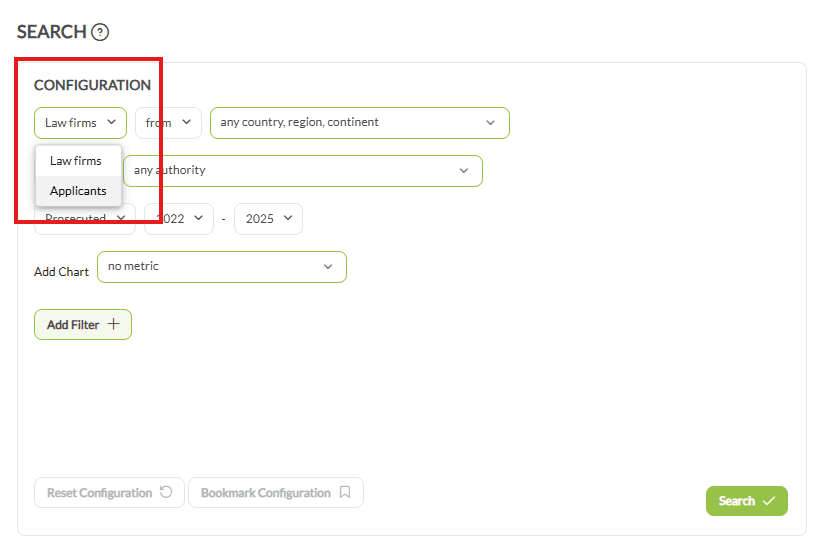
- Click Search in the sidebar.
- In the first input, choose Applicants.
- Set the location filter to from and choose the applicants’ country or region, for example the United States.
- In file at, choose the publication authority you want filings at, for example Canada.
- Set the year type to Prosecuted for patents, then set the from and to years. Avoid the most recent year for patents, because publication lags.
Add charts and filters #
Charts answer the questions that decide whether an applicant is worth approaching:
- Important Representatives: who acts for these applicants, and which firms represent them locally.
- Technical Areas & Fields: where their filings are concentrated.
Use Add Filter to narrow the list, for instance by a minimum number of filings.
Worked example #
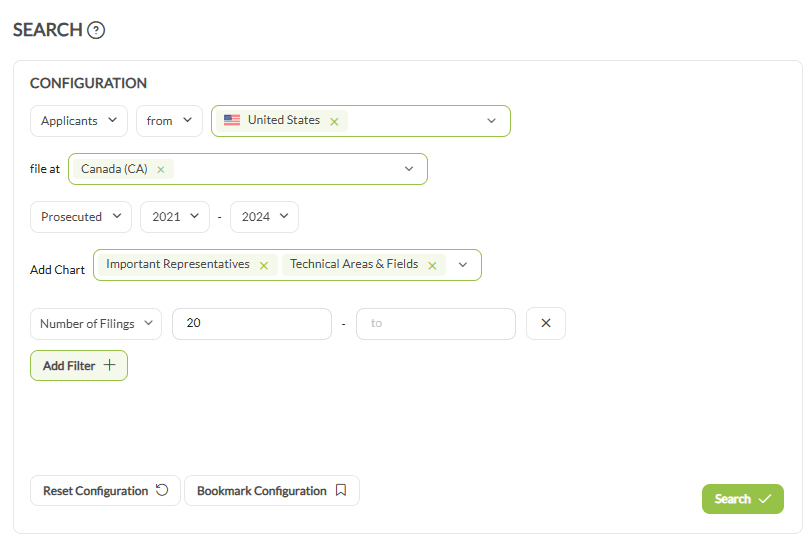
A Canadian firm looking for US companies filing in Canada that are not already clients:
- Applicants, from United States
- file at Canada
- Year type Prosecuted, a two-year range
- Add Important Representatives to see who acts for them in Canada
- Add a Number of Filings filter to set a floor
- Add a Representative Name filter set to not equals your own firm, which removes your existing clients from the list
That last filter is what turns a list of active applicants into a list of prospects.
2. Find foreign applicants with fragmented representation #
Applicants whose filings are spread across several law firms have no single entrenched relationship, which makes them the more realistic targets for consolidating work.
Set up the search #
- Click Search in the sidebar.
- In the first input, choose Applicants, then set the location filter to from.
- Leave the country field blank, which includes applicants from every country and region.
- In file at, select your own jurisdiction’s publication authority.
- Set the year type to Prosecuted and choose a range, for example 2020 to 2024. Avoid the latest year for patents.
Add the chart that does the work #
In Add Chart, select Important Representatives Over Time. For each applicant it shows which law firms represented them year by year, and how many filings went to each. That year-by-year split is what reveals fragmentation; a single total would hide it.
Exclude domestic applicants #
- Click Add Filter and choose Applicant Country.
- Change the operator from equals to not equals.
- Select your own country. The results now contain foreign applicants only.
Further filters such as Decision Maker, Number of Filings or a technical field narrow it further.
Reading the result #
- Applicants whose filings are spread across several firms are the consolidation targets.
- Applicants who have used one firm for years are harder to approach, because that relationship is established.
Export for closer analysis #
The export control on the right downloads the results as an Excel file with two sheets. Sheet 1 lists the applicants with their total matching filings. Sheet 2 gives, for each applicant and each year, the firms that represented them and how many filings each handled.
Sheet 2 is the one worth pivoting: it makes the degree of fragmentation visible per applicant across years, which is hard to judge by eye in the chart.

Worked example #
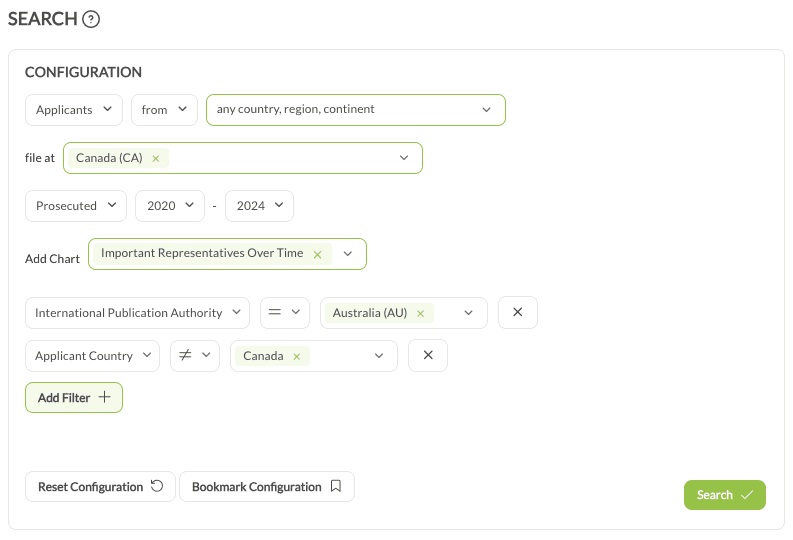
Foreign applicants filing in Canada that use several firms:
- Applicants, file at Canada
- Year type Prosecuted, 2020 to 2024
- Add Important Representatives Over Time
- Add Applicant Country not equals Canada
- Export, then pivot sheet 2 to see which applicants used multiple firms across years