
Entity Grouping analyzes an applicant group as a single applicant rather than as the many separate legal entities it files under. The consolidated portfolio of every connected entity sits on one profile.
A multinational’s filings are scattered across dozens of differently named entities: national subsidiaries, holding companies, research arms, businesses acquired along the way. Each looks like an unrelated applicant in the raw data, and each profile shows a fraction of the group’s actual portfolio. Grouping removes the manual work of hunting those entities down one by one, and the risk of missing one entirely, which is easy to do after a merger or an acquisition.
Before you start #
- Grouping needs Pro. Having IP Pilot resolve a group into its member entities is a Pro feature. Without it, the Group applicants toggle is not available.
- Selecting several entities at once is not gated. Ticking more than one entity in a name search returns a single combined profile, on every version.
- Applicants only. Entity Grouping groups applicants. Law firms are never grouped, whatever their structure. Section 2 covers what to do instead.
For the applicant profile itself, its tabs and what each chart counts, see Applicants. The sidebar, year range, year type and filters behave the same way with grouping on as off; Navigating the App covers them in full.
1. Turn grouping on and load a group #
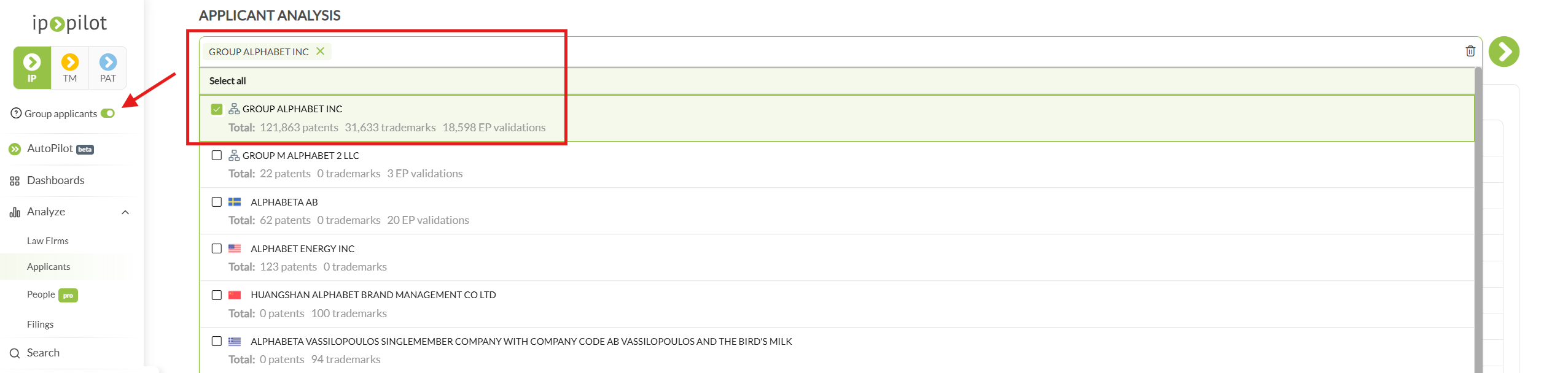
- 1Turn on Group applicantsActivate the Group applicants toggle in the sidebar.Note: This is a state, not a one-off choice. It stays on until you switch it off, and it affects every applicant search you run in the meantime.
- 2Open ApplicantsIn the sidebar, expand Analyze and click Applicants. This opens the applicant name search.
- 3Search for the group nameType the name. Results come back as one flat list: groups first, each row prefixed GROUP and marked with a group icon, then the single entities. Nothing is nested underneath a group name.Note: The search list does not show which entities a group contains. To see the membership, load the group and open the About tab. Section 4 covers it.
- 4Tick what you want to analyzeSelect the checkbox next to each entry. Groups and single applicants can be ticked together in the same search, in any combination, and load as one combined profile. The load button stays grayed out until at least one box is ticked, which applies even to a single group.
- 5Load the profileClick the green arrow at the end of the search bar. Everything on the profile that follows refers to the consolidated portfolio, not to any one member entity.
2. Combine entities that grouping does not cover #
Ticking several entities in a name search is not only the manual substitute for grouping. It is the right tool whenever the entities that belong together are not an applicant group at all.
One law firm may hold more than one profile, for example a US arm and a UK arm, each filing under its own name. Neither is a subsidiary of the other and no grouping applies, but the combined figure is the one that describes the firm. Tick both in the Law Firms search and load them together. The same holds for any set of entities worth summing across jurisdictional boundaries.
Note: A group view can be rebuilt by hand on any version, provided every member entity is already known. What Pro adds is not the combined view itself but the knowing: the group is resolved for you rather than assembled from memory.
3. Read a group profile #
A group profile reads like any applicant profile, at group level rather than entity level. Four things become visible that a single entity cannot show.
- The group’s international filing strategy. Which jurisdictions the group as a whole protects in, rather than the ones one subsidiary happens to use.
- The full representative list. Every firm working for any part of the group, in one place. A firm that looks minor on one entity may be the group’s largest provider.
- Where control sits. Whether the decision maker and the representative for a subsidiary’s portfolio are at headquarters or with the subsidiary itself.
- Consolidated volumes. The size of the portfolio in full, instead of a figure that understates the group by however many entities went unfound.
4. Check which entities a group contains #
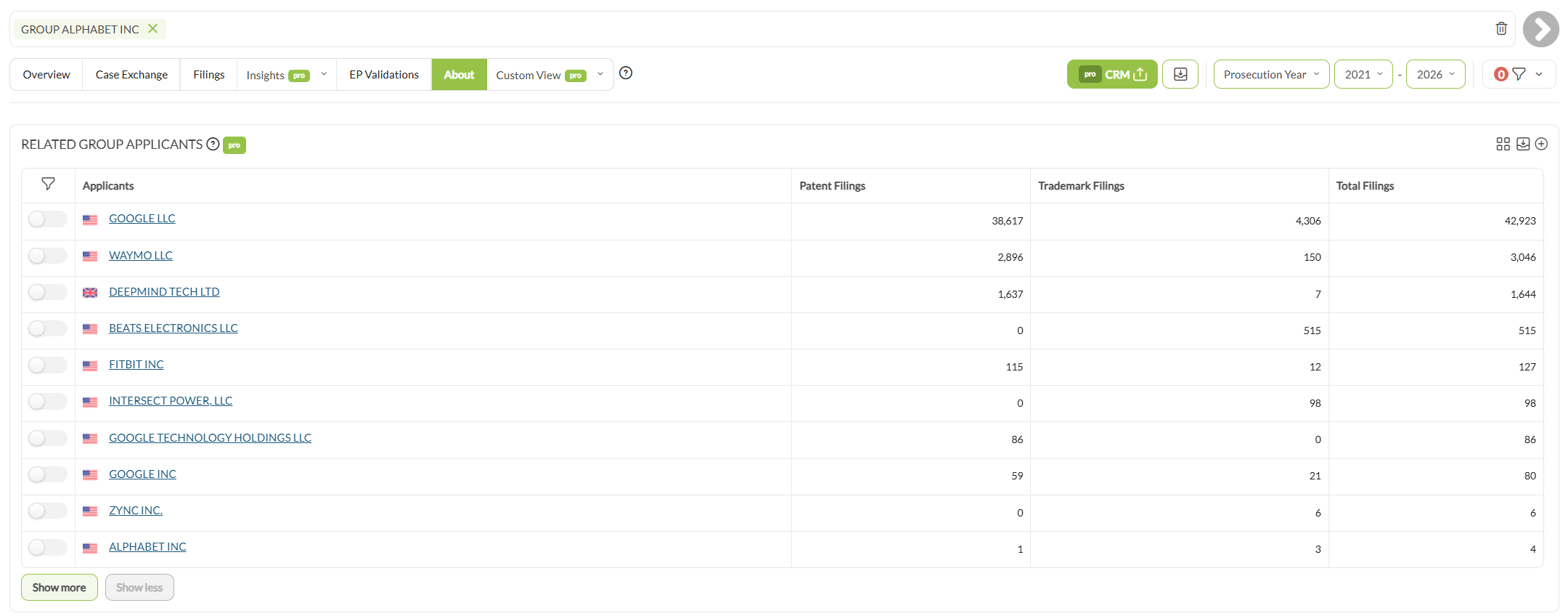
Load the group, open the About tab and read Related Group Applicants. That is the full list of legal entities whose portfolios have been consolidated into the profile in front of you. The panel carries a pro badge, like Contact and Offices beside it.
Worth doing before quoting a group figure to anyone. Groups are derived rather than declared by the companies themselves, so the list is how the group is confirmed to cover what it is assumed to cover, and how a joint venture or a recently divested business gets spotted before it distorts a number.
5. Read a law firm’s client base at group level #
Grouping also changes how a law firm’s clients read. With it on, the Important Clients table and the Important Clients Over Time chart list applicant groups; with it off, they list individual applicants. A firm with 20 apparently separate clients may in fact serve three groups. The grouped view is the one that shows what kind of book the firm has: large multinationals, mid-sized companies, individual inventors.
The firm profile and its client charts are covered in Law Firms.
6. Understand where the groups come from #
Applicant groups are derived from three sources combined: entities named jointly on the same patent or trademark families, similarities between applicant names, and external corporate hierarchy datasets matched against patent and trademark data.
Group data is refreshed alongside the rest of our data, including new filings, at least monthly and often more frequently. A very recent acquisition may therefore not yet be reflected in the group.
Derived, not declared. A group is a well-founded reconstruction of a corporate structure rather than an authoritative register of one. Check the member list whenever precision matters.
7. Choose between grouping and comparing #
Grouping merges entities into one set of numbers. Where the question is how the members differ from one another, which subsidiary files where and which one uses which firm, a merged profile hides exactly that. Compare Entities keeps them side by side instead, read column by column. It opens with two slots, and Compare more adds a third and a fourth, which is the maximum. A group goes into a slot as readily as a single entity. To pull the same data points for a long list of entities at once, use Excel Autofill.
Good to know #
- An empty profile, every KPI at zero or a dash and every chart reading “No data available”. A single applicant was searched while Group applicants was still on. Nothing announces this; the profile simply comes back empty. Switch the toggle off and search again.
- A group you have just viewed will not reopen. Check that Group applicants is still switched on. Groups only resolve while grouping is active.
- Numbers higher than expected. Open the About tab and read Related Group Applicants. The group may include entities that were not part of the count you are checking against.
- No Group applicants toggle in the sidebar. Grouping is on Pro. Search for the member entities instead, tick every one that belongs to the group and load them together: the combined profile is the same view, provided the membership is known.
Frequently Asked Questions #
Frequently Asked Questions #
Entity Grouping #
How often is group data updated?
Group data is updated together with the rest of our data, including new filings. Barring unforeseen circumstances we run an update at least once a month, and often more frequently. A very recent acquisition may therefore not yet appear in the group.
How do I see which entities are included in a group?
Load the group, open the About tab and look for RELATED GROUP APPLICANTS. That is the full list of legal entities whose portfolios are consolidated into the profile you are reading.
Why is my applicant profile completely empty?
Almost always because you searched for a single applicant while Group applicants was still switched on. Every KPI shows zero or a dash and every chart reads “No data available”.
Nothing on screen explains this, so it is easy to mistake for missing data. Switch the toggle off in the sidebar and search again.
How do I go back to single entities only?
Switch the Group applicants toggle off in the sidebar. Grouping is a state rather than a one-off choice, so it stays on until you turn it off and affects every applicant search you run in the meantime.
I cannot get back to a group I just viewed. Why?
Check that Group applicants is still switched on in the sidebar. Groups are only resolvable while grouping is active, so a group profile cannot be reopened with the toggle off.
Can I group law firms as well as applicants?
Not at present. Entity Grouping applies to applicants only. To analyze several law firms as one entity, tick them individually in the Law Firms search. The resulting profile is combined across all of them. See Law Firms.
Can I load a group and a single applicant together?
Yes. You can tick several groups, several single entities, or a mixture of both, and load them as one combined profile. If you want to keep them apart and read them side by side instead, use Compare Entities.
How are corporate groups derived?
Groups are derived rather than supplied by the applicants themselves. IP Pilot analyzes entities that appear jointly on the same patent or trademark families, similarities between applicant names, and external corporate hierarchy datasets matched against patent and trademark data. Because the grouping is derived, check the member list on the About tab before quoting a group figure externally.