
A dashboard is a private landing page inside IP Pilot: a grid of widgets holding what was saved elsewhere in the product. Bookmarked profiles, saved searches, notes, a chart worth keeping an eye on. Several can exist side by side, each arranged for a different job.
Nothing on a dashboard is produced by the dashboard itself. Every widget is a window onto something created somewhere else, which is why a new dashboard looks empty even on a well-used account. Section 3 below covers that round trip.
A dashboard is not a Custom View. A Custom View is a saved arrangement of charts that lives as a tab on entity profiles. A dashboard sits outside the profiles altogether and mixes bookmarks, notes and searches alongside a chart. Navigating the App explains the sidebar, the year range, the year type and the filters, which work the same way on every screen.
Before you start #
Dashboards is a top-level item in the left sidebar with a grid icon, between AutoPilot and Analyze. It is not nested under anything and has no submenu.

Dashboards are private to the person who built them. Nobody else sees them, and there is no way to share one. Where something needs to be visible to the firm, an Organization Note on the entity itself is the only sharing mechanism.
1. Build your first dashboard #
Dashboards appear as horizontal tabs across the top of the screen, with an Add new control beside them.
- 1Open DashboardsClick Dashboards in the left sidebar.Note: You always arrive on the first tab, not the one you were last using. If one dashboard is your daily view, expect one extra click.
- 2Add a dashboardClick Add new. The dashboard is created straight away and named for you, sequentially: New Dashboard 2, then New Dashboard 3.
- 3Rename it nowClick the pencil icon next to the name, type something you will recognize, and confirm with the checkmark. Do this while you still remember what the dashboard is for.
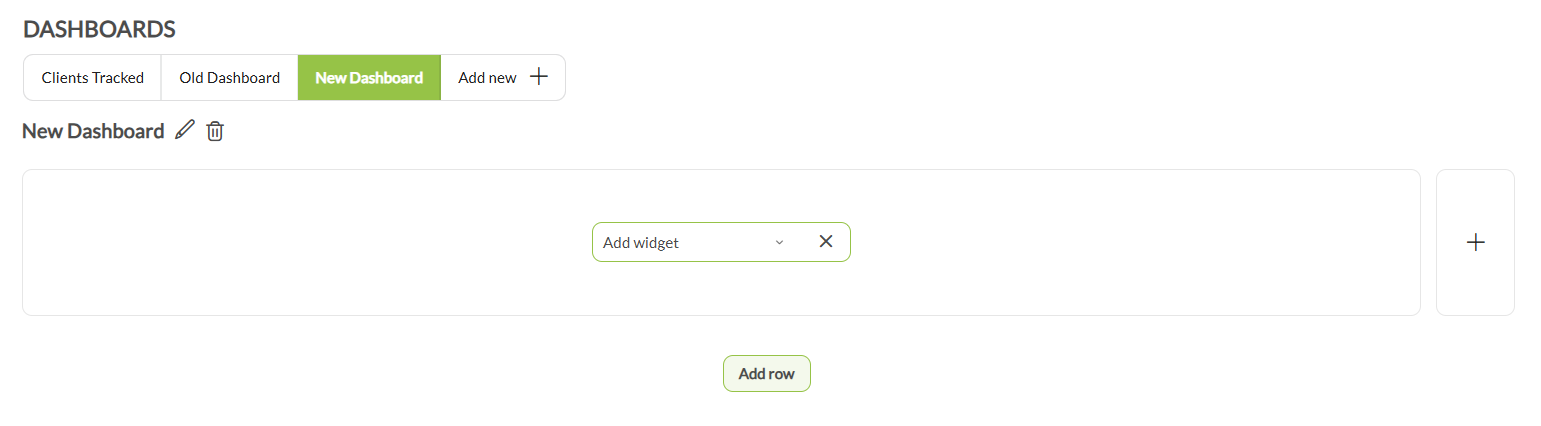
- 4Add your first widgetA new dashboard shows one empty slot holding an Add widget dropdown. Open it, pick a widget, and it renders in place.
- 5Fill out the layoutThe + square at the right-hand end of a row adds a widget beside the ones already in it. Add row at the bottom starts a new row underneath.
There is no Save button, and none is missing. Every change is kept as it is made: a widget added, a widget removed, a rename. Navigate away and come back and the layout is as you left it.
2. Choose a widget #
The Add widget dropdown offers eight, in this order:
- Profile Bookmarks: bookmarked entity profiles. Reads No bookmarks yet until something is bookmarked.
- Search Bookmarks: a table headed Bookmarked Searches. Each saved search is a link that reopens it, with an Actions column for deleting it, and Show more / Show less once the list is long.
- Recent Searches: headed Recently Searched Profiles. A flag-tagged list of the most recently opened profiles, each one clickable, with a delete control per row and the same Show more / Show less paging.
- Agent Search: a live search box rather than a list. Placeholder: Please enter the name of any IP law firm… It searches law firms from the dashboard.
- Applicant Search: the same, for applicants. Placeholder: Please enter the name of any applicant…
- Personal Notes: personal notes only, as a table: Note, Entity, Edited By, Edited On, Actions.
- Organization Notes: the same table, firm-wide. Edited By is the column that earns its keep here: it names the colleague behind each note.
- Charts: embeds one saved chart. It needs an extra step; see section 4 below.
Agent Search and Applicant Search behave unlike the rest. Six of the widgets show what was already saved. These two are search boxes that start something new. Saved queries live in Search Bookmarks.
3. Fill the widgets from elsewhere #
Six of the eight widgets stay empty until something is saved into them, and that happens on the profile or search screen rather than on the dashboard. The round trip:
- A profile: on any entity profile, the Bookmark button (bookmark icon) next to the entity’s name. Feeds Profile Bookmarks. Opening a profile at all is enough to feed Recent Searches.
- A note: the Add Note button (pencil icon) on a profile opens two fields, Personal Notes (“Add a personal note”) and Organization Notes (“Add a firm-wide note, visible to your colleagues”). One Save notes button covers both, and each field feeds its own widget.
- A search: on the Search page, the Bookmark button saves the query itself. It opens a Bookmark name box with a required name, confirmed with Save bookmark, and it stays unavailable until a search has been run. Feeds Search Bookmarks. The right-hand panel on that page carries Recents and Bookmarks tabs drawing on exactly the same two sources as the dashboard widgets.
- A chart: the grid icon in a profile chart’s header, tooltipped Add to dashboard. Feeds the Charts widget.
Two chart icons that look alike. Every profile chart header holds three: a grid icon for Add to dashboard, a download icon for Export Chart (see Exports), and a + for Add to custom view. The grid icon and the + sit next to each other and do entirely different things. Hover for the tooltip if you are unsure.
4. Put a chart on a dashboard #
- 1Send the chart from the profileOn the entity profile, click the grid icon in the chart’s header, tooltipped Add to dashboard.Note: Not the + beside it. That one is Add to custom view.
- 2Name the chartA Chart Name box opens, pre-filled and editable. Give it something you will recognize later, then click Add to dashboard to save it.Note: This is what makes the chart available; the dashboard widget comes next.
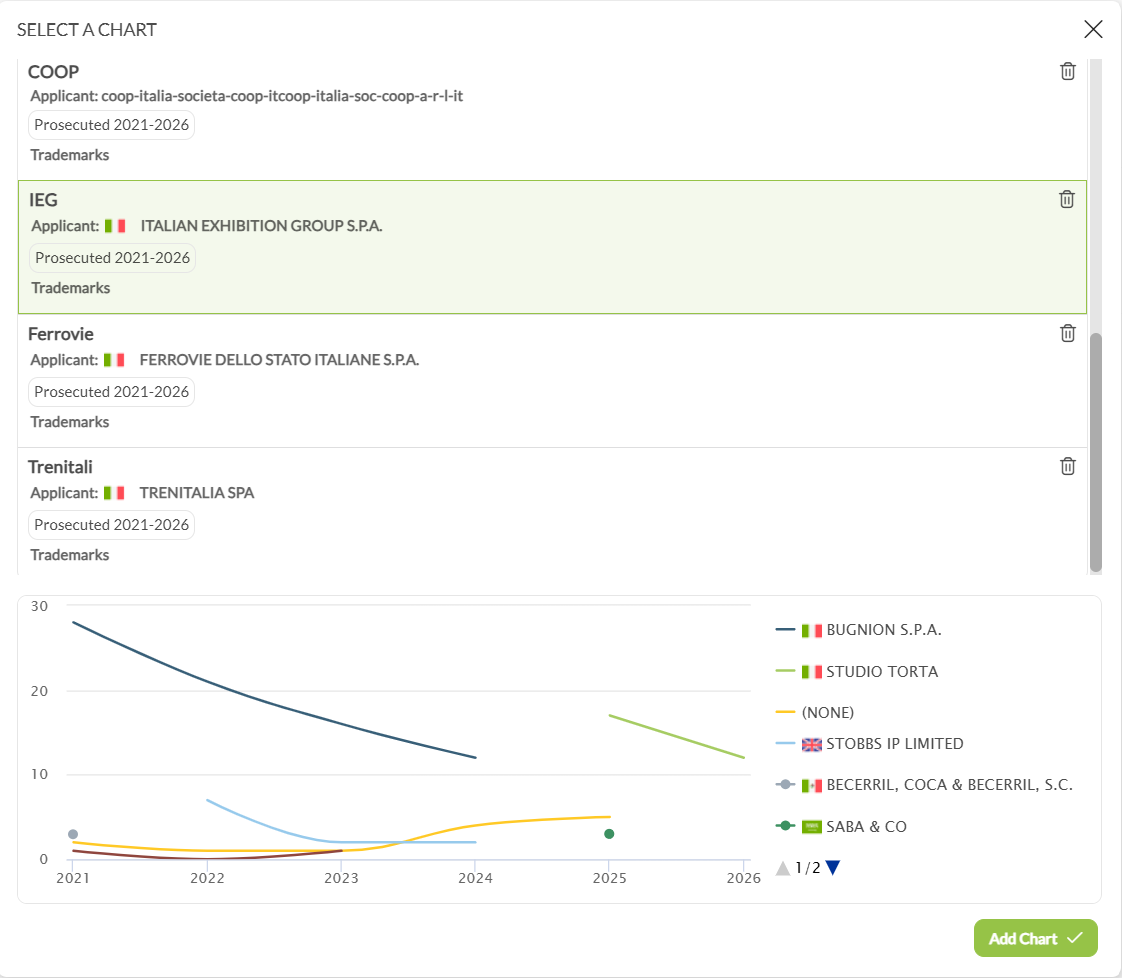
- 3Add the Charts widgetBack on your dashboard, open Add widget and choose Charts. The Select a Chart dialog opens.
- 4Pick the chartSaved charts are listed with their name, the law firm or applicant they belong to, a date-range badge and the IP type. Click one and the preview pane fills; until then it reads Select a chart to preview it.
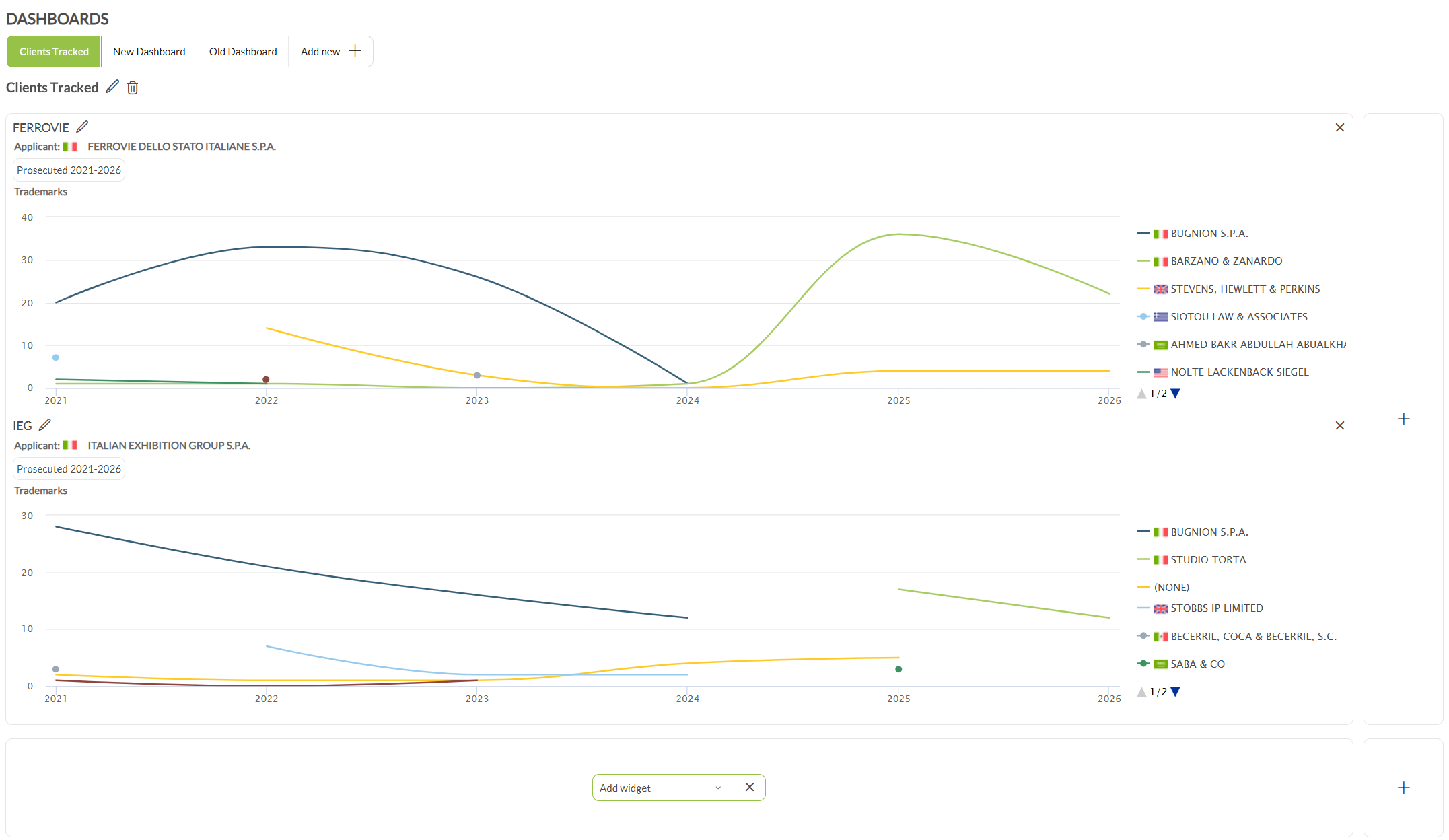
- 5Add itClick Add Chart. The widget then uses the chart’s own title as its header, so the entity and the metric stay identifiable at a glance.
5. Arrange and remove widgets #
- Widgets size themselves. Everything in a row shares the width, so three across are each narrower than two. There are no resize handles, and the way to give a widget more room is to put fewer beside it.
- Position is decided when you add. Row + for beside, Add row for below. Dragging a widget by its header does not move it, so plan the row before filling it.
- Every widget header has an × that takes the widget off the dashboard.
- Do not confuse the two crosses. The × in a widget’s header removes the whole widget. The small × on a single row inside Search Bookmarks or Recent Searches deletes that one entry from the list.
6. Rename or delete a dashboard #
Select the dashboard’s tab first, because both controls act on the active one. The pencil icon beside its name turns the name into an editable field; confirm with the checkmark. The trash icon next to it deletes the entire dashboard rather than the widget you happen to be looking at.
There is no confirmation step. The dashboard goes immediately and the view jumps to another tab. Check which tab is active before clicking, because the layout cannot be recovered, only rebuilt.
Deleting a dashboard removes the arrangement, not the underlying material. Bookmarks, notes, saved searches and saved charts are all held on the entity and in Search, so they survive and can be surfaced again on a new dashboard.
Good to know #
- A Charts widget is a snapshot, not a live control panel. The badges in the chart list record the date range and IP type the chart was saved with, and the widget keeps them. Re-cutting the data means going back to the profile.
- Dashboards do not filter or export as a unit. The year range, year type and filters belong to the screens the data came from, and exporting happens there too.
- Names are worth taking seriously, because the automatic ones are indistinguishable. Pre-meeting: Nordics tells you what a tab is for; New Dashboard 4 does not.
Frequently Asked Questions #
Frequently Asked Questions #
Dashboards #
Can I move or resize a widget?
No. Widgets cannot be dragged into a new position and there are no resize handles.
Width is decided by how many widgets share a row: three in a row are each narrower than two. Position is decided when you add them: the + at the right of a row puts a widget beside the existing ones, and Add row puts it underneath.
To change an arrangement, remove a widget with the × in its header and add it again where you want it. Nothing is lost by doing so, because the bookmarks, notes and charts themselves live on the entity rather than in the widget.
Where is the Save button?
There is not one, and none is needed. A dashboard keeps every change as you make it: adding a widget, removing one, renaming the dashboard. Navigate away, come back, and the layout is as you left it.
My new dashboard is empty. What am I missing?
Nothing. A dashboard has no content of its own: each widget is a window onto something you saved elsewhere in IP Pilot. Bookmark a profile, bookmark a search, write a note, or send a chart to your dashboard, and the matching widget fills up.
The exceptions are Agent Search and Applicant Search, which are live search boxes and work from the moment you add them.
Can my colleagues see my dashboards?
No. Dashboards are private to you, and there is no way to share one.
If you want something visible to the firm, put it in an Organization Note on the entity itself. Notes are the one part of this that can be shared: a note saved as Personal stays yours, while one saved as Organization is visible to your colleagues and appears in their Organization Notes widget.
How do I get a chart onto a dashboard?
In two steps, in two places. On the profile, click the grid icon in the chart’s header, which is tooltipped Add to dashboard. Then on your dashboard choose Add widget and pick Charts, select the chart in the Select a Chart dialog and click Add Chart. The widget takes the chart’s own title as its heading.
Mind the icons: the + sitting next to that grid icon is Add to custom view, which is a different feature and will not put anything on a dashboard.
How do I decide where a widget lands, and can I move it afterwards?
Two controls decide the position. The + square at the right-hand end of a row adds a widget beside the ones already in that row. Add row at the bottom starts a new row underneath.
Widgets in a row size themselves: three in a row are each narrower than two, and there are no resize handles. Dragging a widget by its header does not move it. To change an arrangement, remove widgets with the × in the header and add them back in the order you want.
Why does Agent Search not show my saved searches?
Because it is not a list of anything. Agent Search and Applicant Search are live search boxes that let you start a search without leaving the dashboard. Their placeholders read “Please enter the name of any IP law firm…” and “Please enter the name of any applicant…”.
Your saved queries live in Search Bookmarks, and the profiles you opened recently in Recent Searches.
How do I rename or delete a dashboard, and how many can I have?
Select the dashboard’s tab, then use the icons beside its name. The pencil turns the name into an editable field. Confirm with the checkmark. The trash icon deletes the whole dashboard, not just the widget in front of you.
Rename straight away: new dashboards are called New Dashboard 2, New Dashboard 3 and so on, which stops being useful at about the third one. The interface states no limit on how many you may keep.