
An applicant profile is where you build a detailed picture of a company: what it files, where it protects its rights, which firms act for it, and how much of that work it keeps in house. Applicants are also known as corporates or clients.
Analyze or Search? Use Analyze when you already know the company you want to analyze. Use Search when your starting point is broader, such as finding which companies in a technical field file most in your jurisdiction. A common sequence is to build a shortlist in Search, then open any result here.
The year range, the year type and the filters sit in the top-right toolbar and change every figure on the page. Navigating the App covers them, including what each year type means and when to override it.
1. Find and open a profile #
- Open Applicants. Select Applicants under Analyze in the left navigation pane.
- Type a name into the search bar at the top. A dropdown appears as you type, showing each match with its country flag and a count of overall patents, trademarks and EP validations.
- Select the company you want. To analyze several companies together, select each one.
- Click the arrow on the right to open the profile.
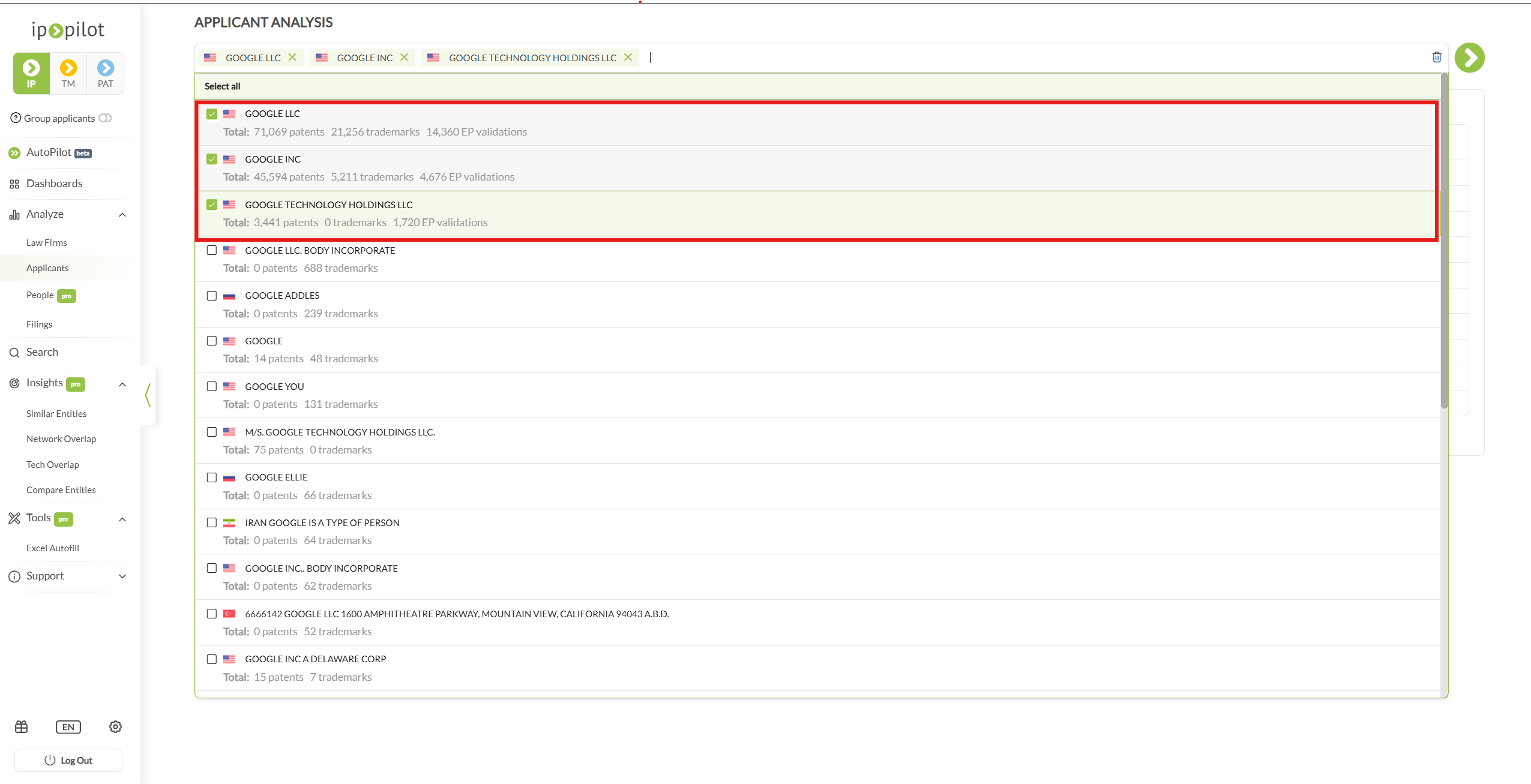
When you open more than one company, the profile header shows the primary name followed by +2, +3 and so on, indicating how many others are included.
Standardization is not grouping. Applicant names are standardized to the DOCDB standard name published by the European Patent Office, so variant spellings, abbreviations and legal suffixes resolve to one company. That is not the same as gathering a corporate group. Subsidiaries stay separate applicants, and for a multinational they are often the majority of the filings. To read a group as one portfolio, use Entity Grouping. A Group applicants toggle also sits in the left navigation pane, above AutoPilot.
Getting back to a profile. On the Applicants landing page, the Profile Bookmarks panel on the left holds profiles and charts you have saved, and the Recent Searches panel on the right lists the profiles you opened most recently. Click any entry to reopen it.
A combined profile treats the selected companies as a combined entity. To keep them apart and read their data separately, use Compare Entities. For the same data points across a long list of companies, use Excel Autofill.
2. Read the KPI bar #
The KPI bar at the top of the profile gives the headline figures for the company, or for the combined entities you are viewing: Patent Filings, Trademark Filings, Cases, Filings per Year, Representatives, Internally Represented, Externally Decided. EP Validations is included where that applies.
Two of these have no equivalent on a law firm profile and are worth reading carefully:
- Representatives counts how many different law firms handled the company’s filings in the period, which is a quick insight on whether it concentrates its work or spreads it.
- Internally Represented is the share of filings handled by the company’s own in-house department rather than by an external firm. A high figure means most of the work never reaches a law firm at all.

Which figures appear in the KPI bar depends on whether you are in IP, TM or PAT, and on whether your subscription includes EP Validations.
The bar also carries the tools you use throughout the profile:
- Bookmark saves the profile to your Profile Bookmarks panel for next time.
- Add Note attaches a text note to the profile, shown every time you return.
- The top-right toolbar stays on every tab and holds Year Type, the year range, Export Profile and the CRM push.
Note: the KPI figures change when you change tabs, because the year type changes with the tab, unless you have locked the Year Type. The same company on Overview and on Case Exchange may show different totals if different year types are selected, and both are correct for the year type in force.
Filings and cases are not the same count. A filing is any single application sent to a publication authority. A case groups filings from the same patent family handled by the same agent, so one underlying application is not counted several times when it appears in several countries. Case Exchange also leaves out families that never left their home jurisdiction, because nothing was exchanged.
In practice #
Three of the most frequent jobs on an applicant profile, start to finish.
Spot cross-sell openings between patents and trademarks #
- Select IP at the top of the left navigation pane, so patents and trademarks are both in scope.
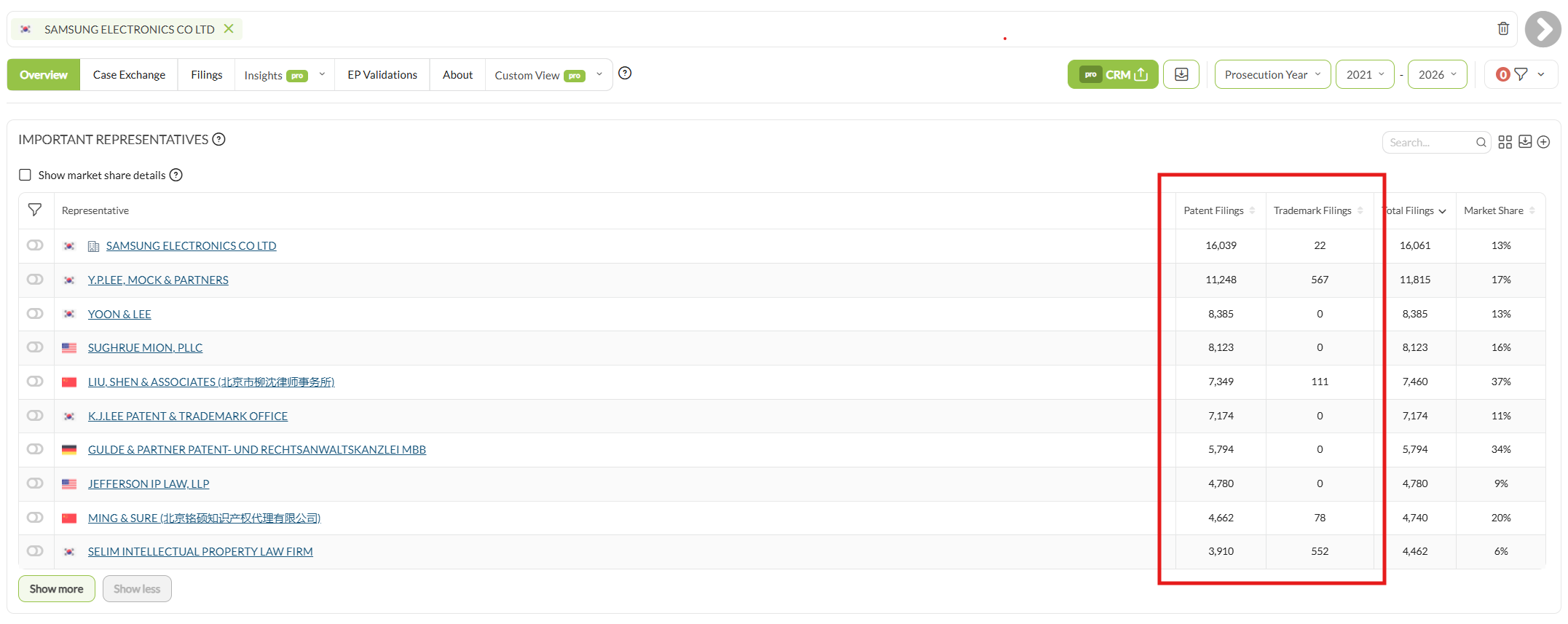
- Go to the Overview tab and scroll to the Important Representatives table.
- View the Patent Filings and Trademark Filings columns. Each row is one firm acting for the company.
- If the applicant files in both PAT and TM, look for a representative carrying volume in one column and nothing in the other. A firm holding 73 patent filings and no trademarks, or 51 trademarks and no patents, is handling only a portion of what the applicant has to offer in that jurisdiction.
- Tick Show market share details to see how much of the company’s activity each representative holds, so you can do a deeper analysis.
See how the applicant’s domestic work is routed to international representatives #
- Go to the Case Exchange tab.
- In the Domestic cases section, find the Important Representatives table. Its first column is Origin Representative, the firm that handled the filing at home.
- Enable the toggle on the representative you want to follow. A company’s own in-house department also appears in this table under the company’s name, so you can isolate the work the company files for itself before sending it to foreign representatives.
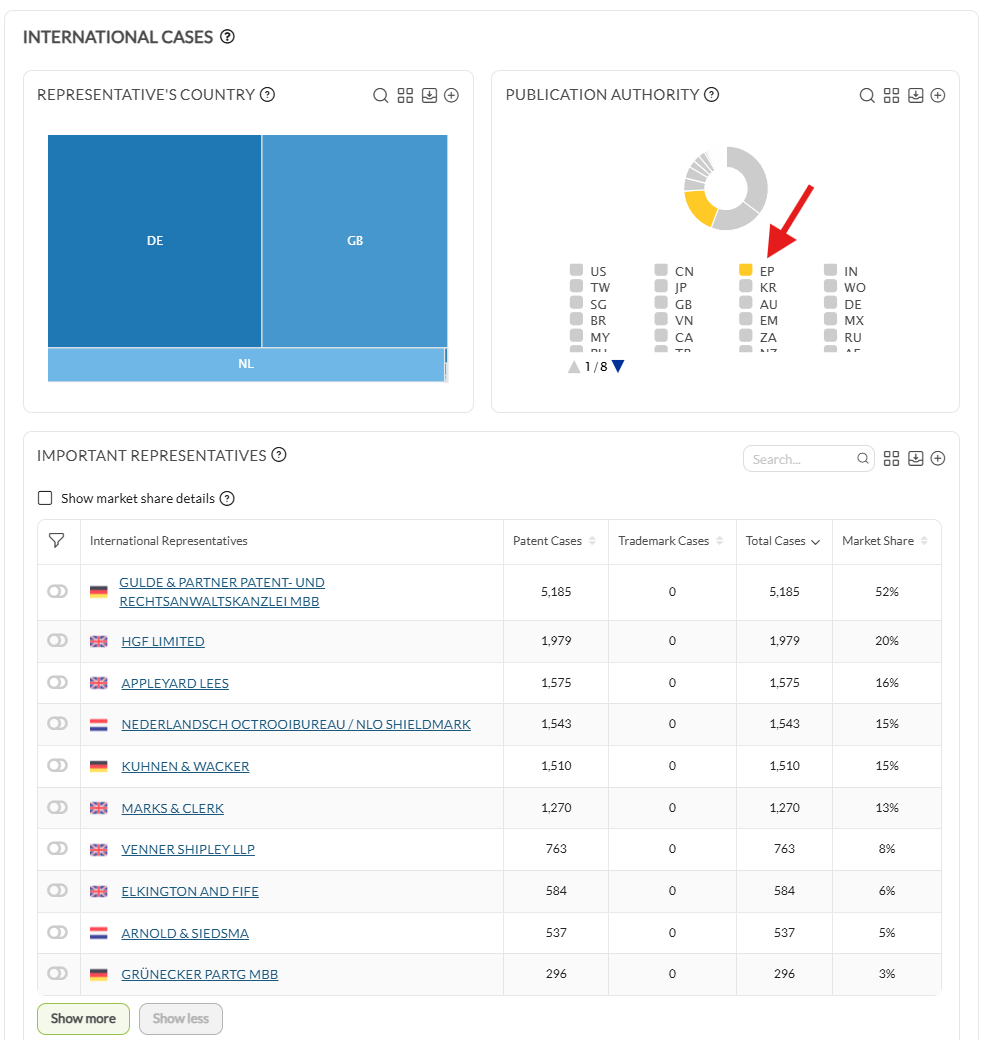
- Under the International cases section, the applicant’s Important Representatives table will show only the firms receiving cases from the representative you selected.
- View Outbound Case Flow at the bottom to see the same path drawn end to end: applicant, then domestic representative, then international representative.
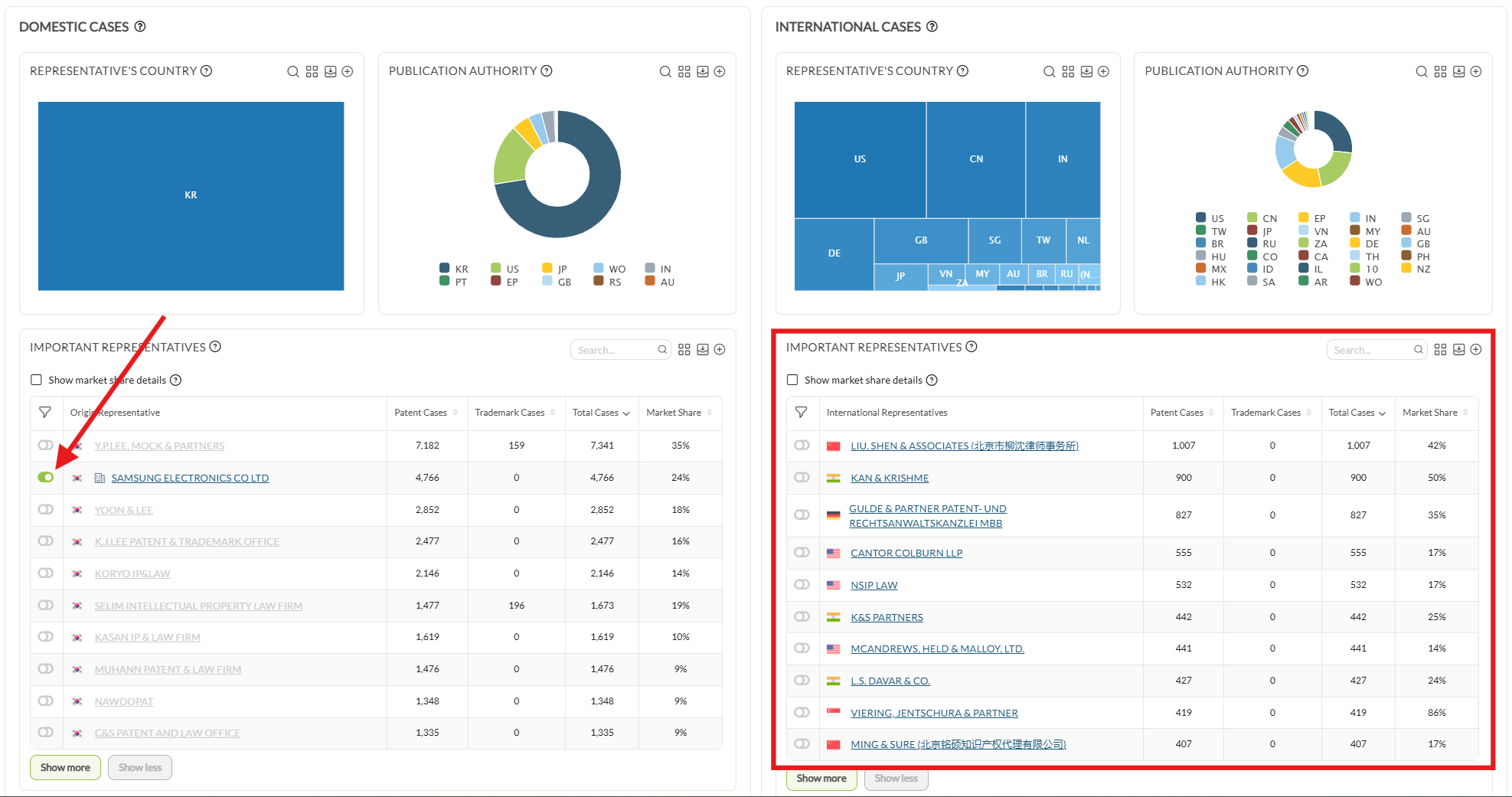
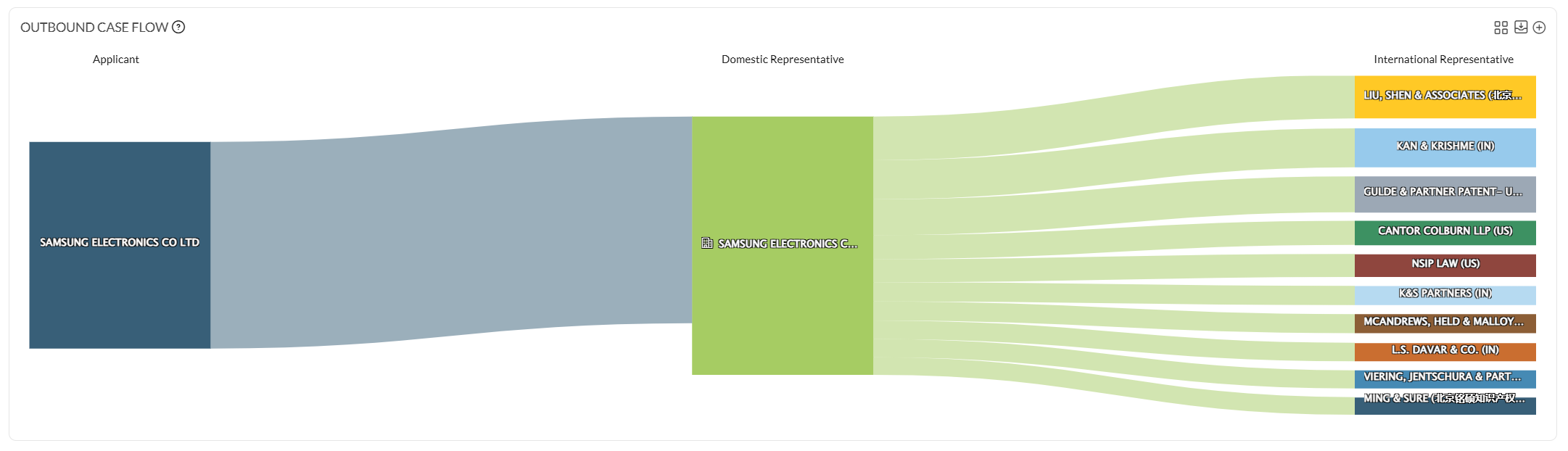
This is the most direct answer to “who does this work actually reach”. An in-house department that sends its foreign filings to five different firms in your jurisdiction is a different conversation from one that sends everything to a single firm.
Find the work you are not getting from an existing client #
- Open your client’s applicant profile.
- Click a segment of the Publication Authority chart to narrow the profile to your jurisdiction.
- View the Important Representatives table for that jurisdiction and tick Show market share details.
- Where your own share is lower than you expect, the rest of the company’s work there is going somewhere else. Read across the other rows to see who holds it.
- Repeat for each authority that matters to you.
3. Overview tab #
How to use it
- View Filings Over Time at the top to see how volumes have changed across the selected period, and Publication Authority to see where filings are registered.
- Scroll to the representative section to see who does the work. Representative Type splits it into external and internal, and Important Representatives names each one.
- To reveal market share, tick Show market share details above the Important Representatives table. The percentage shows how much of the company’s activity in a given authority that representative handles.
- To size the portfolio the company is currently paying to maintain, rather than everything it has ever filed, select the In force slice of the Legal State chart. Every figure on the profile updates to cover only active rights.
- From there, click a segment of the Publication Authority chart to narrow to one jurisdiction. The profile then shows only rights in force there.
- To narrow the picture further, click any chart segment, bar or slice. Every chart on the tab is an active filter. Filters from several charts stack. To keep the same filters when you switch to another company, click Lock Filters at the top-right side.

Reference: what the charts tell you
| Section | Charts |
|---|---|
| Activity | Filings Over Time; Publication Authority; Legal State; Location; Type of Filing; Lifecycle; Grant Status; Filing Route |
| Representatives | Representative Type; Representative’s Country; Important Representatives over Time; Important Representatives |
| Patents | IPC Sections & Symbols; Technical Areas & Fields; Technical Areas over Time |
| Trademarks | Trademark Category; Nice Classes; Verbal Elements |
4. Case Exchange tab #
How the tab is laid out
The tab is laid out in two columns, and they read as one journey.
- Domestic cases, on the left, covers the filings made in the company’s home jurisdiction. It carries Publication Authority, Representative’s Country and an Important Representatives table titled Origin Representative.
- International cases, on the right, covers the same work once it has gone abroad. It carries the same three charts, with the table titled International Representatives.
- Presumed Decision Maker for International Cases splits the work between Applicant and Law Firm, the two candidates for who chose the foreign representative.
- Outbound Case Flow, at the bottom, is a diagram tracing each case from applicant, to domestic representative, to international representative.
How to read the decision maker split
Raw filing data never records who chose the foreign partner, but IP Pilot predicts it based on the available data. Pattern analysis across the whole dataset scores every case for the probability that each party made the decision, and the highest score wins. A strong signal is repetition. Where the same international firms receive a company’s filings whichever firm handled the priority filing, the company is the likely decision maker. Where a firm only ever receives one client’s cases from one particular home firm, the decision sits with that home firm.
Click either segment to recalculate every chart on the profile for the cases decided by that party alone.
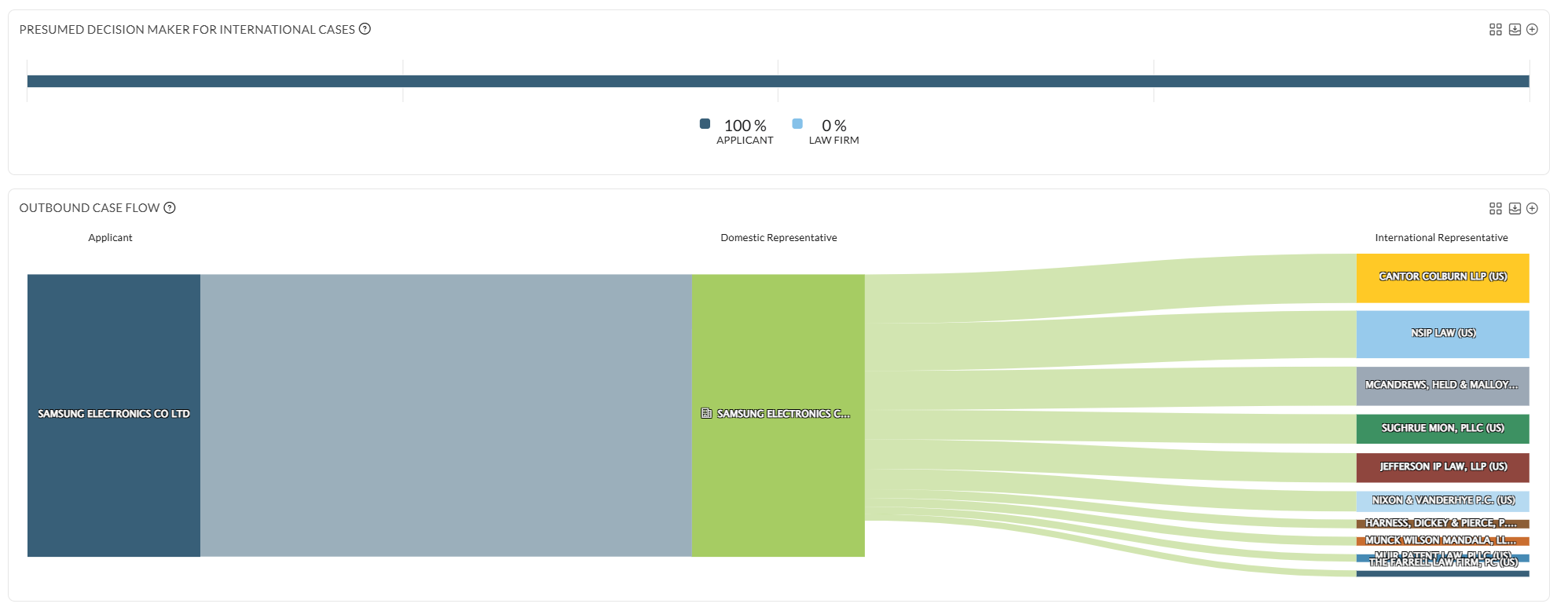
Why this matters. A high Applicant share means the company directs its own foreign filings, so the company is who you should approach. A high Law Firm share means its domestic representative chooses the foreign representative, and approaching the applicant directly may not move the work.
Note: the prediction depends on how much data there is. For a company with a small portfolio, expect less precision.
Data note: Trademark case exchange data may be incomplete because of missing data connections at family level. Keep that in mind when reading trademark referral volumes.
5. Filings tab #
How to use it
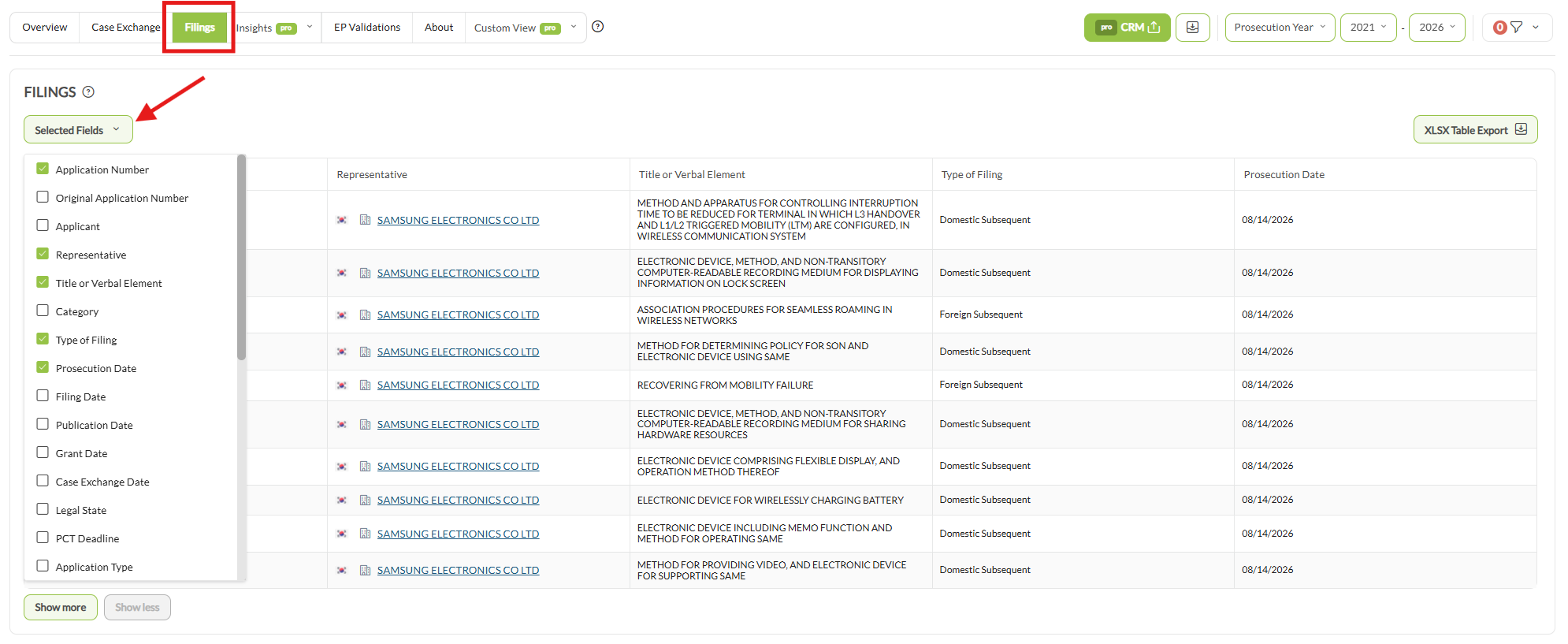
- Read the table. By default it shows Application Number, Representative, Title or Verbal Element, Type of Filing and Prosecution Date.
- To add columns, open Selected Fields.
- Click any application number to open its full bibliographic data, including legal status and filing history.
- To export, click XLSX Table Export at the top right. The file reflects your current columns and active filters.
6. EP Validations tab #
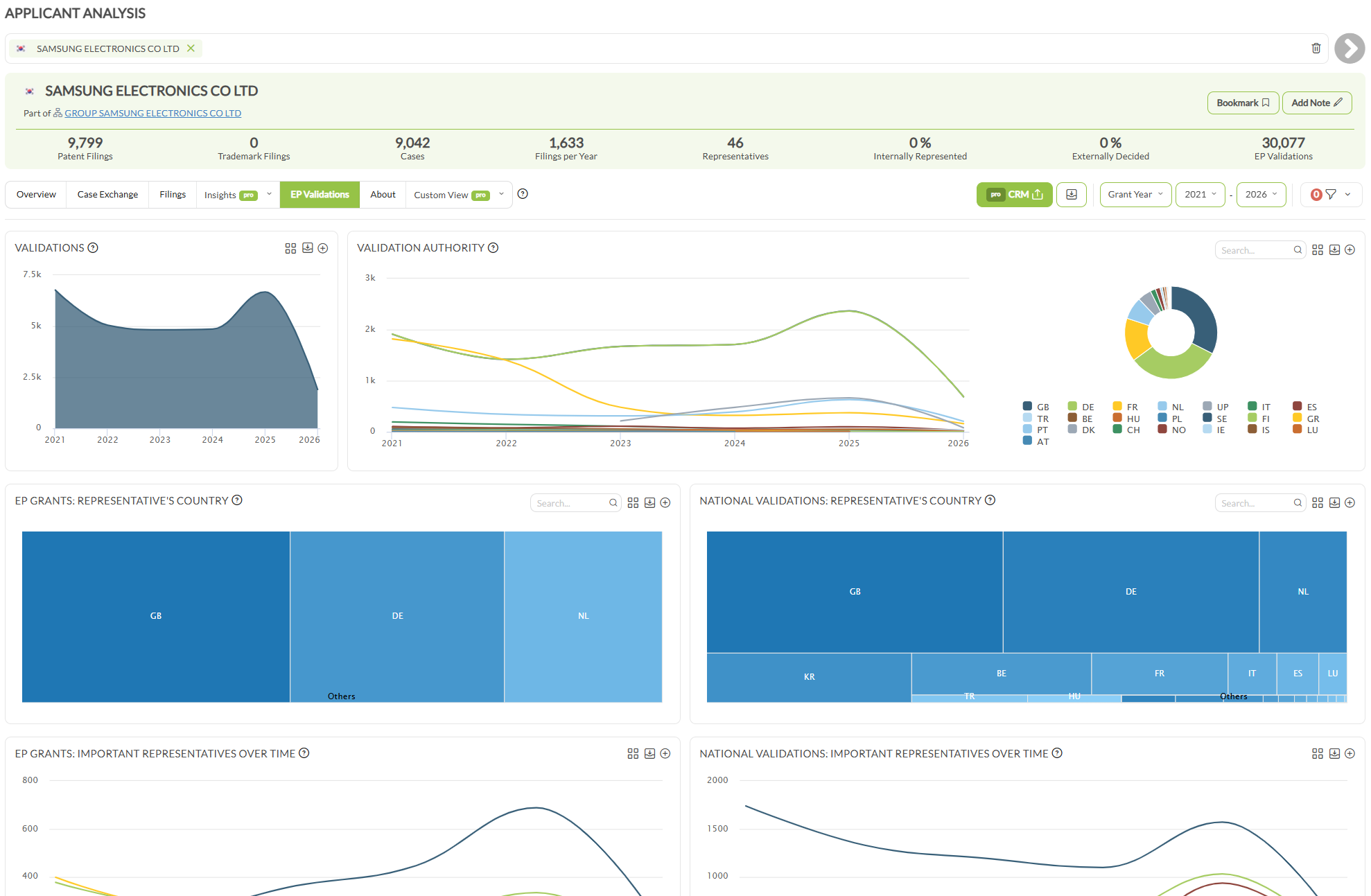
Why validations are counted by grant year. Registers do not reliably publish the date a validation was actually filed, and only about three months separate grant from the company’s decision on where to validate. Grant year is available for every European patent, which makes it the one basis that compares cleanly across the whole dataset.
How the tab is laid out
- Validations and Validation Authority at the top show the volume over time and the countries it went to.
- Below them the tab splits: EP Grants charts on the left side, National Validations on the right. Each side carries a representative’s country breakdown, a trend line and a ranked Important Representatives table.
- Presumed Decision Maker splits the validations between Applicant and Law Firm, as on Case Exchange.
- Presumed Service Provider Involved shows where an annuity or validation service handled the work rather than a law firm. Where the data is not clear, it is marked as Unclear.
- Outbound Validations traces each validation from applicant, to domestic representative, to international representative.
EP Validations data pack also carries the Unitary Patent dataset, so unitary protection sits alongside national validations rather than being missing from the picture.
Note: no tab means either your subscription does not include EP Validations, or the company holds no European patents.
7. About tab #
Note: the Contact, Offices and Related Group Applicants panels are on Pro.
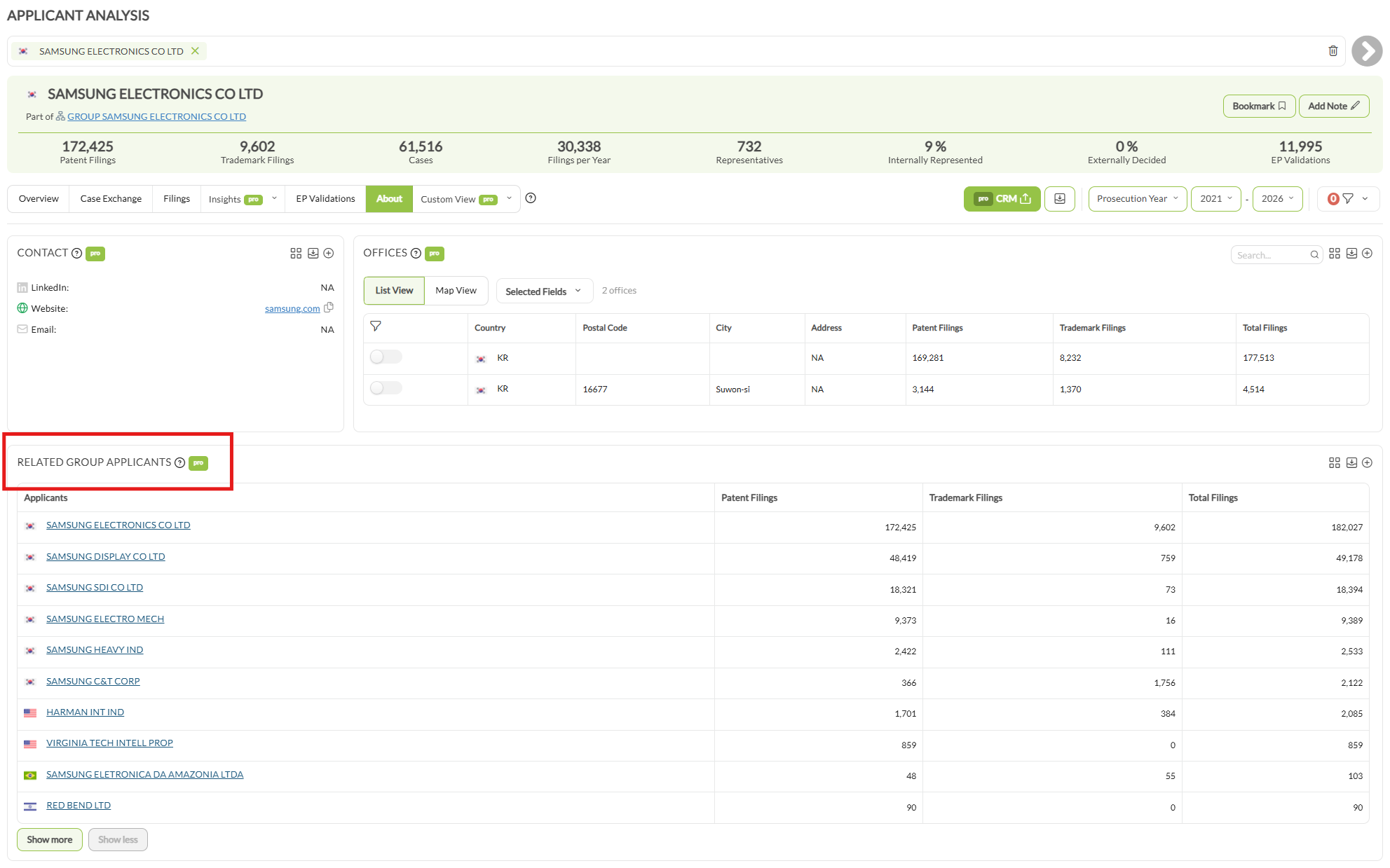
- Contact: LinkedIn, website and email for each entity in the profile. Where a value is absent it reads
NA. - Offices: physical locations, as a table and a Map View. Each office row has a toggle that filters the whole profile to that office’s activity.
- Related Group Applicants: other applicants belonging to the same corporate group.
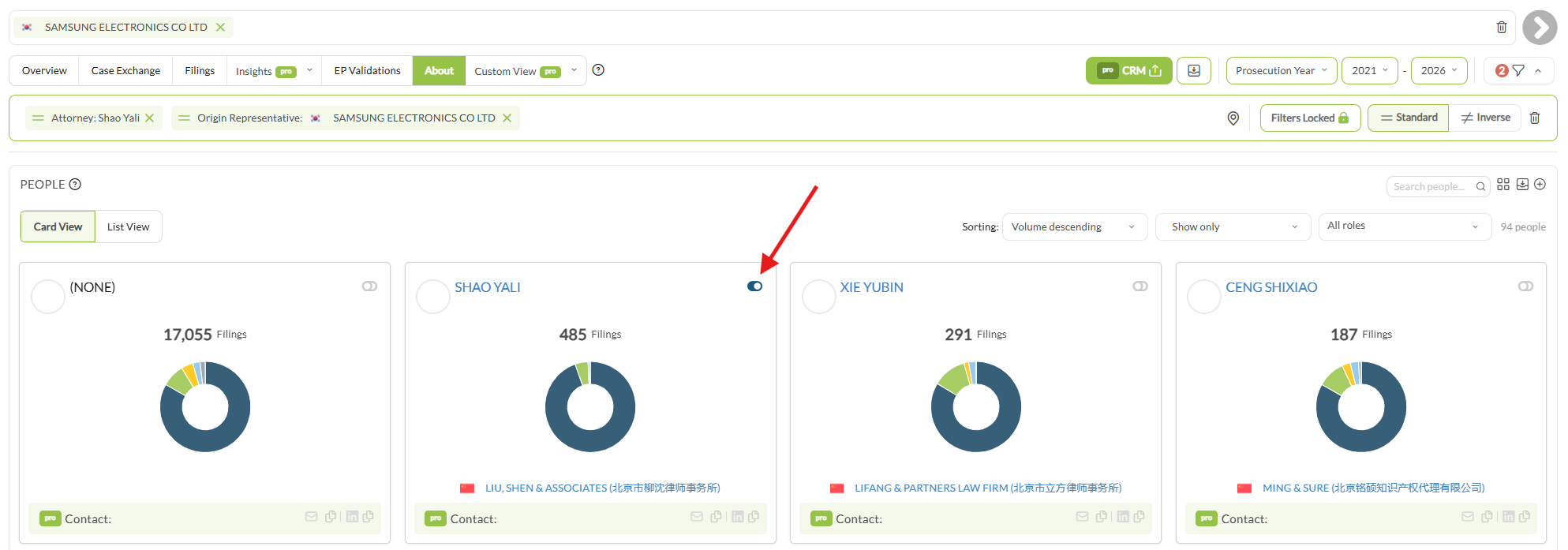
- People: the individuals named on the company’s filings. On an applicant profile these are largely the attorneys at the firms acting for it, so each card carries the person’s own firm rather than the company. Browse in Card View or List View, sort by filing volume, and filter by role. Toggle a name on to filter the whole profile to their activity. Click the name to open their standalone profile.
8. Exporting data #
Three ways to get information out.
- Export the profile as a PDF. Click the Export Profile icon in the toolbar, beside the Year Type selector. Choose which sections to include, set the Date Type and pick a paper size, then click Preview PDF. Despite the label, that button starts the real generation.
- Export a table as XLSX. On the Filings tab, click XLSX Table Export at the top right. The file reflects your current column selection and active filters.
- Export a single chart. Hover the chart and click the download icon in its top-right corner, then choose a format. Most charts offer JPG, PDF, XLSX and SVG; some offer fewer.
Exports covers every route and the options each one offers.
Good to know #
- Every KPI and chart reflects the active time period, Year Type and filters. If a number looks wrong, check those three before drawing conclusions.
- Recommended Year Types: Prosecution Year for Overview, Case Exchange Year for Case Exchange, Grant Year for EP Validations.
- Market share has no single value for a company. It is measured only within the scope where the company is genuinely active, which means the authorities it files in, the filing types it used there, the period selected and any filters in force. Narrowing to one jurisdiction or one technical field re-bases it, and that narrower figure is usually the one worth quoting.
- Chart filters on Overview and Case Exchange stack, and persist across profiles with Lock Filters, which lets you compare companies on the same criteria without reapplying settings.
- Bookmarks and notes are per profile and private to your account.
- (NONE) appears as a category in several charts, including Legal State, Lifecycle, Grant Status, Important Representatives and the People directory. It covers the filings where that particular property was empty in the record.
- For patents, a low figure in the current year usually reflects publication delay rather than a real decline.
Frequently Asked Questions #
Frequently Asked Questions #
Applicants #
How are applicant names standardized?
Applicant names use the DOCDB standard name provided by the European Patent Office. This matters because the same corporate appears in raw patent data under many spellings, abbreviations and legal suffixes; the standard name consolidates them so a search returns the applicant rather than a fragment of its filings.
Standardization is not the same as grouping. A corporate group whose subsidiaries file under genuinely different legal entities remains several applicants. Use Entity Grouping to analyze them together.
Can I analyze several applicants at the same time?
Yes. Tick as many applicants as you need in the name search before loading, and IP Pilot returns one combined profile treating them as a single entity.
If you want to see them separately rather than combined, use Compare Entities. If you are trying to bring a corporate group’s subsidiaries together, Entity Grouping is the better tool.
How can I see only the patents that are still in force?
On the Overview tab, select the “In force” slice of the LEGAL STATE chart. Every figure on the profile then covers only active patents or trademarks, and a “Legal State: In force” filter appears in the filter bar.
To narrow further to one jurisdiction, click a segment of the Publication Authority donut. Click a segment of the donut, or the matching entry in the legend beside it. Both apply the same filter.
The profile then shows only rights in force in that country, which is also the volume on which annuities are being paid there.
Why do the filing numbers in IP Pilot differ from our internal records?
IP Pilot can only show information that is publicly available. Your own records may include filings that were never published, or that have not been published yet.
The other common cause is comparing different time windows. Check that the type of date matches on both sides. Prosecution, filing, publication and grant dates are not interchangeable, and the difference can be substantial. When reconciling against another source, set the year type to filing or publication year, because those are the dates both sides share.
How do you define a case?
A case is all applications within the same patent or trademark family represented by the same agent. It is not the same as an application.
For example: a US agent files a US application and then a PCT application, and a European firm takes over the EP regional phase filing. Counting every application in the family would suggest the European representative received two applications, when it received one case.
Only cases that were actually exchanged are counted. A family containing just a priority filing that was never internationalized does not appear in case exchange, because no exchange took place.
Why do the figures differ between the Overview and Case Exchange tabs?
Overview reports filings. Case Exchange reports cases.
A case is all applications within the same patent or trademark family represented by the same agent, so one case can cover several filings. Case Exchange also counts only cases that were actually exchanged, excluding families that never left their priority jurisdiction.
The totals are therefore not expected to match.
Where does the classification of technical fields come from?
From WIPO’s 2008 concept for technology classification. It aggregates related IPC codes through a concordance table, so each filing is associated with one or more of 35 technological fields, which in turn belong to one of 5 broader technical areas.
This is what makes an applicant’s technical profile comparable across jurisdictions, since IPC codes themselves are too granular to read as a portfolio.
Can I export or print an applicant profile?
Yes. Individual charts and tables can be exported using the download icon next to each title.
For the whole profile, use the Export Profile icon below the tabs and choose which charts and tables to include.
Export is not available on trial access. If you believe you should have it, contact support@ip-pilot.com.