
Every figure in IP Pilot is built from individual applications. Filings is where those applications are visible one at a time: the bibliographic record of a single patent or trademark application at a single office, with its family around it.
There are two routes in, and they answer different questions.
- The Filings tab on a profile: every filing IP Pilot associates with one law firm or applicant.
- Analyze › Filings: one filing at a time, looked up by number, with its whole family arranged around it.
Before you start #
Both routes above come with a profile. The third route in section 4, Filing View in Search, is on Pro. Versions explains where to check which version you have access to.
1. List the filings behind a profile #
Load a firm or an applicant and switch to Filings. The tab lists every filing associated with that entity inside the current year range and filters, one row per filing. Trademark rows also carry the trademark image, which makes a mark quicker to recognize than its number does.
What a row can hold:
- Identification: application number, publication number, title and applicant name.
- Status and route: legal state, filing route and publication authority.
- Classification: IPC codes, and the technical field derived from them.
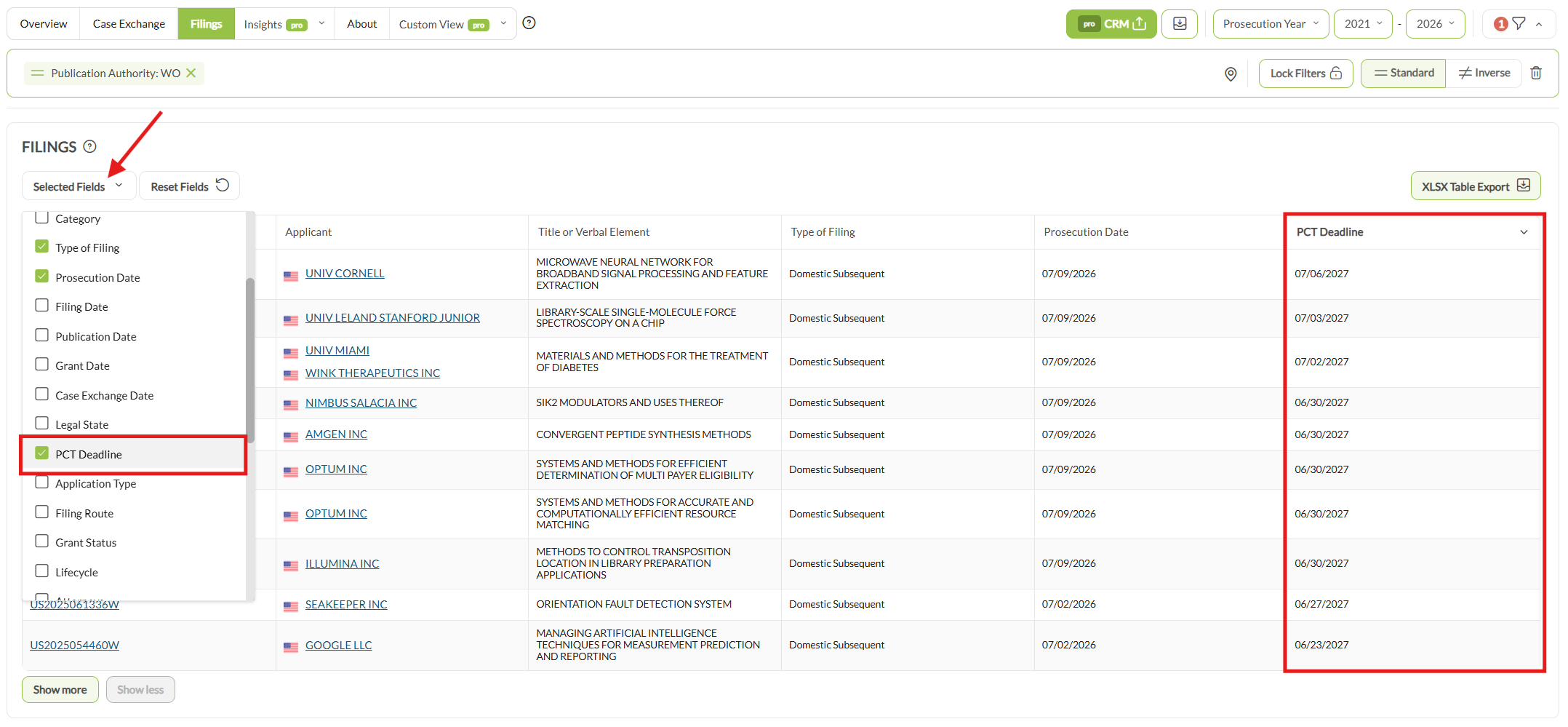
- Dates: Filing Date, Publication Date, Prosecution Date, Grant Date, Case Exchange Date and PCT Deadline.
Five columns show by default. Selected Fields adds the rest, Reset Fields returns the table to those five, and Show more lengthens the list. A filing that names several applicants carries all of them in the one row.
Filings, not cases. Every row here is one application at one office. Case Exchange counts cases instead, meaning all applications in one family handled by the same agent, and only cases that were actually exchanged. The two totals will not match, and are not meant to.
2. Look up a single filing #
With a number already in hand, use the lookup rather than a profile. It returns that one filing, who handled it, and where it sits in its family.
- 1Open FilingsIn the left sidebar, click the chevron beside Analyze, then Filings. The Configuration panel opens.
- 2Choose what to search byPick one of Application Nr., Original Application Nr., Publication Nr., Title or Verbal Element.Note: Each option searches one field only. A correct number entered against the wrong option returns nothing at all rather than a near miss, so check this dropdown before doubting a number that finds nothing.
- 3Type, select the suggestion, then loadStart typing. The field is a type-ahead, so select the match from the dropdown, then click Check Filing. Reset, beside it, clears the configuration and starts again.Note: Selecting a suggestion is the step that does the work. Typing a complete, valid number and clicking does nothing. Check Filing stays grayed out until a suggestion is picked from the dropdown.
Which number is which. Application Nr. is WIPO’s standardized number. Original Application Nr. is taken from the regional office and can keep that office’s native formatting: different separators, a different length, sometimes a different year component. The same filing can therefore appear under two numbers that look nothing alike. Working from a WIPO or EPO record, use the standardized number. Working from your own docketing system, or from correspondence with a national office, you probably hold the original.
3. Read the result #
A retrieved filing arrives in three parts: the record of the filing itself, the family it belongs to, and how that family spread internationally.
a. Bibliographic Data #
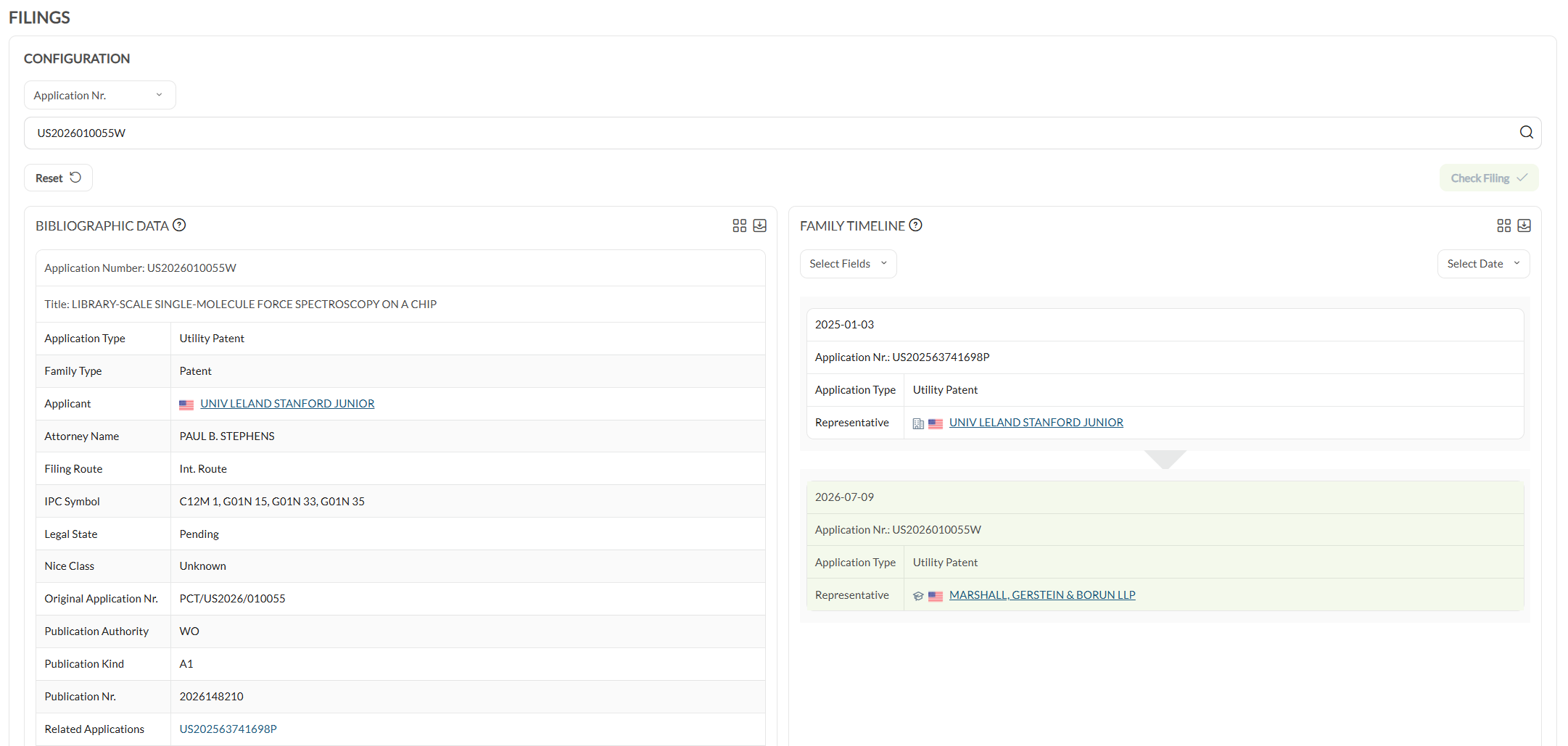
The Bibliographic Data table holds the filing’s own record: Application Number and Title, then Application Type, Family Type, Applicant, Attorney Name, Filing Route, IPC Symbol, Legal State, Nice Class, Original Application Nr., Publication Authority, Publication Kind, Publication Nr. and Related Applications.
The applicant name and the related applications are links, so a single filing is a way into the profile behind it and into the rest of its family.
b. Family Timeline #
The Family Timeline lists every filing in the same family in chronological order, the filing you looked up highlighted among them. Each entry carries its date, Application Nr., Application Type and Representative. Select Fields changes which of those appear, and Select Date at the top right switches which type of date the order is based on: Application Date, Publication Date or Prosecution Date.
The sequence of representation across a family is readable here: who filed the priority, who took the PCT, and who handled each national or regional entry.
c. Filings Flow #
The Filings Flow chart places the filing inside its family as a flow from left to right: the priority filing, then domestic subsequent filings, then foreign subsequent ones. Each node carries the fields chosen in Select Fields, which by default are the application number, the application type and the representative. Hover over an entry to reveal that filing’s bibliographic detail.
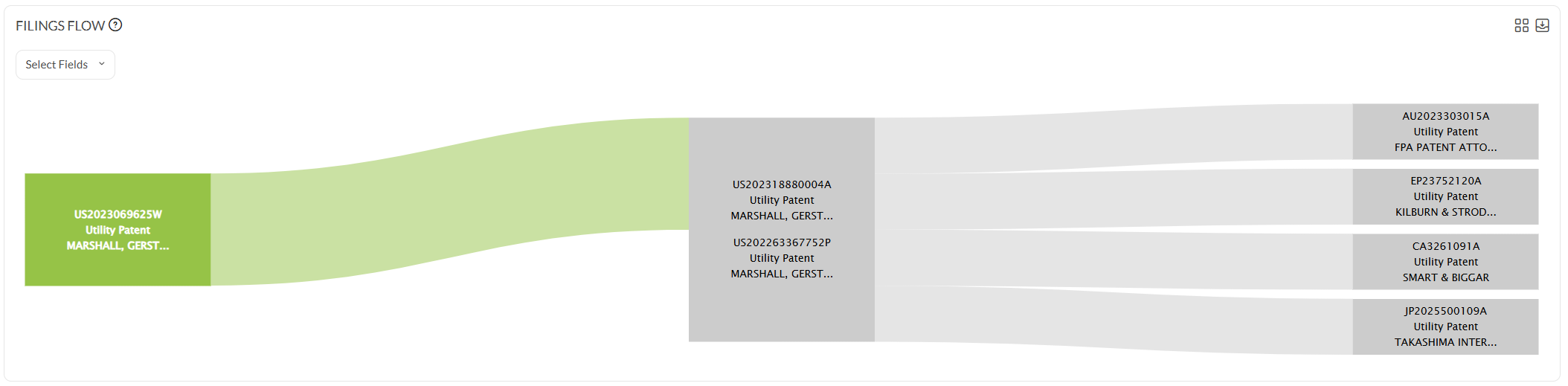
Read as a whole, the chart shows how a family spread outward from its home jurisdiction and which firms picked it up at each stage. The Decision Maker analysis on a profile’s Case Exchange tab works from the same raw material.
4. Pull a filing-level list out of a search #
Search returns entities by default, the firms or applicants that match the query. Filing View, the tab alongside List View and Map View, returns the underlying applications instead. That is the route to bibliographic detail spanning many firms or applicants at once rather than one profile at a time. Building the query itself is covered in Search.
- Filing View is on Pro. The other two result views are available from Standard.
- Add further columns to the table under Selected Fields.
- A maximum of 1,000 rows is displayed, ordered by most recent prosecution date, and the table says so itself. The limit is on display alone. The aggregate figures in the search still cover everything that matched.
- For more than 1,000 rows, narrow the query and run it in slices: a tighter year range, a single publication authority, one technical field.
5. Adjust the view and export #
The year range, the year type and the filters sit in the control bar and behave the same way everywhere in the app. Navigating the App covers them in full. One point matters especially at filing level: the year type decides which date puts a filing into a year, so switching from prosecution to publication year can move a filing in or out of the range without any underlying data changing.
Export a filings table with the XLSX Table Export button at the top right of the table. The export carries whatever columns, filters and year range are currently applied, so set the table up first rather than trimming the spreadsheet afterwards.
To retrieve the same fields for a long list of entities in a single pass instead of profile by profile, use Excel Autofill.
Good to know #
- Not every filing names an attorney. Attorney Name is populated only where the office and the firm’s own filing practice put it in the record. People explains what follows from that.
- One filing can name several applicants. A co-filed application lists each of them in the same row, so a row count is not an applicant count.
- The same filing appears under two numbers. The standardized number and the office’s own number can look nothing alike, which is the most common reason a lookup finds nothing.
Frequently Asked Questions #
Frequently Asked Questions #
Filings #
What is the difference between the Application Number and the Original Application Number?
The Application Number is WIPO’s standardized number. The Original Application Number is the number as the regional office issued it, and may use that office’s own native formatting, with different separators, different lengths and sometimes a different year component. They can refer to the same filing while looking nothing alike.
If you are working from a WIPO or EPO record, search the Application Number. If you are working from correspondence with a national office or from your own docketing system, the Original Application Number is usually the one you have.
How is a filing different from a case?
A filing is a single application at a single office. A case is all the applications within one patent or trademark family that are represented by the same agent.
The distinction exists to avoid double counting. If a US agent files a US application and then a PCT application, and a European firm takes over the EP regional phase, counting applications would suggest the European firm received two pieces of work when it received one. Everything on the Filings tab counts filings; everything on Case Exchange counts cases, and only cases that were actually exchanged.
Why do the filings in IP Pilot not tally with our internal database?
Two usual causes. First, IP Pilot only shows what is publicly available, so your own records will include filings that were never published or are not published yet.
Second, you may be comparing different date bases. Prosecution, filing, publication and grant dates place the same filing in different years, and the gap can be substantial. For a reconciliation exercise, set the year type to filing or publication year, because those are the dates both systems share.
My number returns no result. What should I try?
Check the number type first. The three options search different fields, so a valid original application number entered against Application Number will legitimately return nothing. Try the same number against each of the three options before concluding the filing is absent.
If none of the three finds it, the filing may not be published yet. IP Pilot holds publicly available data only, so an application still inside its confidentiality period will not appear.
Can I see upcoming PCT deadlines?
Yes. The PCT deadline is one of the date columns available on the Filings tab, alongside filing, publication, prosecution and EP grant dates. Add it through the column selector and sort by it to see which of an applicant’s or firm’s pending PCTs need a national-phase decision soonest.
This is the basis of a common prospecting workflow: find applicants with pending PCTs in Search, then open the Filings tab to see the individual deadlines.
Can I export the filings list?
Yes, using the XLSX Table Export button above the table. The export reflects the columns, filters and year range you currently have applied, so set the table up before exporting rather than trimming the spreadsheet afterwards.
Export is not available on trial access. If you have a full subscription and still cannot export, contact support@ip-pilot.com.
Why does a filings list stop at 1,000 results?
A filing-level list returned from Search displays a maximum of 1,000 rows, taking the most recent by prosecution date. It is a display limit, not a limit on the underlying result: the aggregate figures in your search are still calculated over everything that matched.
If the list you need is longer than 1,000 rows, narrow the query with a tighter year range, a single publication authority, or one technical field, and run it in slices.
Where does the technical field classification come from?
From WIPO’s concept for technology classification (2008). It aggregates related IPC codes through a concordance table, assigning each filing to one or more of 35 technological fields, which in turn belong to one of five technical areas.
The raw IPC codes are shown on the filing itself, so you can always check how a particular filing was classified rather than relying on the aggregation.
What is the difference between Filings Flow and the Case Flow charts?
They are two different charts, on two different screens, and they count different things.
Filings Flow belongs to a single filing. Look a filing up under Filings and it arrives with its Bibliographic Data, its Family Timeline and this chart, which places that filing inside its family as a flow from left to right: the priority filing, then domestic subsequent filings, then foreign subsequent ones. Each node carries the fields chosen in Select Fields.
Inbound Case Flow and Outbound Case Flow belong to a profile, on the Case Exchange tab. They trace cases rather than filings, following each one from the applicant, through its domestic representative, to the international representative that received the work, which is what shows who chose the foreign firm. An applicant profile carries the outbound diagram only, because an applicant only sends.
A filing I know exists is not showing. Why?
Most often the year range or an active filter is excluding it. The Filings tab obeys the same controls as the rest of the profile, and the year type determines which date decides the year a filing falls into. A filing can sit inside your range on one year type and outside it on another.
Clear your filters and widen the year range before assuming the data is missing. If it still does not appear, the filing may be unpublished, or the representative on it may be recorded under a different entity.