
A Custom View is a tab on an entity profile that holds the charts you choose. A standard read of a firm often uses the same four or five charts, spread across Overview, Case Exchange and Insights. A Custom View puts them on one screen. When you load the next entity, the view is there with the same charts.
Custom View is on Pro and shows as a tab on law firm, applicant and People profiles. For the profiles themselves, see Law Firms and Applicants. Navigating the App explains the sidebar, the year range, the filters and what each year type means.
1. Build a Custom View #
- 1Load a profileIn the left sidebar, expand Analyze and click Law Firms or Applicants. Type the name, select the entity and click the green arrow.Note: The load button stays grayed out until you select at least one checkbox, even for a single entity.
- 2Open the Custom View tabOn the loaded profile, click the Custom View tab at the end of the tab bar.
- 3Create the viewClick Add View. IP Pilot creates the view immediately, with a default name such as New Custom View 1. There is no naming prompt. To rename the view, click the pencil icon next to its title.Note: You do not need to save. A view and its charts are kept as soon as you create them.
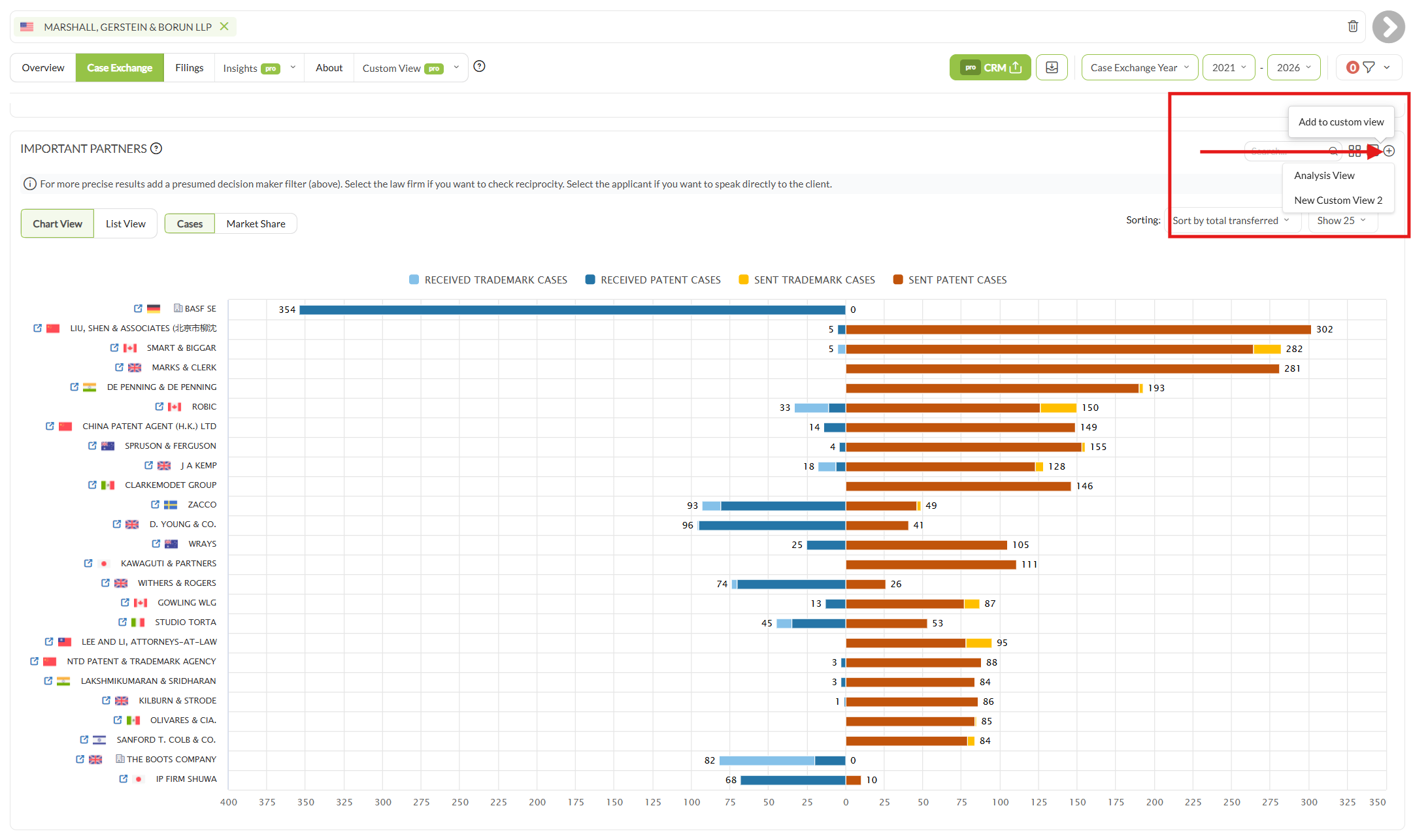
- 4Collect your chartsThere are two ways to add a chart. Inside the view, use the Add chart dropdown. You can search it, and it groups the charts by the tab they come from. This is faster when you know what you want. Or go to another tab of the profile and click the plus icon (Add to custom view) at the top right of a chart. Then select the view. The chart also stays on its own tab.Note: The Filings tab has no add control, so you cannot put its table into a view. Use its XLSX Table Export instead.
- 5Use it on the next entityLoad the next firm or applicant and open its Custom View tab. The view is already there, with the same charts for the new entity.
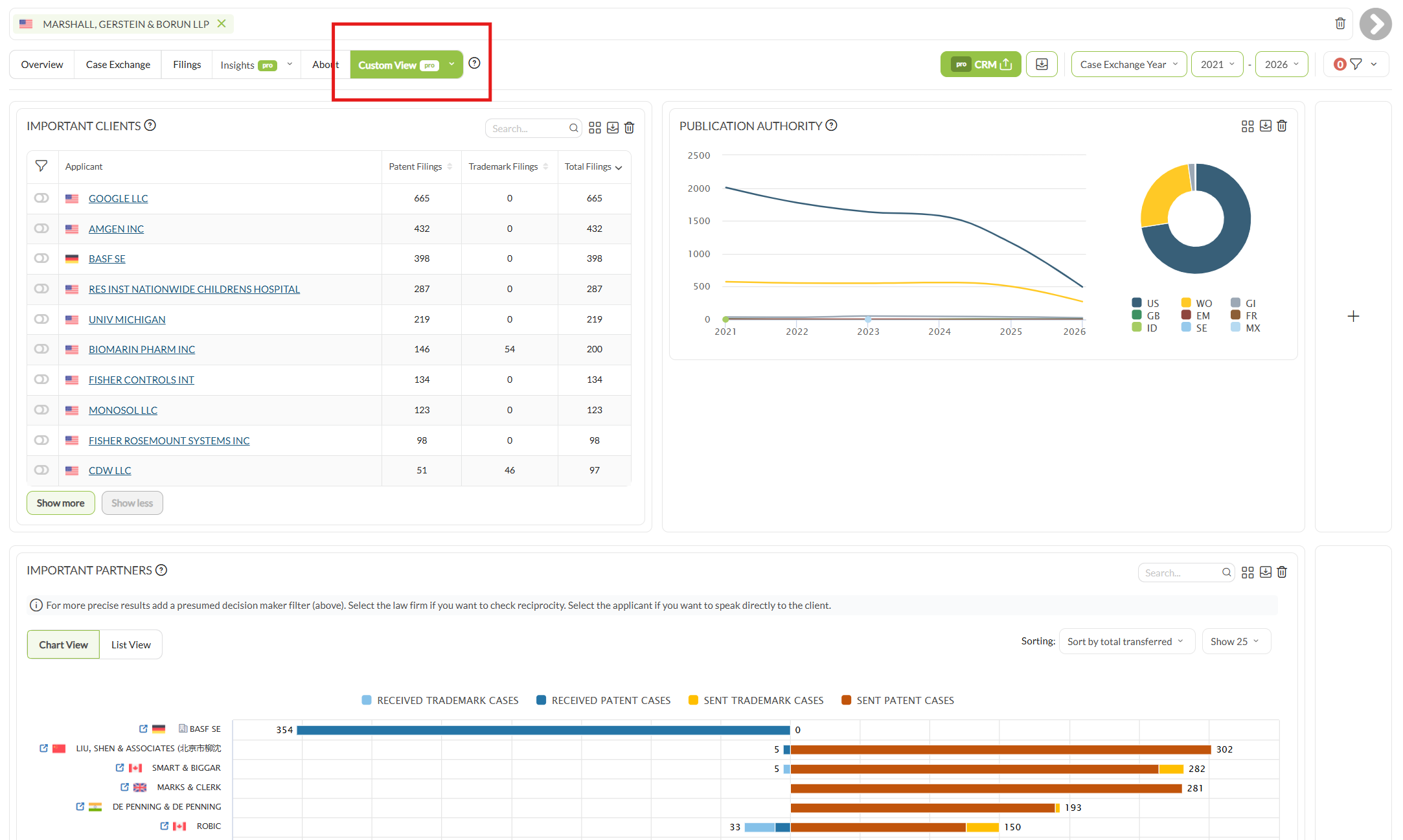
Views are per entity type. Law firms and applicants have separate Custom Views. A view you build on firm profiles does not show on an applicant profile. If you analyze both, build the same view on each side.
2. Choose what goes into a view #
A view can hold charts and tables from the profile tabs that you can see. Insights needs Pro, and EP Validations is a separate product. If you cannot open a chart on the profile, you cannot add it to a view.
Keep a view small. It should be a screen you can read at a glance, not a second profile. The four or five charts you check on every entity are more useful than every chart that fits.
3. Set the filters and the time frame #
A Custom View shows the charts, not the controls that produced them. To filter a chart, go back to its original tab and apply the filter there. The profile recalculates, and the Custom View changes with it. The year range and year type in the control bar apply to the whole profile, as usual.
- Set your filters before you start to read. This applies in particular to the decision-maker filter. Use it to see only the work that the firm placed itself, not the work its clients directed.
- Use Lock Filters, the padlock at the right of the filter bar, to keep the same filters when you load the next entity. The filter bar is a separate row below the tabs, and it shows only when a filter is active. You can compare a view across firms only if every firm has the same filters.
4. Choose between Custom View and Dashboards #
The two are easy to confuse, but they do not overlap.
- Custom View: the same charts for different entities. It is on the profile and stays with you from one firm to the next.
- Dashboards: the same information for one entity or saved search, on a separate screen built from widgets. See Dashboards.
You cannot add a Custom View to a dashboard.
5. Export a chart from a view #
Each chart in a Custom View keeps its Export Chart icon. You export a chart from the view in the same way as from its own tab. Exports explains the formats and the options in the dialog.
6. Rename or delete a view #
Each control is next to the item it changes.
- Rename a view: the pencil icon next to the view title.
- Delete a view: the trash icon next to the view title.
- Remove one chart: the trash icon on that chart in the view. The chart stays on its original tab. Only its place in the view is removed.
Frequently Asked Questions #
Frequently Asked Questions #
Custom View #
When should I use Custom View, and when should I use Dashboards?
Use a Custom View when you want the same charts for different entities, because the arrangement travels with you as you load one firm after another. Use Dashboards when you want to return to the same information for one specific entity or saved search. See Dashboards.
Can I add a Custom View to a Dashboard?
No. They are two distinct features and do not overlap. A Custom View lives on an entity profile; a Dashboard is its own screen built from widgets.
Which charts can I add to a Custom View?
Charts and tables from the profile tabs you can actually see. Which tabs appear depends on the entity and on your subscription: Insights requires Pro, and EP Validations is a separate product. You can only collect a chart from a tab you have access to.
One exception: the Filings tab has no add control, so its table cannot be placed in a Custom View. Export it from the Filings tab itself instead.
Do I have to rebuild the view for every entity I analyze?
No. Build the view once on the first entity. When you load the next entity of the same type, the same view is on its Custom View tab.
Do my Custom Views apply to both law firms and applicants?
No. Custom Views are held separately for Law Firms and Applicants. A view you build on firm profiles will not appear on an applicant profile, so if you analyze both, build the equivalent view on each side.
How do I apply filters to the charts in my Custom View?
Filters are applied on the tab where the chart originally sits, not inside the Custom View itself. Go back to that tab, apply the filter there, and the profile recalculates. The year range and year type in the control bar below the tabs apply to the whole profile, including your Custom View. See Navigating the App.