
With Excel Autofill, you upload a list of up to 1,000 law firms, applicants or people. IP Pilot matches them against its data and returns the same data points for all of them in one spreadsheet.
1. Prepare for conference meetings and business trips #
Before a conference or a business trip, you often need the same information for each firm you plan to meet. You do not have to open each profile. Excel Autofill collects the same data points for all your meetings in one file. For example, you can add Important Partners, International Case Exchange and Technical Areas & Fields.
Tip. If you are not sure which charts you need, open any entity’s profile and look at the chart names before you set up the file.
2. Run Excel Autofill #
Excel Autofill has four steps, shown at the top of the screen: Load File, Review Matches, Select Data and Preview & Download. Follow the procedure below in order the first time.
- 1Open Excel AutofillIn the left sidebar, click Tools and select Excel Autofill.
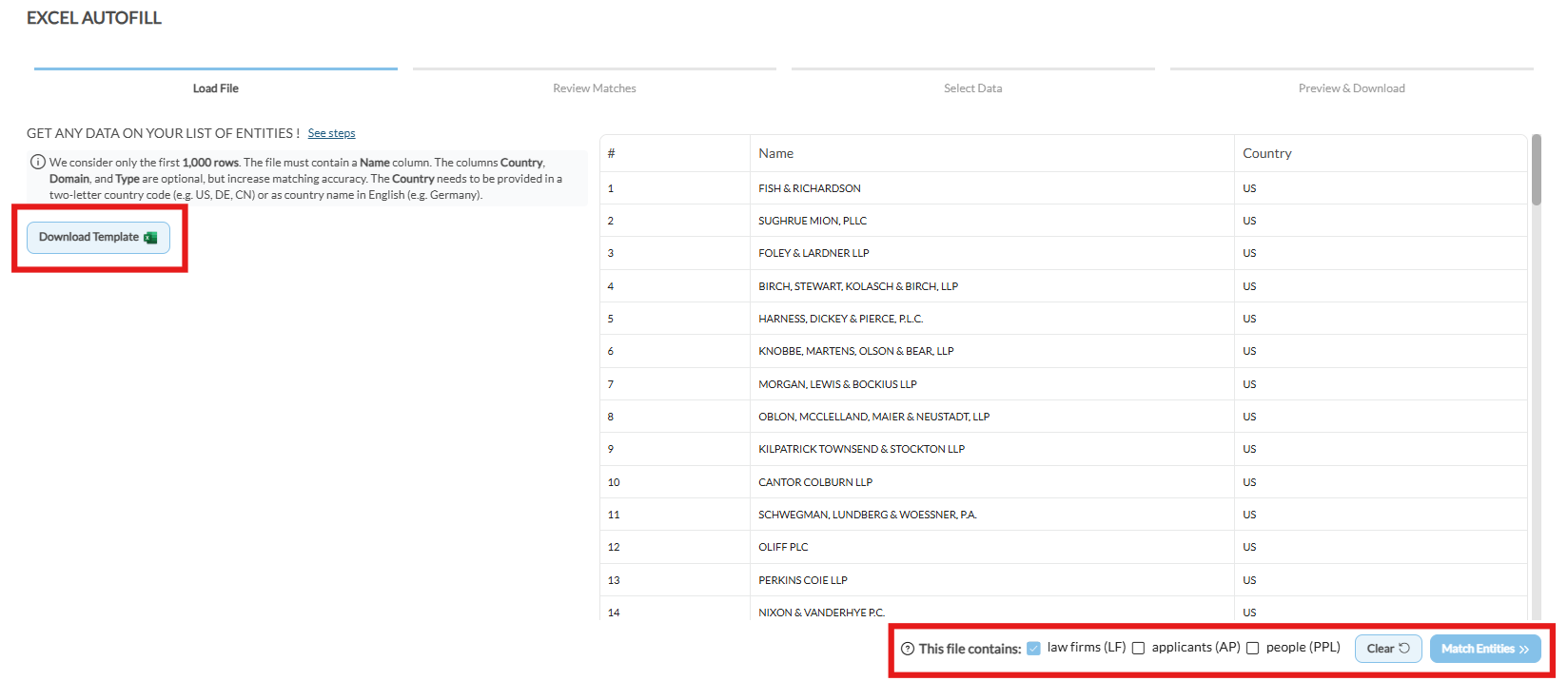
- 2Download and prepare the templateClick Download Template to get the sample XLSX file. The file must have a Name column. The Country, Domain and Type columns are optional, but they make the matching more accurate. Give the country as a two-letter code, such as US, DE or CN, or as the country name in English. If your data is in another Excel file, copy it into the matching columns of the template.
- 3Upload your file and select the entity typeDrop your XLSX file on the upload area, or load it from your device. Under This file contains, select each type in the file: law firms (LF), applicants (AP) or people (PPL). You can select more than one.Note: IP Pilot processes only the first 1,000 rows of the first tab. Check the template instructions before you upload.
- 4Check the file previewA preview of your file shows after the upload. If it is correct, click Match Entities.
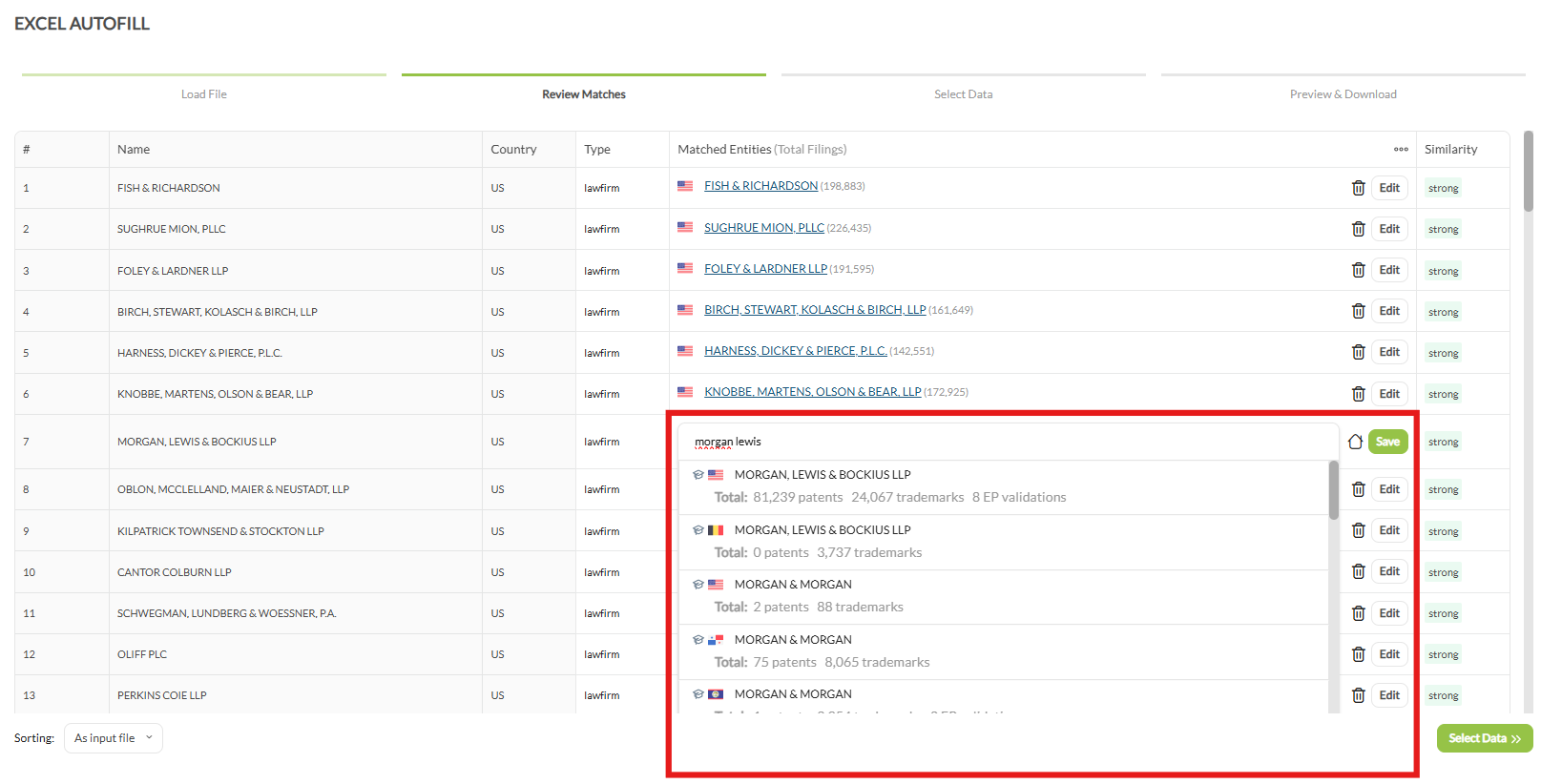
- 5Check and correct the matchesThe Review Matches step lists each entry from your file next to the entity that IP Pilot matched, in the Matched Entities column. The Similarity column shows how close each match is. To correct a match, click Edit, search for the right entity and click Save. To remove a match, click the trash icon.
- 6Resolve suggested editsIf your results contain unmatched or duplicate entities, click Suggested Edits and resolve them before you continue.
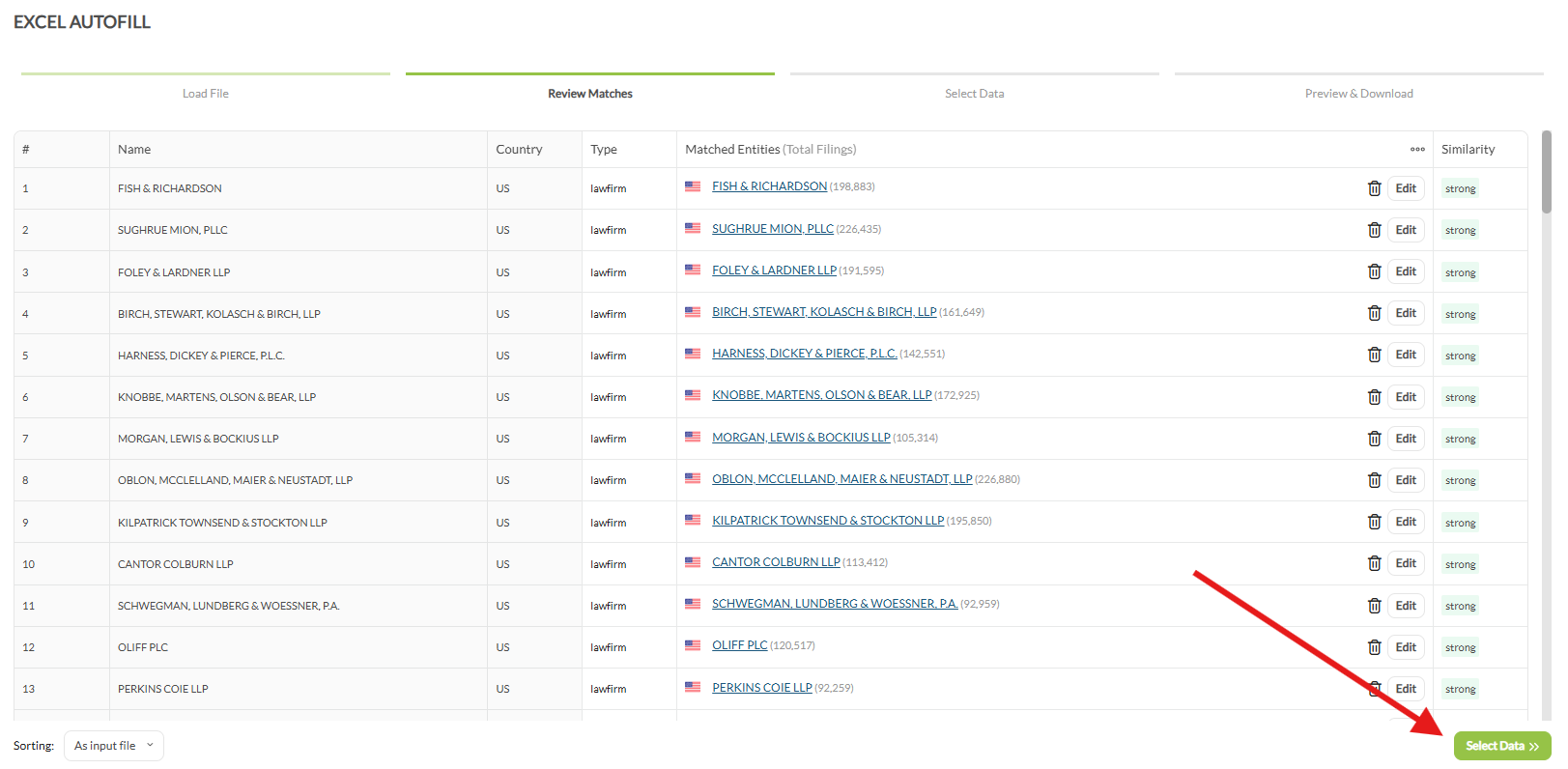
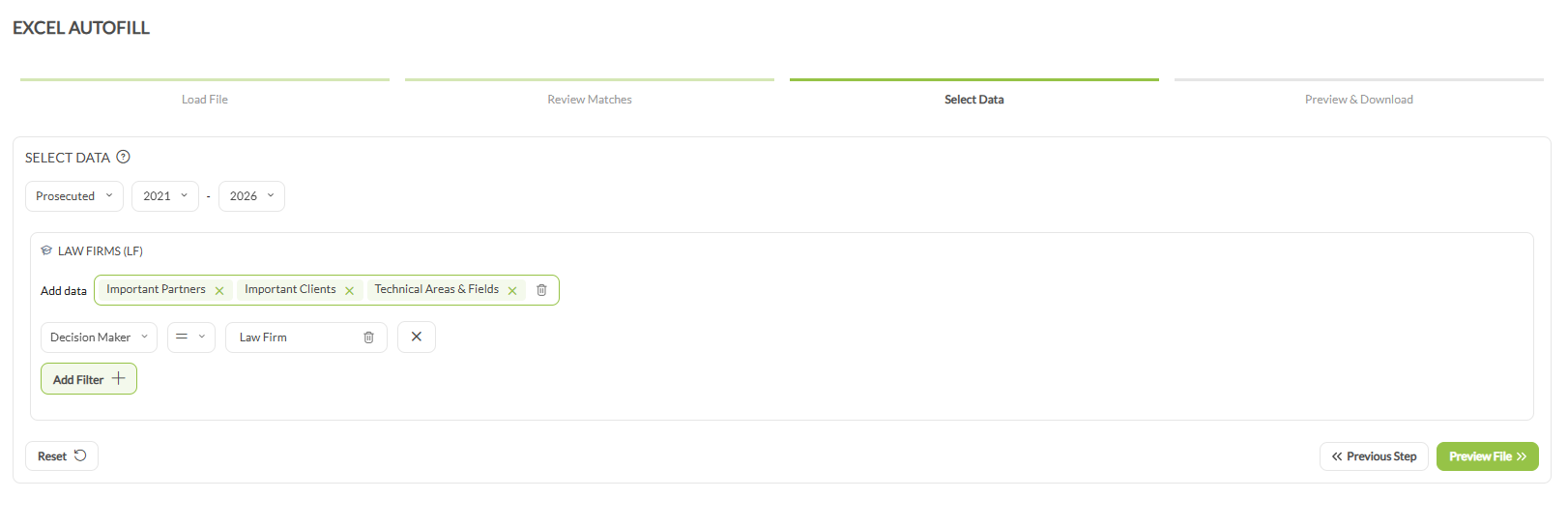
- 7Select the data to exportClick Select Data. Use the Add data field to choose the charts you want. Then set the year type and the year range, and click Add Filter for any filters your analysis needs. When you are ready, click Preview File.
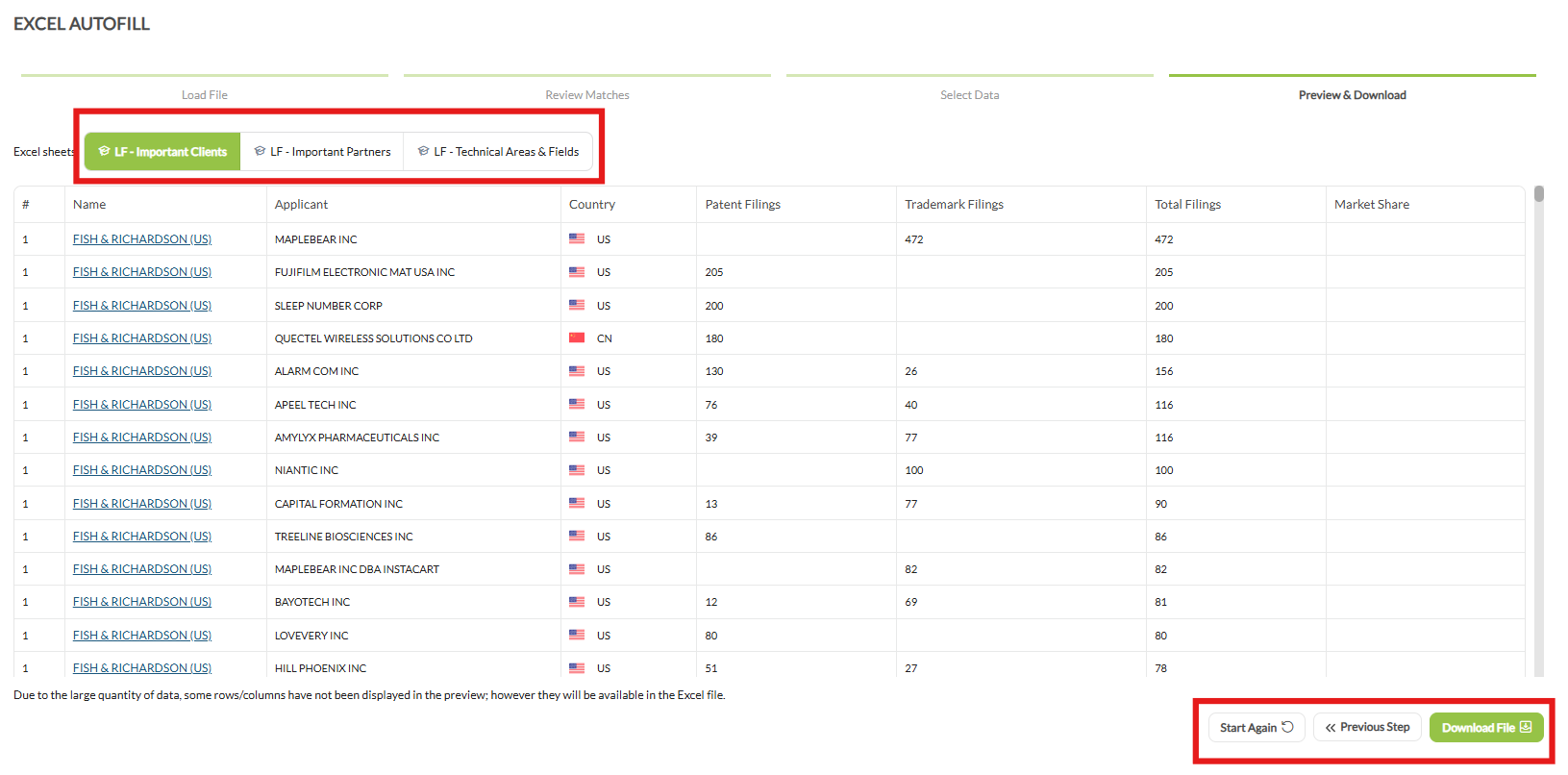
- 8Check the previewThe Preview & Download step shows a preview of the file. Each chart you added has its own sheet, shown as a tab under Excel sheets.Note: For a large file, the preview does not show all rows and columns. The downloaded Excel file contains all of them.
- 9Download or change the fileIf the results are correct, click Download File. To make changes, click Previous Step to go back one step, or Start Again to go back to the beginning.
3. Get an accurate result #
- Use the template. It shows the mandatory fields and the supported data formats.
- Add the optional columns. Country, Domain and Type make the matching more accurate.
- Check your matches. Look at the Similarity column, and use Edit to correct any weak or wrong match before you continue.
- Resolve suggested edits early. If you fix unmatched or duplicate entries before you select the data, the export is cleaner and more accurate.
- Apply filters. Use the year type and the filters in the Select Data step to make the export fit your analysis.
Frequently Asked Questions #
Frequently Asked Questions #
Excel Autofill #
Can I upload an XLSX file with multiple tabs of entities I want to analyze?
Only data included in the first tab of your file will be processed. Make sure all entities you want to analyze are listed there.
Can I upload a mix of Law Firm and Applicant entities in the same XLSX file?
Yes. You can include law firms, applicants and people in one upload. Combining entity types in one file can make the matching less accurate.
The entity that was matched is incorrect. How can I remove or replace it?
To remove a wrong match, click the trash icon next to the matched entity. To replace it, click Edit, search for the right entity and click Save.
I am unable to upload my XLSX file. What should I do?
First, check that the first tab of your file has a Name column. The upload needs it. If you use your own file instead of the template, formatting differences can also cause problems. Paste your data into the matching columns of the template, and upload the template.